Choose where uploaded files are stored
Keep uploaded files on the local disk, or move to S3 compatible storage.
Superusers who decide where file field uploads live.
Claviger does not move existing files when you switch. You must move them yourself.
What you will do, in one sentence
Open Files storage, switch on S3 storage with your bucket details, test the connection, and save.
Screens are captured from a seeded test system. Every name, address and number on the screens is invented. Prepared 15 November 2026.
1. Local disk or S3
Open Settings, then Files storage.
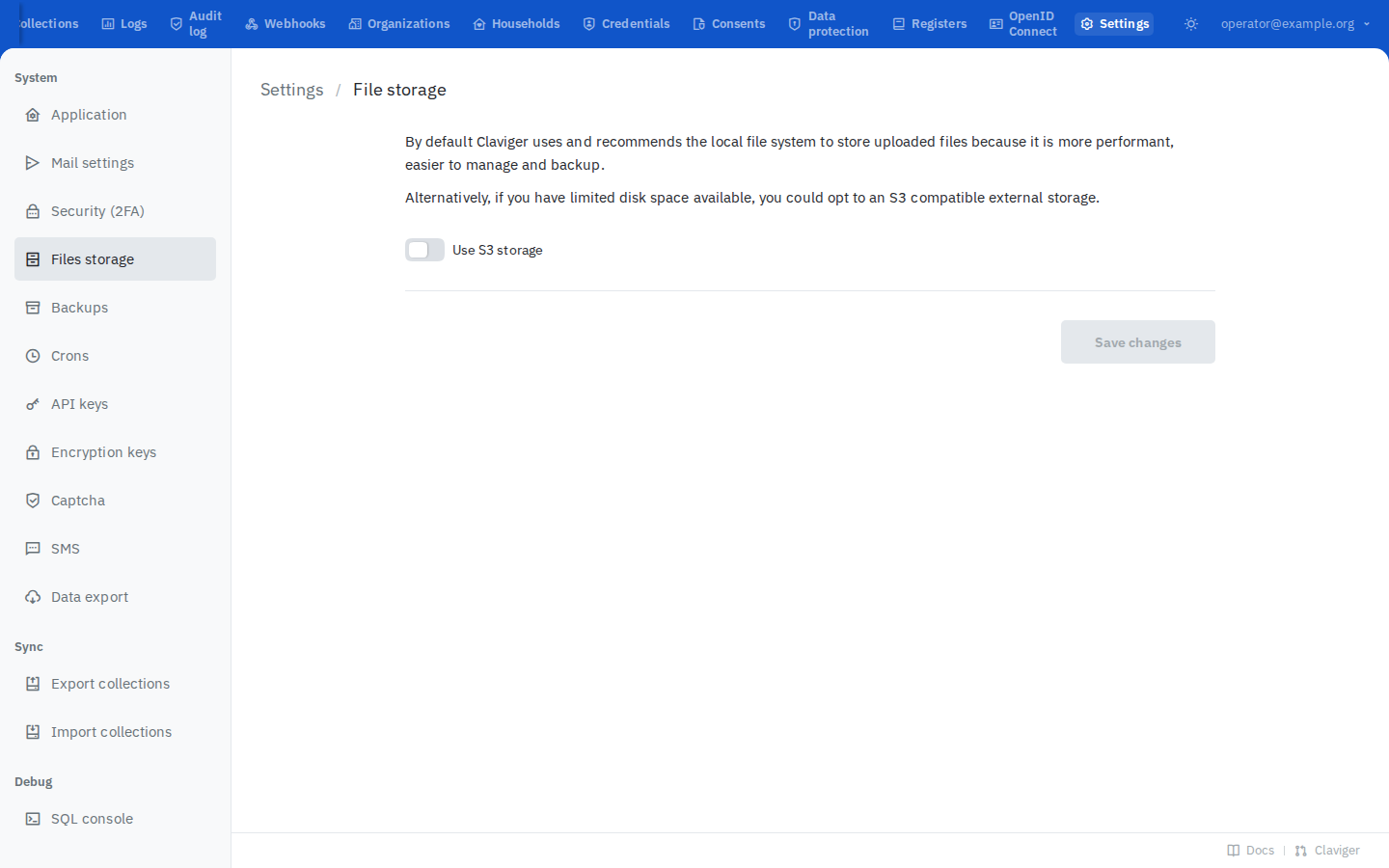
By default Claviger stores uploaded files on the local file system. The page recommends it because it is faster and easier to manage and back up. Choose S3 when you have little disk space.
2. Switch on S3 storage
- Switch on Use S3 storage.
- Fill in Endpoint, Bucket and Region.
- Fill in Access key and Secret. A saved secret is not shown again.
- Switch on Force path-style addressing if your provider needs it.
- Look at the connection label. It reads S3 connected successfully or Failed to establish S3 connection.
- Choose Save changes.
A toast says Successfully saved storage settings.
3. Existing files
When you switch, the page shows a note: you must migrate existing files by hand, from the old store to the new one. It names command line tools such as rclone.
Claviger does not copy them for you. Move them before people need them. Backups hold the local files only. If you use S3 for file fields, back up the bucket separately.
4. Backups can use S3 too
The Backups page has its own S3 switch, Store backups in S3 storage. It is separate from this one.
5. Quick reference card
Use S3
- Use S3 storage.
- Endpoint, bucket, region, access key, secret.
- Wait for S3 connected successfully.
- Save changes.
Go back to local disk
- Switch off Use S3 storage.
- Copy the files back by hand.
- Save changes.
Plan the file copy before you change this page.