Make, schedule, verify and restore backups
Create a backup, schedule automatic backups, check that they restore, encrypt them, and restore one.
Superusers who look after the data of a Claviger install.
A backup you never tested may not restore. A restore replaces all current data. An encrypted backup cannot be read without its key.
What you will do, in one sentence
Turn on auto backups and verification, encrypt them with a key you keep elsewhere, and practise a restore.
Screens are captured from a seeded test system. Every name, address and number on the screens is invented. Prepared 15 November 2026.
1. Create a backup now
Open Settings, then Backups. The page is titled Backup and restore your Claviger data.
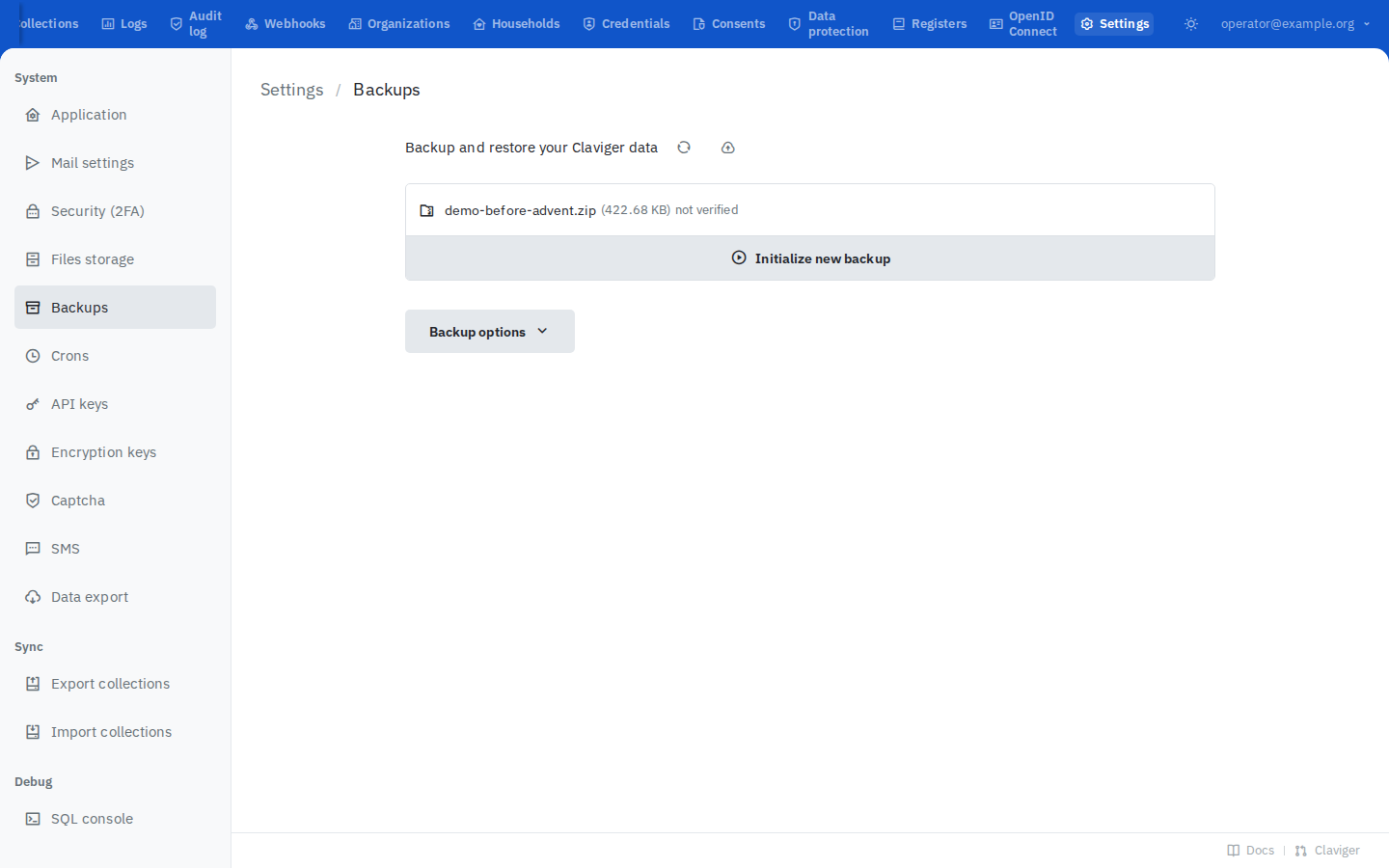
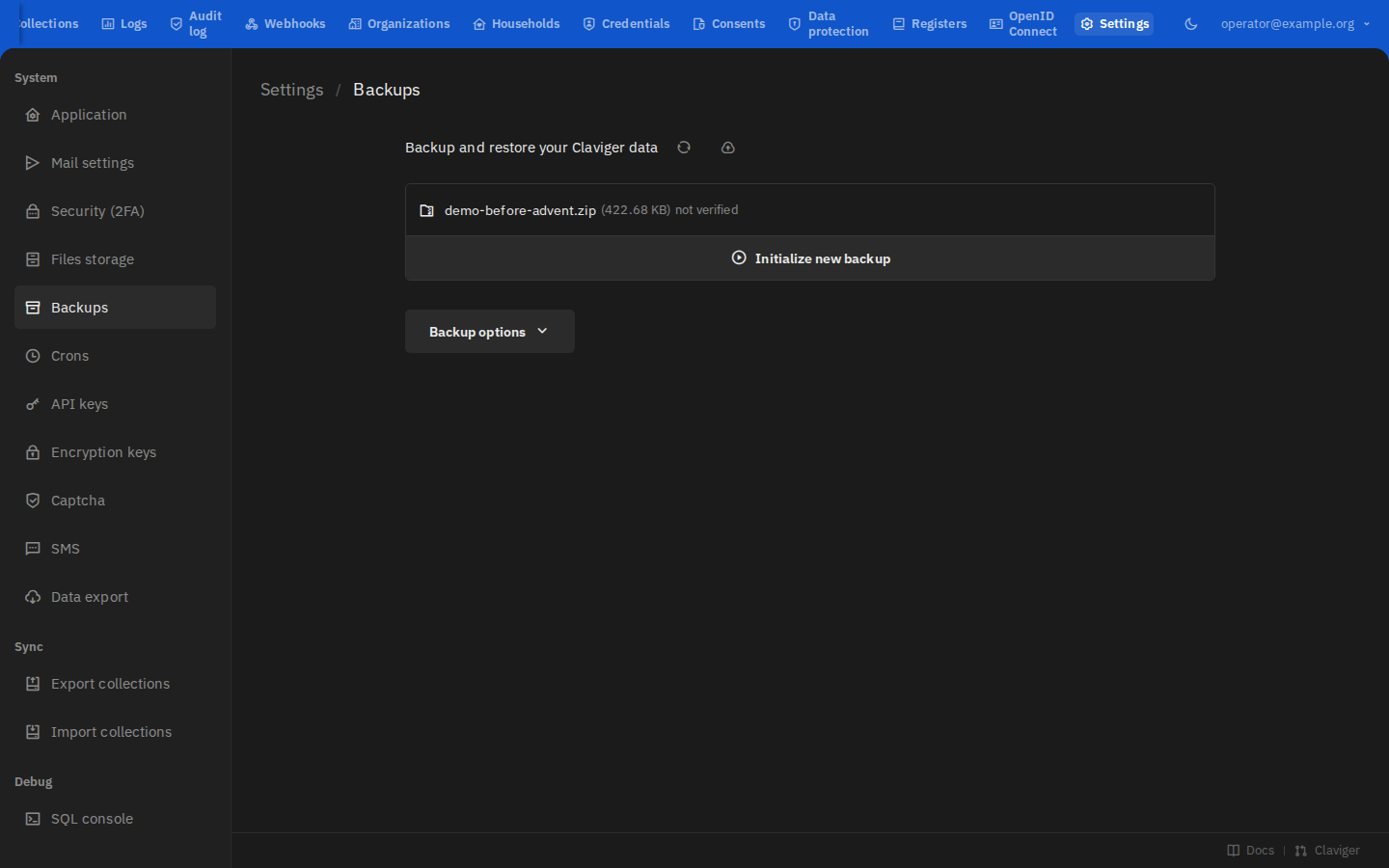
- Choose Initialize new backup.
- Type a Backup name, or leave it empty to generate one. A name has the form
[a-z0-9_-].zip. - Choose Start backup.
The window warns that the server may slow down while it runs. It also warns that S3 uploaded files are not part of the backup. Back those up separately.
If the database is PostgreSQL, a zip backup holds the storage files only, and restore is not available. Back up the database with pg_dump.
2. Schedule automatic backups
Open Backup options and switch on Enable auto backups.
| Field | Meaning |
|---|---|
| Cron expression | When to run. The Presets menu offers every day at 00:00h, every Sunday, every Monday and Wednesday, and the first day of the month. The time zone is UTC. |
| Max @auto backups to keep | Older automatic backups are removed. |
| Verify auto backups after creation | Restores each new automatic backup into a temporary folder and runs integrity checks. |
Each backup in the list shows a result: verified, skipped, failed or not verified. Use the Verify restore button on a row to check it by hand.
Switch on Store backups in S3 storage to upload backups. It has its own bucket fields. Choose Save changes when you finish.
3. Encrypt backups
Switch on Encrypt new backups. New backups are saved as .zip.enc, encrypted with your key-encryption key (CLAVIGER_KEK). Saving checks that the key works. Plain backups you made earlier still restore.
If you lose the key-encryption key, every encrypted backup is lost, and nobody can recover it. Store a copy away from the server and away from the backup storage. A download stays encrypted. Decrypt it with the backups decrypt command.
4. Restore a backup
Choose the Restore button on a row.
- Read the warning. It says to use only trusted backups and that restore works only on UNIX based systems.
- Type the backup name to confirm.
- Choose Restore backup.
The restore replaces pb_data: records, settings, users and superusers. It restarts the app and applies missing migrations. If the backup is invalid, the restore is reverted. Restore a copy on a test server first when you can.
You can also upload a backup file with the Upload backup button. Claviger does not validate the file. On a fresh install the setup page has the same option.
5. Quick reference card
Safe routine
- Enable auto backups with a cron expression.
- Verify auto backups after creation.
- Encrypt new backups, and store the key elsewhere.
- Test a restore on a spare server each quarter.
Restore
- Restore on the row.
- Type the backup name.
- Restore backup.
A backup is only as good as its last verified restore.