Protect sign-in with a captcha
Pick a captcha provider and choose which sign-in and sign-up actions need it.
Superusers who defend sign-in pages against automated abuse.
A captcha adds a step for every person. If the provider is down and you fail closed, nobody can sign in.
What you will do, in one sentence
Pick a provider, enter its keys, switch on the actions to protect, and save.
Screens are captured from a seeded test system. Every name, address and number on the screens is invented. Prepared 15 November 2026.
1. What it protects
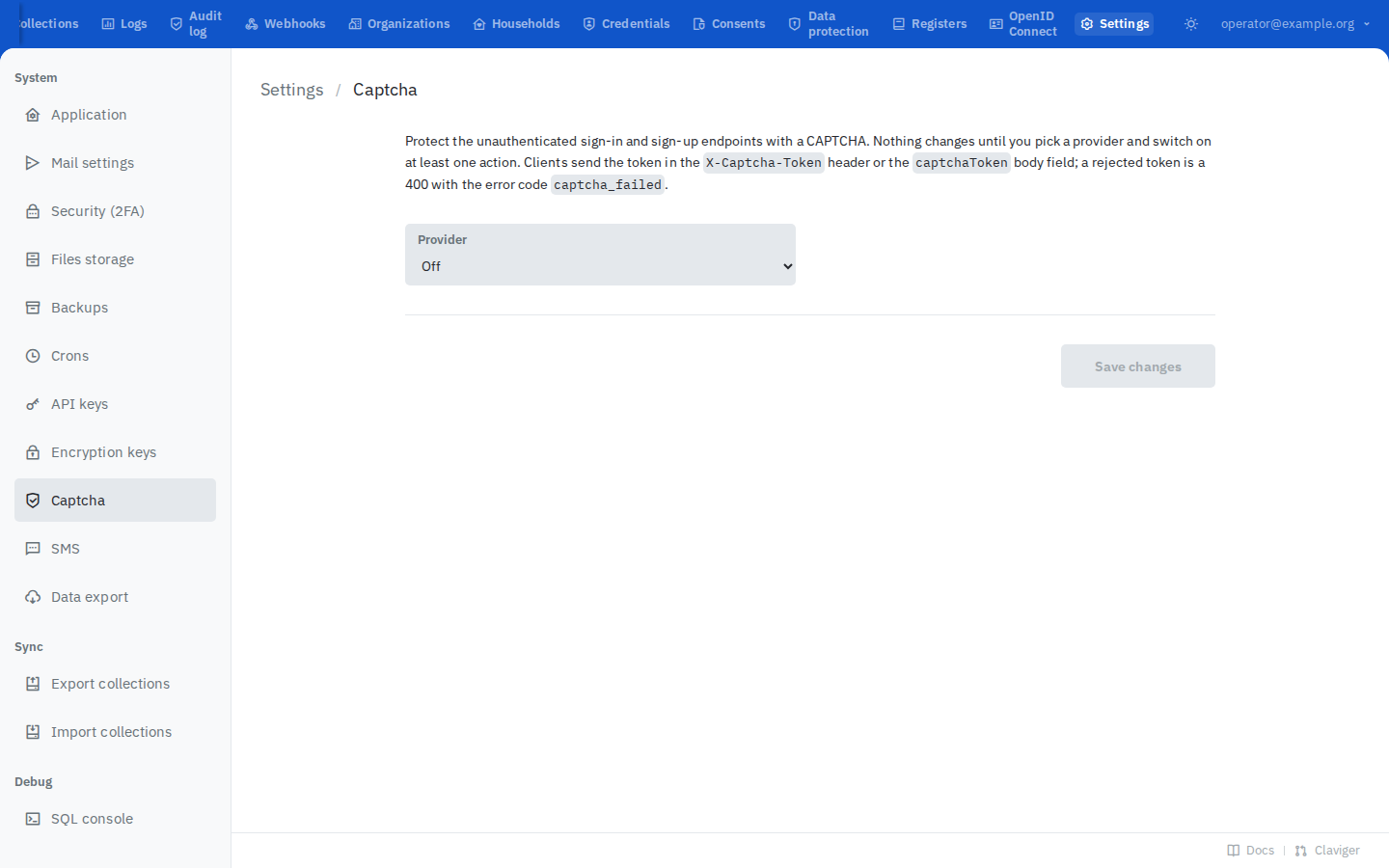
Open Settings, then Captcha. It protects the sign-in and sign-up endpoints that need no account. Nothing changes until you pick a provider and switch on at least one action.
2. Choose a provider
Open the Provider menu.
| Choice | Notes |
|---|---|
| Off | No captcha. |
| Cloudflare Turnstile | Needs a site key and a secret key. |
| hCaptcha | Needs a site key and a secret key. |
| Google reCAPTCHA v2 (checkbox / invisible) | Needs a site key and a secret key. |
| Google reCAPTCHA v3 (score) | Adds Minimum score (0.0 - 1.0, default 0.5). |
Enter the Site key (public) and the Secret key from your provider's console. A saved secret is not shown again. Leave it empty to keep it.
Allowed hostnames (optional, comma separated) makes the provider confirm the challenge was solved on one of your hostnames, for example auth.example.org. Leave it empty to skip the check.
3. Choose the actions
Under Require a captcha for, switch on each action to protect.
| Action |
|---|
| Sign-up (creating an auth record) |
| Password sign-in (including the superuser login) |
| One-time password request |
| Password-reset and passkey-reset request |
| Verification request |
| Passkey sign-in (login-begin) |
Clients send the token in the X-Captcha-Token header, or in a captchaToken field. A refused token returns the code captcha_failed.
Fail closed: refuse requests when the captcha provider is unreachable is off by default. A provider outage then lets requests through, and rate limits still apply. Switch it on only if blocking sign-in is better than letting bots through.
You are using the admin screen to change this. Keep one signed-in session open. Then test the sign-in page in a private window.
4. Quick reference card
Turn it on
- Settings, Captcha.
- Pick the Provider.
- Enter Site key (public) and Secret key.
- Switch on the actions.
- Save changes.
Turn it off
- Set Provider to Off.
- Save changes.
Fail closed is off by default, so an outage does not lock people out.