Application settings
Set the application name and URL, and the audit, proxy, rate limit and superuser IP options.
Superusers who run a Claviger install.
The Application URL feeds the links in emails and the OpenID Connect issuer. A wrong IP list can lock every superuser out.
What you will do, in one sentence
Open Settings, then Application, change the sections you need, and choose Save changes.
Screens are captured from a seeded test system. Every name, address and number on the screens is invented. Prepared 15 November 2026.
1. The top fields
Open Settings. The first page is Application.
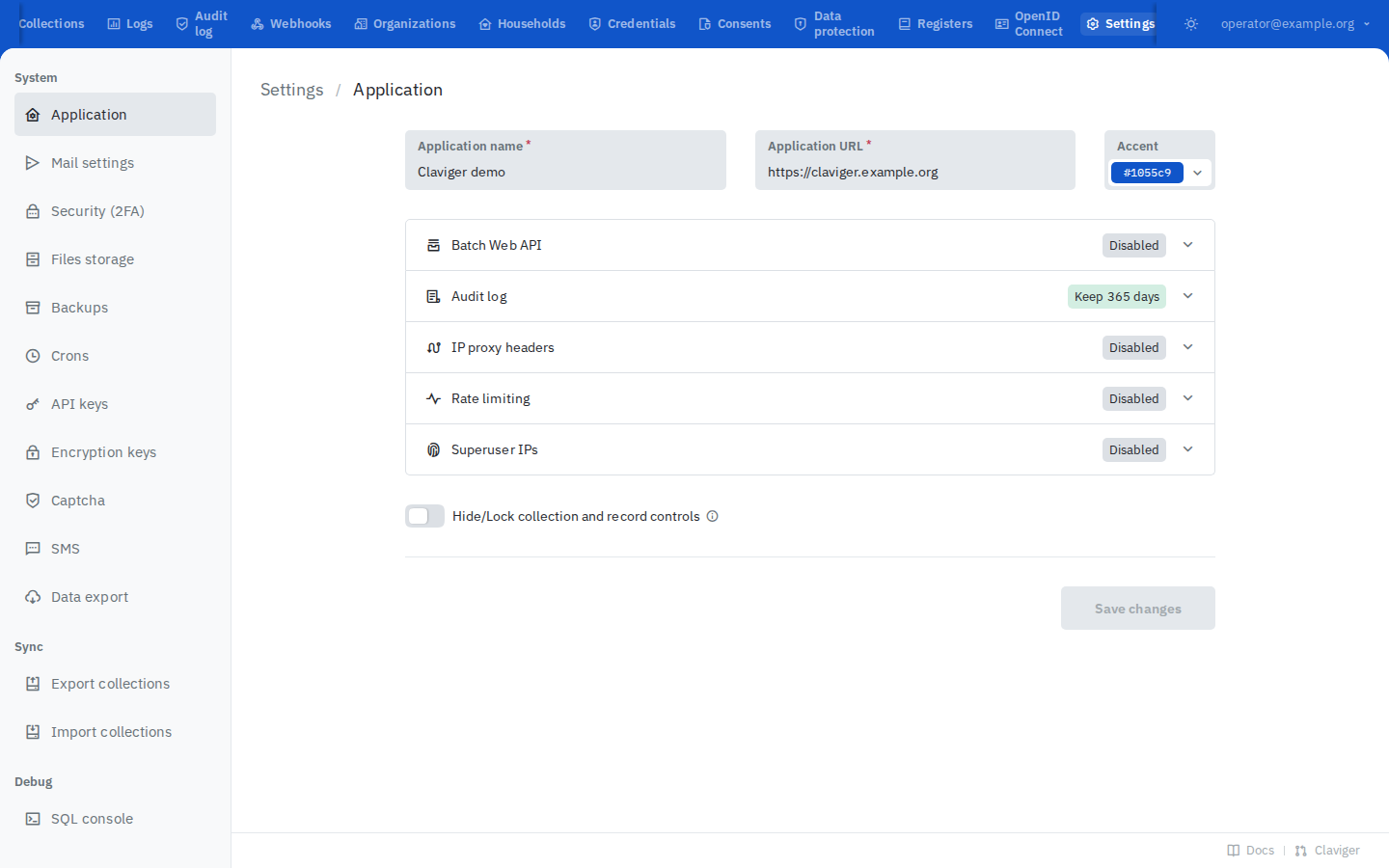
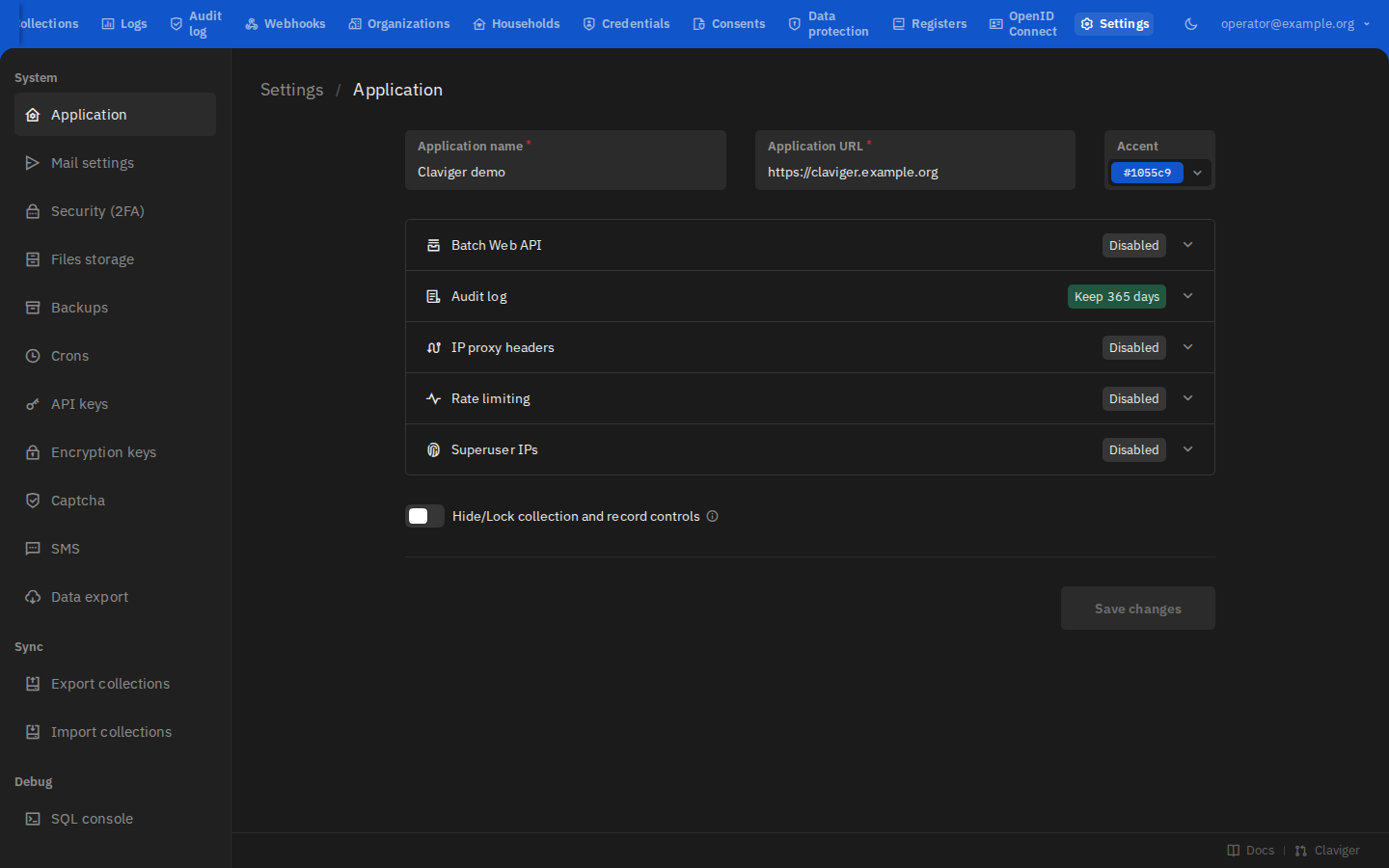
| Field | Meaning |
|---|---|
| Application name | The name your install shows. |
| Application URL | The public address of the server. Use the https:// address people really use. |
| Accent colour | The colour of the admin screen. |
| Hide/Lock collection and record controls | Hides the buttons that create and update collections. Records then need an extra unlock before you save. Use it on a live system to prevent slips. |
If you use OpenID Connect, the issuer is the Application URL followed by /oidc. Set the URL before you register clients.
2. The sections
The page has five sections. Open one to see its fields.
| Section | What it does |
|---|---|
| Batch Web API | Switch Enable, and limit Max requests in a batch, Max processing time (in seconds) and Max body size (in bytes). |
| Audit log | Retention (in days) removes older entries each day. Empty or 0 keeps them for ever. Audit reads of collections lists the collections whose reads are logged. |
| IP proxy headers | Trusted IP proxy headers and IP priority. Set them when a proxy sits in front of Claviger, so the log and the rate limit see the real address. |
| Rate limiting | Switch Enable, then use Add rate limit rule. Each rule has a tag or path, Max requests and Interval. Under More options, Excluded IPs and subnets skips the limiter. |
| Superuser IPs | Superuser IPs and subnets. A comma separated list. |
The audit retention setting is overridden by the CLAVIGER_AUDIT_RETENTION_DAYS environment variable when it is set. Superusers are never rate limited.
3. Superuser IPs and proxy headers
The Superuser IPs list is a strong guard. A stolen superuser token then works only from the listed addresses. The field help shows your own address, marked (you), so you can add it.
When you save a changed list, Claviger shows the new list and warns that it becomes the only allowed set. If your address is not in it, you cannot sign in. Someone with shell access resets it with superuser ips, and clears it by running the command with no addresses.
For proxy headers, the page shows Resolved user IP and Detected proxy header. Check that the resolved address is yours. Trust only headers that the proxy sets and users cannot. Make sure Claviger is reachable only through the proxy. Clear the field when there is no proxy.
4. Save
Choose Save changes. Cancel drops your edits. A toast says Successfully saved application settings.
If you changed Superuser IPs, Claviger refreshes your sign-in at once. If it fails, you are signed out.
5. Quick reference card
Before you go live
- Set Application URL to the public
https://address. - Set Trusted IP proxy headers if a proxy is in front.
- Turn on Hide/Lock collection and record controls.
Limit superuser access
- Open Superuser IPs.
- Add your own address first.
- Save, then test a new sign-in.
The audit log guide covers Audit reads of collections.