Turn on the authenticator app and backup codes
Enrol your superuser account in an authenticator app, save backup codes, and recover when you lose both.
Superusers. This page protects your own superuser account.
A password alone lets anyone who steals it into the admin screen. A second factor stops that. The backup codes are shown once.
What you will do, in one sentence
Open Security (2FA), enter your password, add the key to your app, confirm the first code, and save the backup codes.
Screens are captured from a seeded test system. Every name, address and number on the screens is invented. Prepared 15 November 2026.
1. Enrol your account
Open Settings, then Security (2FA). The page is titled Two-factor authentication (authenticator app). Enrolling is optional and affects only your own account.
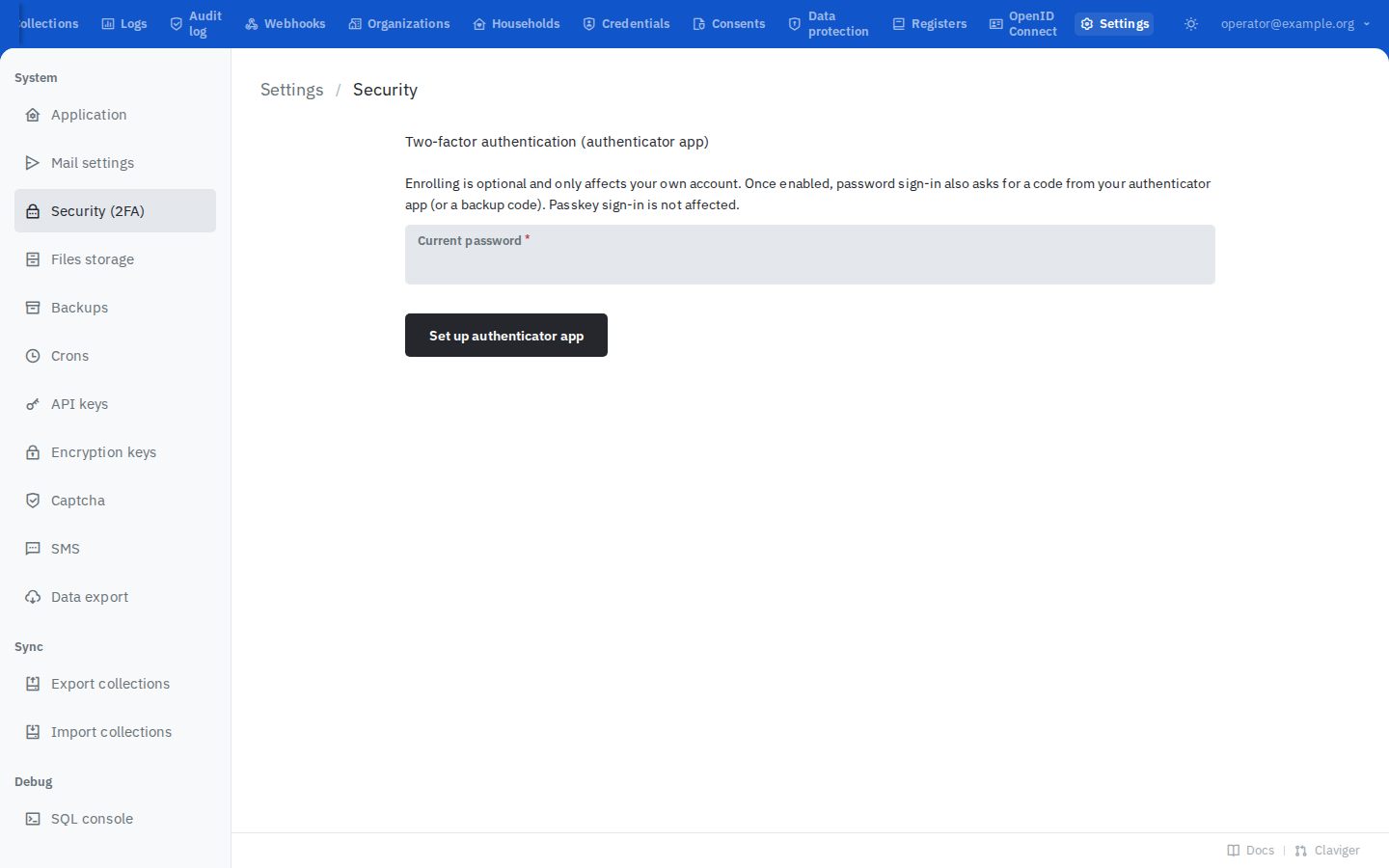
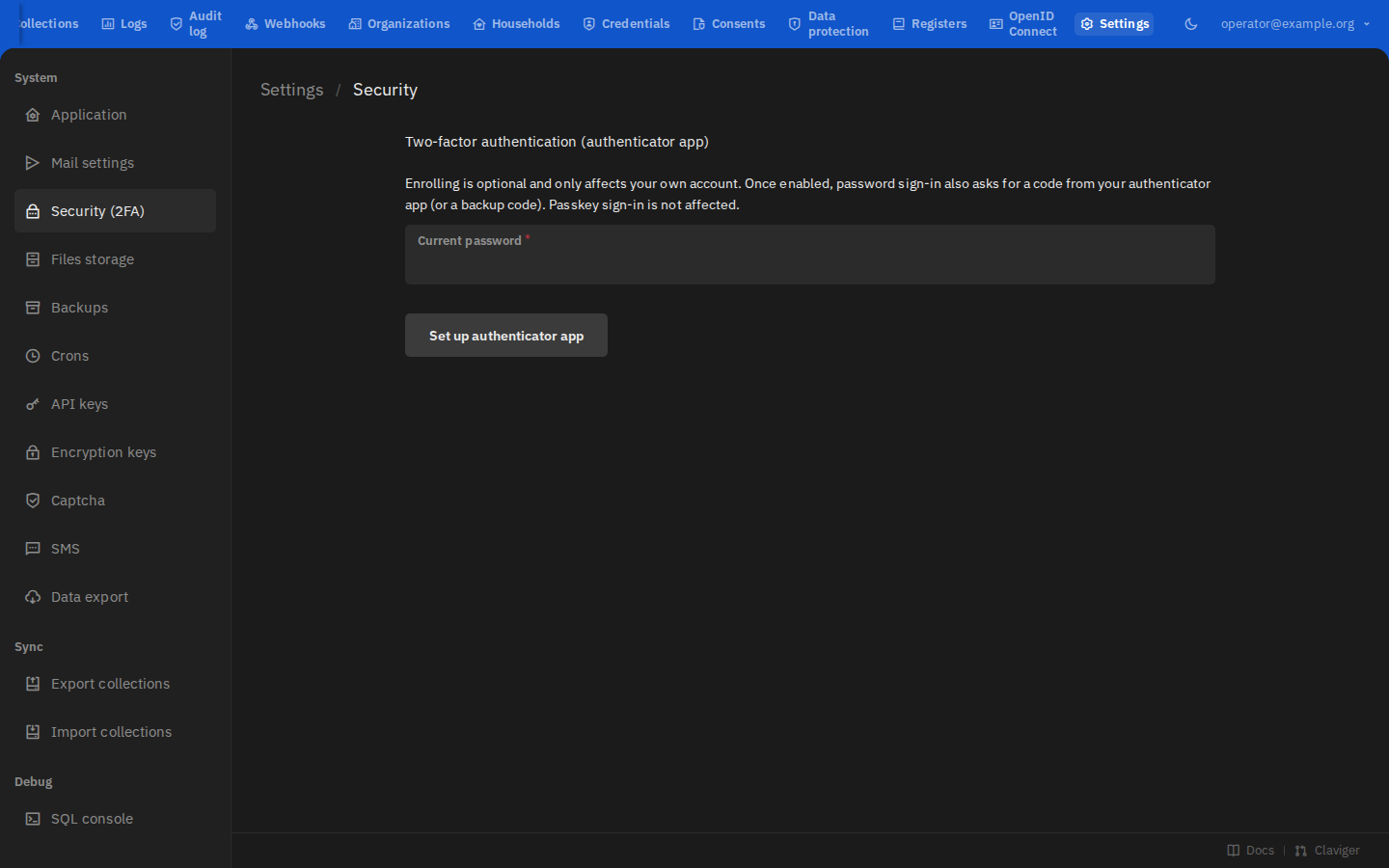
- Type your Current password.
- Choose Set up authenticator app.
- The page shows a Setup key and an otpauth URI. It draws no QR code.
- In your authenticator app, choose to enter a setup key, and paste the Setup key. Or open the URI on your phone.
- Type the First 6 digit code the app shows.
- Choose Confirm and enable.
A toast says Authenticator app enabled. Cancel abandons a half-finished set-up.
2. Save the backup codes
After you confirm, the page shows ten backup codes in a yellow box.
Choose Copy and store them in a password manager or print them. Choose I saved them only after you have done that. Each code works one time. If you lose the app and the codes, you cannot sign in.
From now on, password sign-in asks for Authenticator or backup code after the password. Passkey sign-in is not affected.
3. Regenerate or disable
When enrolled, the page says Authenticator app is enabled and shows the number of unused backup codes.
| Action | What to type | Result |
|---|---|---|
| Regenerate (under Regenerate backup codes) | An authenticator code. A backup code is not accepted here. | New codes. The old ones stop working. |
| Disable authenticator app (under Disable) | An authenticator code or a backup code. | Removes the enrolment. |
Sign-in codes are limited to a few tries in a short time. Wait a few minutes after repeated mistakes.
4. Recover when you are locked out
Someone with shell access to the server can remove the enrolment. They run the command superuser totp-disable with your email address, for example [email protected]. You then sign in with the password alone and enrol again.
For accounts in other auth collections, the enrolment is API only. The admin screen has no page for it. A signed-in account calls these routes on its own collection:
GET  /api/collections/users/totp
POST /api/collections/users/totp/begin
POST /api/collections/users/totp/confirm
POST /api/collections/users/totp/disable
POST /api/collections/users/totp/backup-codes
curl -X POST https://auth.example.org/api/collections/users/totp/begin \
  -H "Authorization: $TOKEN" -H "Content-Type: application/json" \
  -d '{"password": "current-password"}'
5. Quick reference card
Enrol
- Security (2FA), Current password.
- Set up authenticator app.
- Paste the setup key. Type the first code.
- Confirm and enable. Save the backup codes.
Lost the app
- Sign in with a backup code.
- Or ask the server operator to run
superuser totp-disable.
Backup codes are shown once. Store them away from the server.