Create organizations and build the tree
Create an organization, give it a parent and a kind, and archive or delete it.
Superusers who run a Claviger install. You need to sign in to the admin screen at /_/ and open Organizations.
Organizations decide who may see which records. A wrong parent, a missing owner or a deleted organization is hard to put right, so set them up on purpose.
What you will do, in one sentence
Open Organizations, press New organization, fill in the name, owner, parent and kind, then use Move, Archive and Delete as the congregation changes.
Screens are captured from a seeded test system. Every name, address and number on the screens is invented. Prepared 15 November 2026.
1. What an organization is
An organization is one group in your install, such as a parish, a ministry or a diocese. Each has its own members, roles and tags. With no organization created, nothing changes for your users.
Claviger keeps four roles, from highest to lowest: owner, admin, member and viewer. A member is active or suspended.
Only superusers create organizations by default. An install can let any signed-in user create one. That person becomes the owner. Only a superuser sets a parent or names another owner.
2. Create an organization
- Open Organizations in the admin menu.
- Press New organization.
- Fill in the form, then press Create.
| Field | What to enter |
|---|---|
| Name | The name people see. Required. |
| Slug | Lowercase letters, digits and dashes, 2 to 64 characters. Claviger derives it from the name when you leave it empty. |
| Owner (email or user id) | Optional. The account that owns the organization. |
| Parent organization | Optional. Pick a parent to place the new organization in a tree. |
| Kind | Optional free label, such as region, congregation or ministry. |
Without an owner, only superusers can manage the organization. Give each organization at least one owner now. Claviger never lets the last active owner be removed, demoted or suspended.
The Kind label is yours to choose. Claviger never reads it and no rule depends on it. The form suggests labels already in use, so spelling stays the same.
3. Build the tree
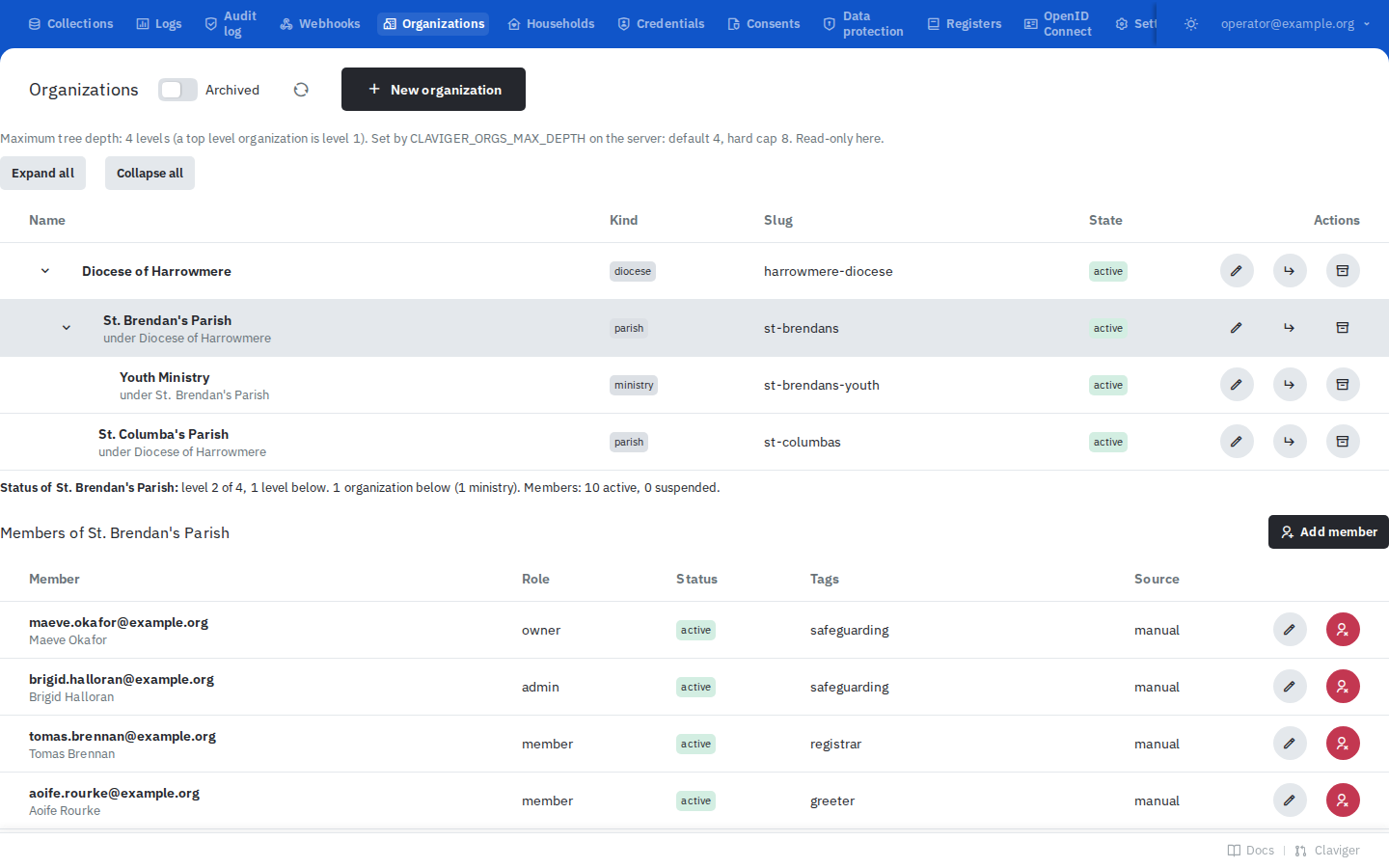
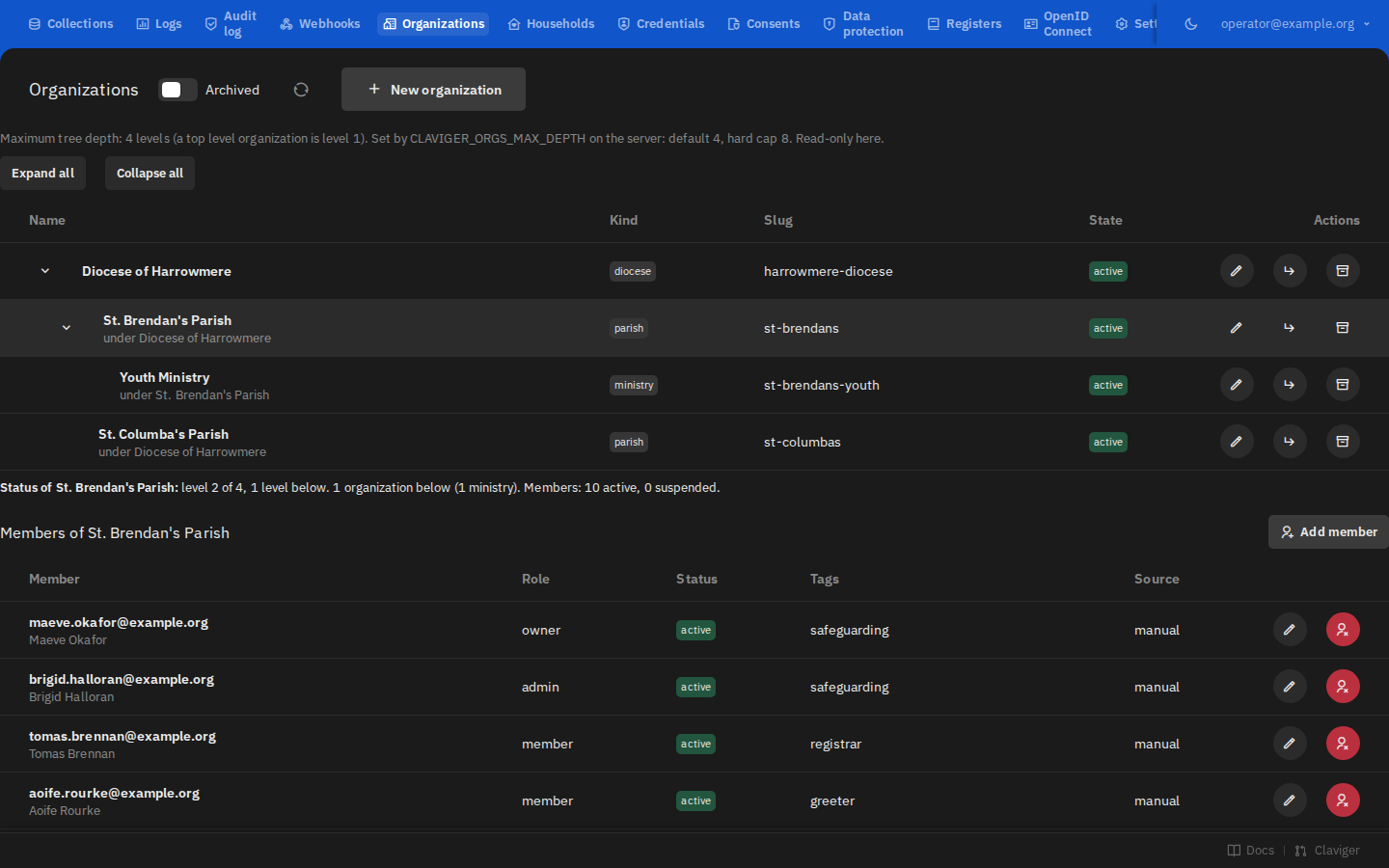
The list shows organizations as a tree. Parents and children are indented. Each row shows Name, Kind, Slug and State. A child shows "under" and its parent's name.
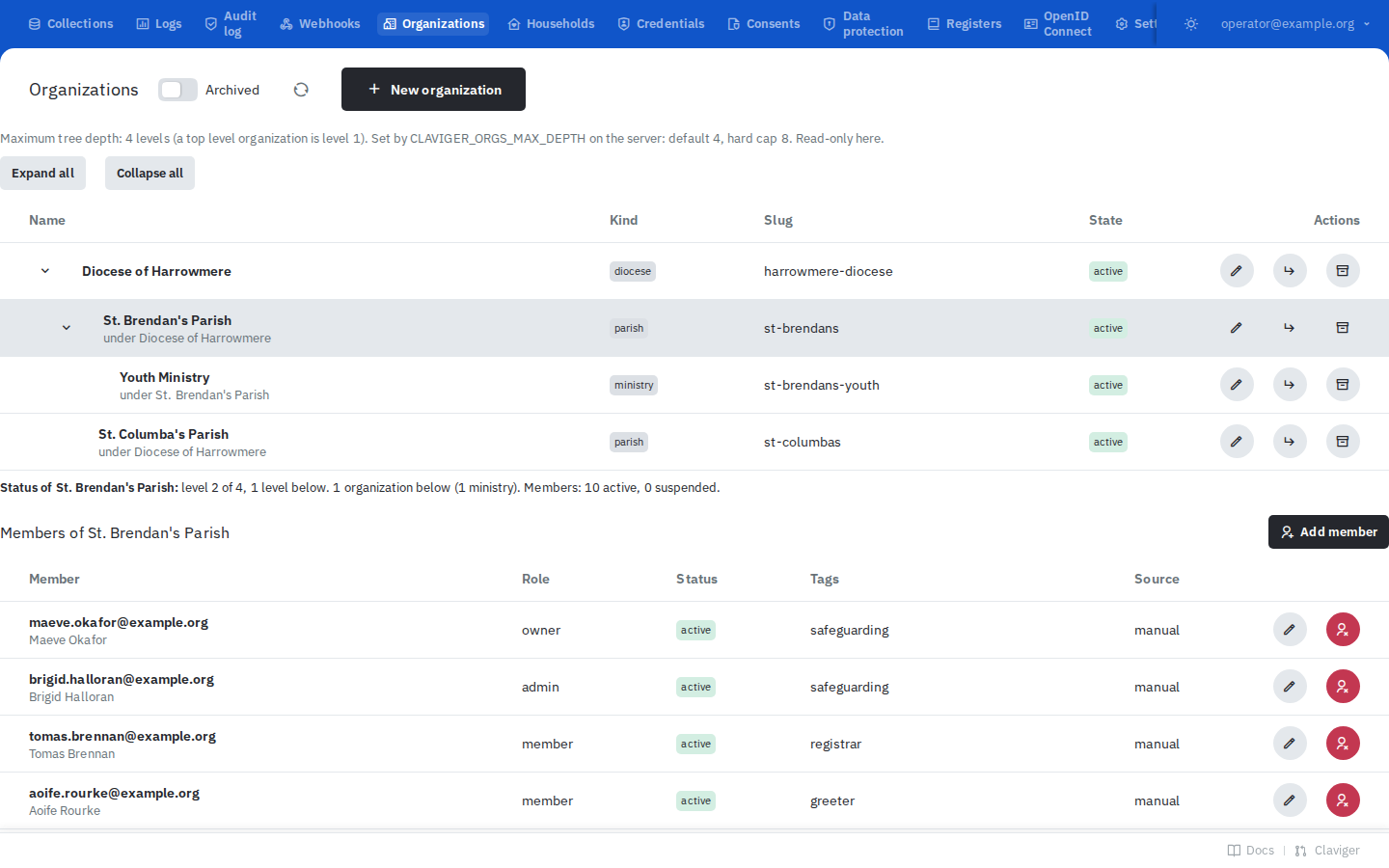
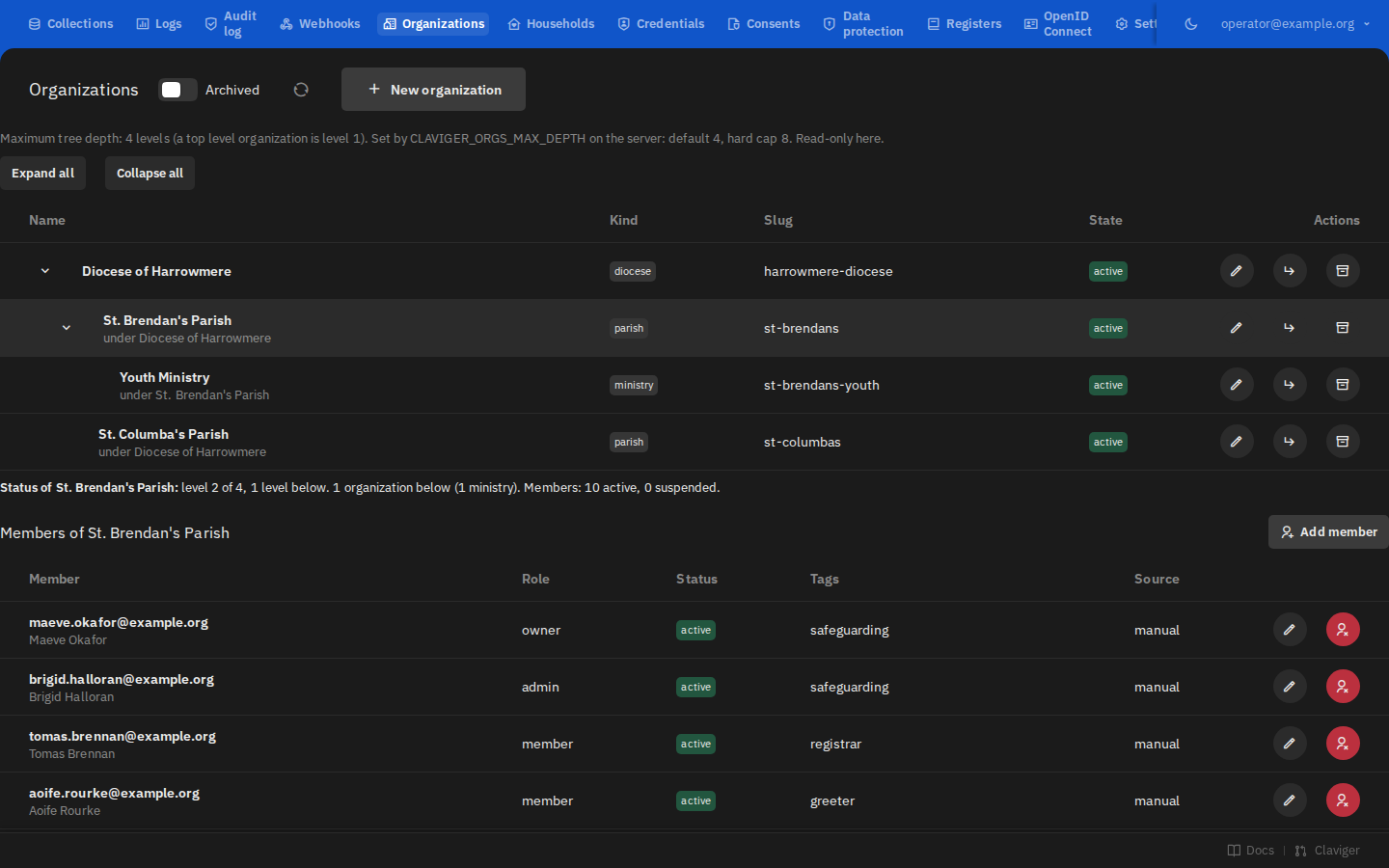
- Use Expand all and Collapse all to open or close every branch.
- The line above the table shows the maximum tree depth. A top level organization is level 1. The default is 4 levels and the hard cap is 8. The server sets it with
CLAVIGER_ORGS_MAX_DEPTH. You cannot change it here. - Press Move (the arrow icon in a row) to give an organization a new parent. Its whole subtree moves with it.
- A move that would create a cycle, or a tree deeper than the limit, is refused. The dialog shows the server's message and nothing changes.
- Press Edit to change the name, slug or kind.
- Select a row to see its status under the table: level, levels below, organizations below by kind, and active and suspended members. These are counts only.
Being admin of a diocese does not make you a member of its parishes. A parish member never sees the diocese's records. A collection grants oversight to ancestors only when you write that rule yourself.
If the tree looks wrong after a restore or a manual database edit, stop and ask your developer to run claviger orgs closure-repair --dry-run. The command reports what it would fix.
4. Archive, restore and delete
- Press Archive in the row. Confirm. Members lose access through the API rules until you restore the organization.
- Turn on the Archived switch at the top to list archived organizations.
- Press Restore to bring one back.
- Press Delete permanently only on an archived organization. Type its slug to confirm, then press Delete.
Delete removes the organization, its memberships and its tags. Claviger refuses while child organizations or records still belong to it. It also refuses while safeguarding credentials belong to it, or while a permanent register holds final entries. Remove those records on purpose, under your retention policy, before you delete.
5. Quick reference card
Create an organization
- Organizations, then New organization.
- Enter Name, Owner and, if needed, Parent organization and Kind.
- Press Create.
Move or retire one
- Move gives it a new parent, with its subtree.
- Archive hides it. Restore brings it back.
- Delete permanently needs the slug typed, and only works on an archived organization.
Archive first. Delete only when nothing belongs to the organization any more.