Create and test retention policies
Write a retention policy, preview what it would do, and turn it on in safe steps.
Superusers who work with a lawyer to decide how long each kind of record is kept. You need a passkey on your superuser account.
A live policy deletes, anonymizes or archives rows every day. Claviger ships no policy. How long to keep each kind of record is a decision for your lawyer.
What you will do, in one sentence
Open Retention policies, press New policy, preview it, enable it as a dry run, and only then turn the dry run off.
Screens are captured from a seeded test system. Every name, address and number on the screens is invented. Prepared 15 November 2026.
1. Ask your lawyer first
Claviger ships no policy, enabled or not. Ask a lawyer how long to keep check-in logs, consent evidence, youth records and other data in your country. Write each policy from that advice. Consent evidence has its own limitation period.
A policy names a collection, a date, a period and an action. A daily job at 02:27 server time applies every enabled policy.
2. Create a policy
- Open Data protection, then Retention policies.
- Press New policy.
- Fill in the form, then press Create.
| Field | What to enter |
|---|---|
| Name | A label for you. |
| Collection | The collection the policy applies to. |
| Counts from (created, updated, ageOut or a date field) | The date the period counts from. ageOut counts from the day a person turns adult. |
| After and Unit | The period: a number, and days, months or years. |
| Action on a row past the period | delete, anonymize or archive. |
| Filter (optional, narrows the rows) | A filter on the collection's own fields, such as kind = "prayer". |
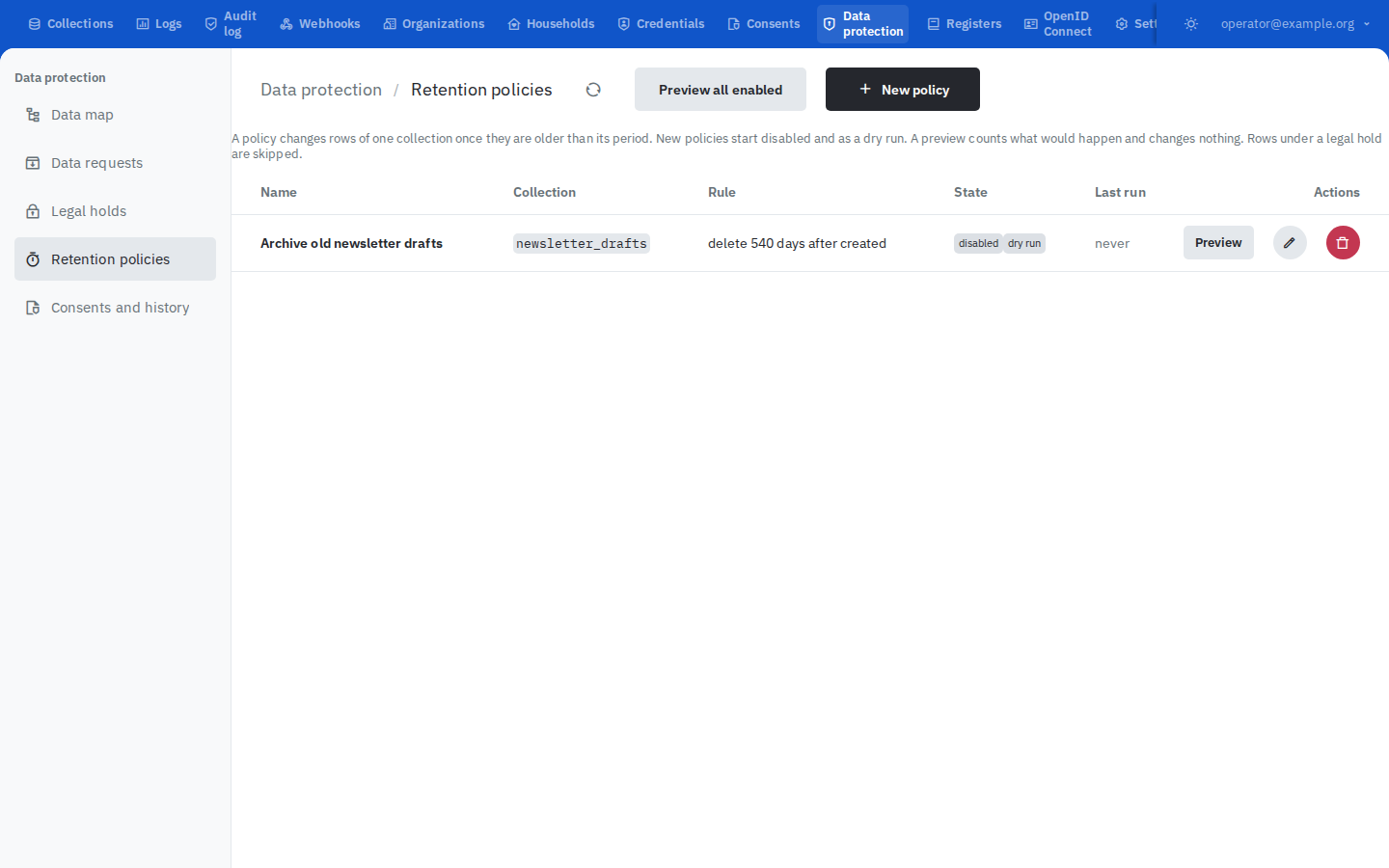
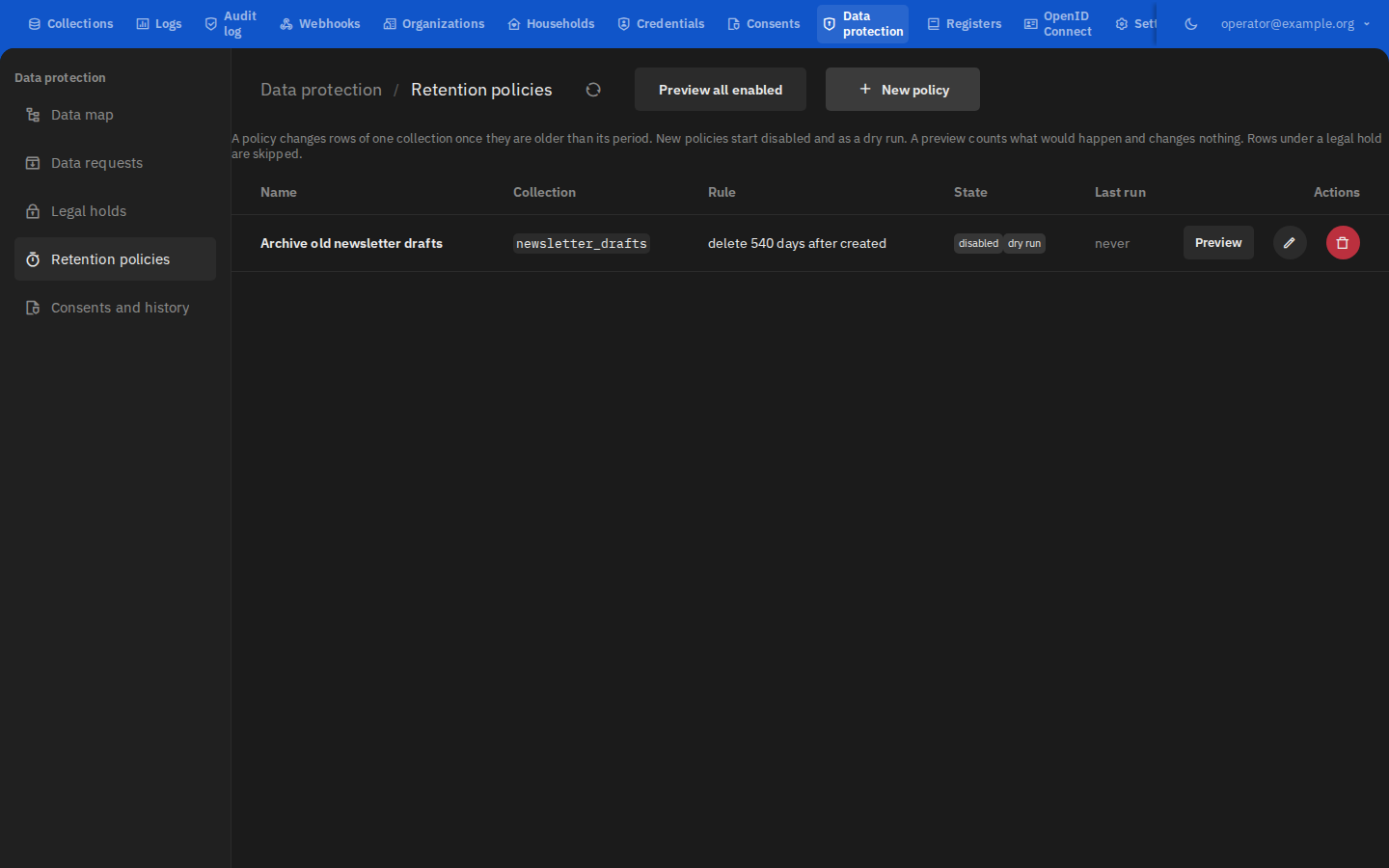
A new policy is always created disabled and as a dry run. The notice says so.
An anonymize policy needs a data map entry with personal fields. See the data map guide. A delete can be refused by a guard, such as a legal hold. That row counts as failed.
3. Preview, then enable, then go live
- Press Preview in the policy's row. The Preview (nothing was changed) table shows the counts. Preview all enabled previews every enabled policy.
- Press Edit. Tick Enabled: the daily job counts this policy. It is still a dry run.
- When the counts look right, press Edit again and untick Dry run: count only, change nothing. Claviger asks for your passkey. The policy is now live.
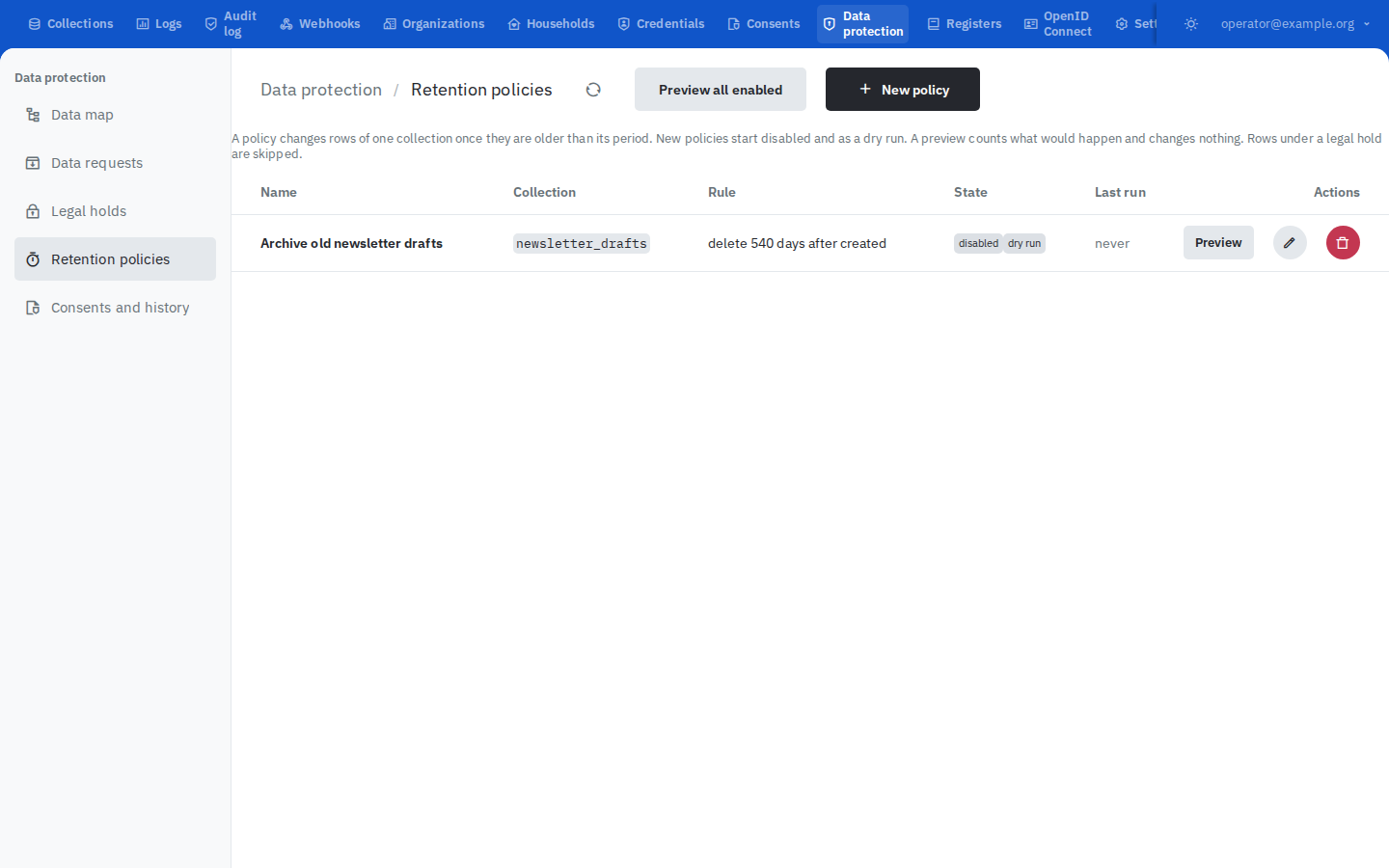
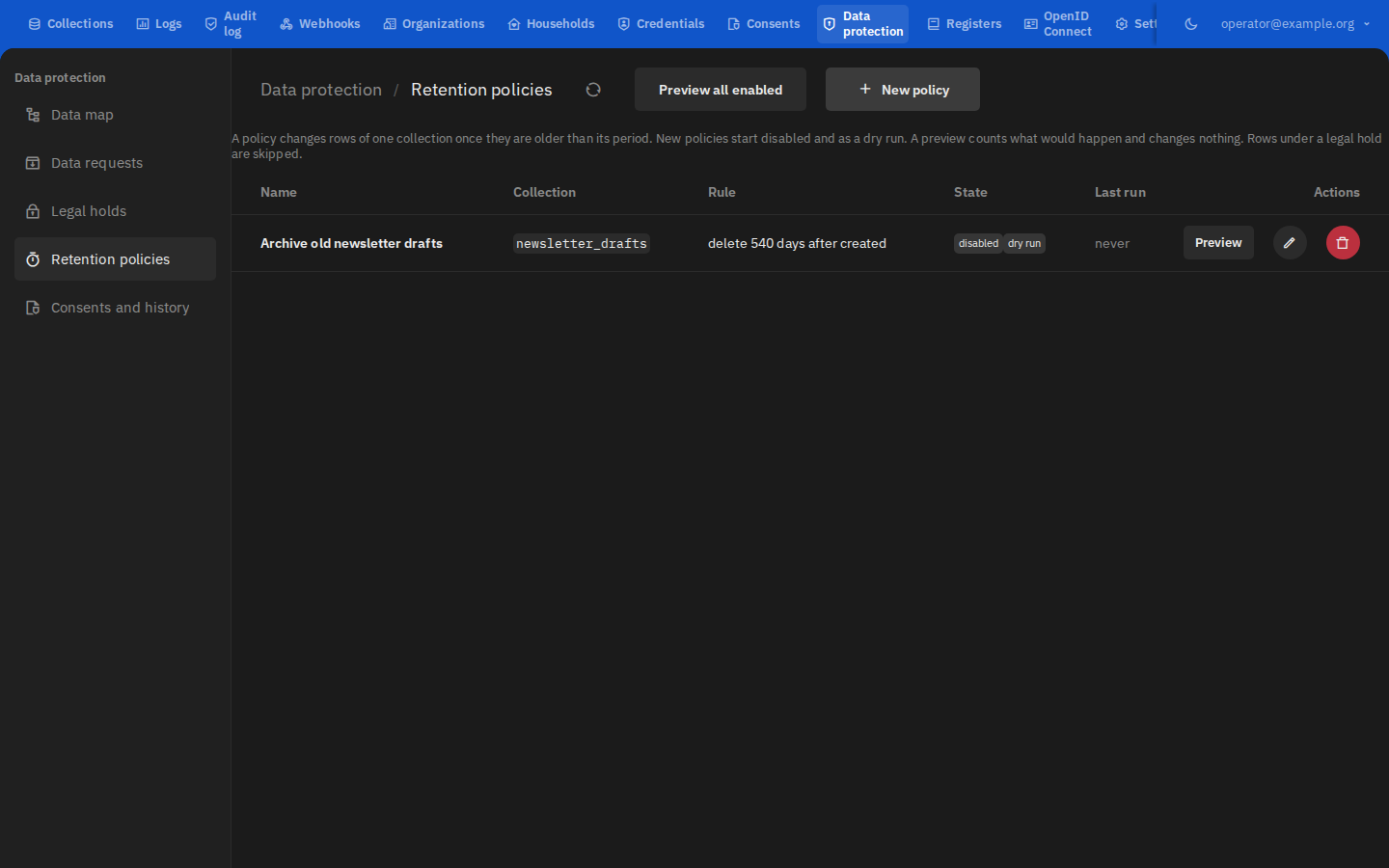
The counts are matched, held, unchanged, failed and affected. For a dry run, affected means would be affected.
Delete and anonymize cannot be undone. Deleting a policy later does not restore rows it already changed. Read the preview twice. Take a backup first.
4. What a policy never touches
- Rows under an active legal hold.
- Pastoral notes with an open hold.
- Permanent registers and their annotation collections. Claviger refuses such a policy when you save it.
- Accounts, the audit log, and the policy, hold and data map tables.
The table in Retention policies shows each policy's Rule, State and Last run. One audit entry per run, gdpr_retention_run, holds ids and counts only. A run that a restart cuts short continues from where it stopped.
5. Quick reference card
Safe order
- New policy. It starts disabled and as a dry run.
- Preview. Read the counts.
- Edit: tick Enabled.
- Edit: untick Dry run. Confirm with your passkey.
Placing a legal hold first protects rows from a policy.