Find, create and edit records
Search a collection, add and change records, and delete them with care.
Superusers who work with the data in a collection.
Superusers bypass every API rule. A change here takes effect at once and the audit log records it under your name.
What you will do, in one sentence
Open a collection, search, then choose New record or open a row to edit it.
Screens are captured from a seeded test system. Every name, address and number on the screens is invented. Prepared 15 November 2026.
1. The records list
Open Collections and choose a collection. The page header has these buttons: Collection settings, a refresh button, API preview and New record.
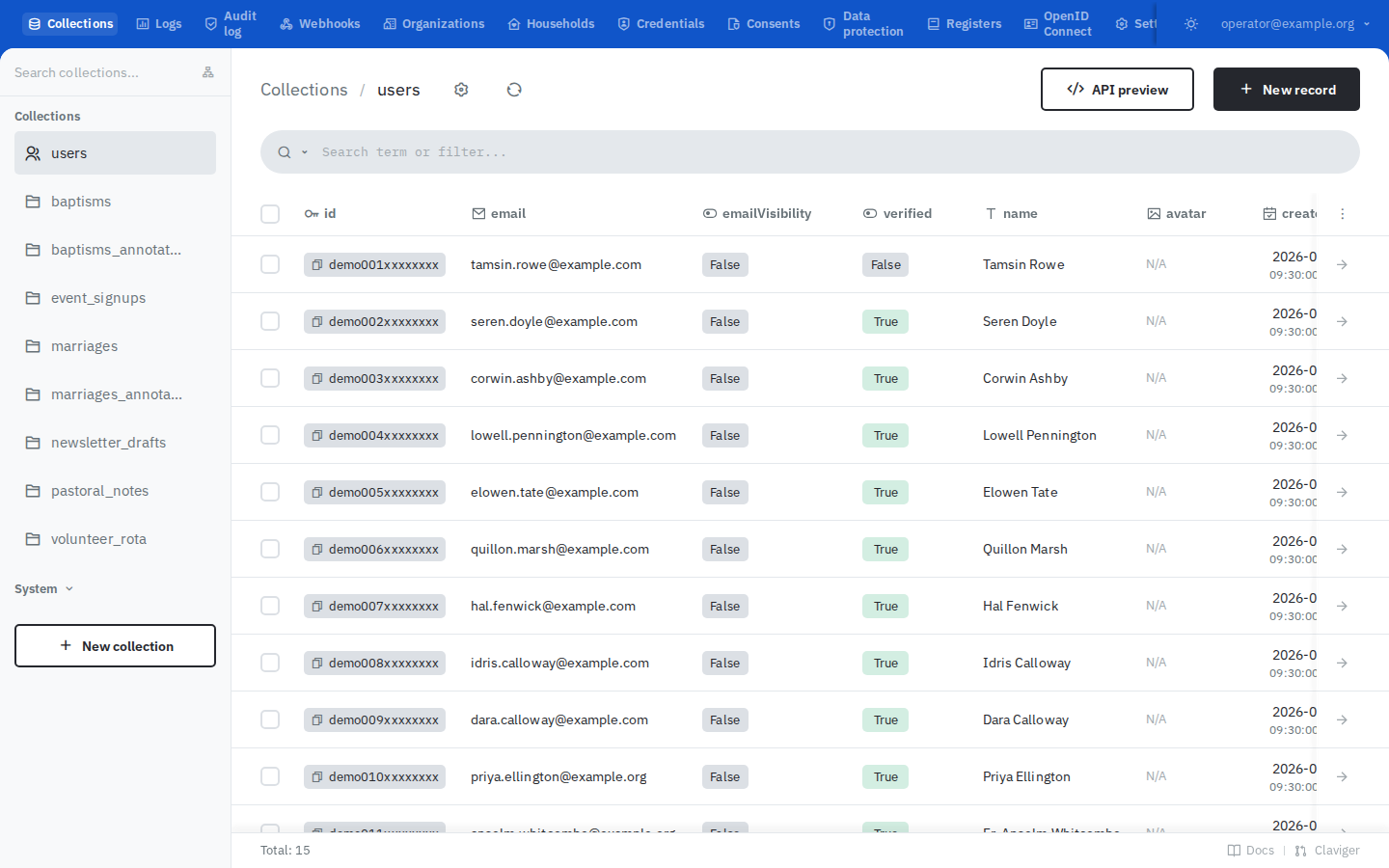
- Type in the search box (Search term or filter...) and press Enter. A plain word searches the text fields. A filter such as
created > "2026-01-01"narrows the list. - Choose Clear search to see every record.
- Load more adds the next page.
- Tick rows to select them. The bar then offers Reset, Delete and JSON. JSON downloads the selected rows.
- The Toggle columns menu picks the columns you see.
A read in the admin screen is a read by a superuser. It appears in the audit log when the collection is flagged for read audit.
2. Create or edit a record
- Choose New record, or choose a row to open it.
- Fill in the fields. The form shows one input for each field of the collection.
- Choose Create or Save changes. The menu next to the button has Save and continue and Reset form.
If you close the form with unsaved changes, Claviger asks before it discards them. A draft you did not save can come back with Restore draft.
If your install turned on Hide/Lock collection and record controls, a record opens locked. Choose Unlock to save before you save.
The More options menu holds Copy JSON, Duplicate and Delete.
3. Records of an auth collection
An auth record opens with the tabs Account, Auth providers and, when passkeys are on for the collection, Passkeys.
The More options menu adds actions for accounts:
| Action | Effect |
|---|---|
| Send verification email | Asks the person to verify the address. |
| Send password reset email | Sends a reset link. |
| Reset issued tokens | Signs the account out of every client at once. |
| Sessions and ban | Lists sessions, revokes them and bans the account. |
| Impersonate | Makes a short sign-in token for the account. |
The account guides in this site cover the last two, and passkeys. The Account tab has Generate and set random password and a Public switch for the email address.
4. Delete a record
Open the record, choose More options, then Delete. Confirm with Delete record.
Deleting a record can also change or delete records that link to it, depending on the relation field. Make a backup before a bulk delete. The audit log keeps the values from before the delete, but nothing restores them for you.
5. Quick reference card
Find records
- Open the collection.
- Type a word or a filter. Press Enter.
- Clear search resets the list.
Add or change a record
- New record, or open a row.
- Edit the fields.
- Create or Save changes.
Every change is written to the audit log.