Create a collection and add fields
Create a base, view or auth collection, add fields and indexes, and know what is hard to undo.
Superusers who design the data model in the admin screen.
Collections hold all your records. A change to a field can delete data, and a change to a collection name can break rules and views that use it.
What you will do, in one sentence
Choose New collection, name it, pick a type, add fields on the Fields tab, and save.
Screens are captured from a seeded test system. Every name, address and number on the screens is invented. Prepared 15 November 2026.
1. Open the collection editor
Open Collections in the header. The side list has a search box (Search collections...) and groups for pinned, regular and System collections. The Collections overview link shows a diagram of fields and relations.
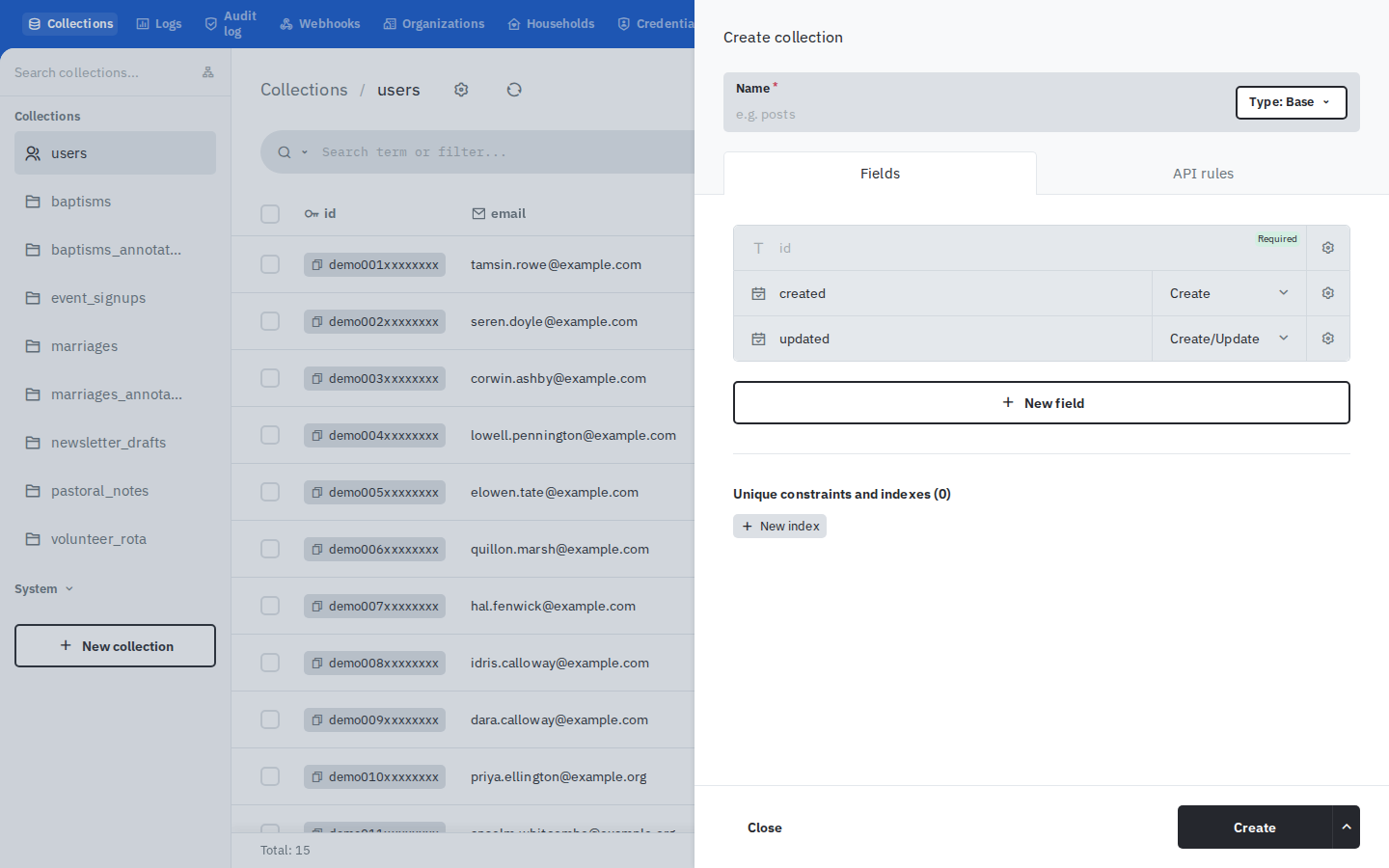
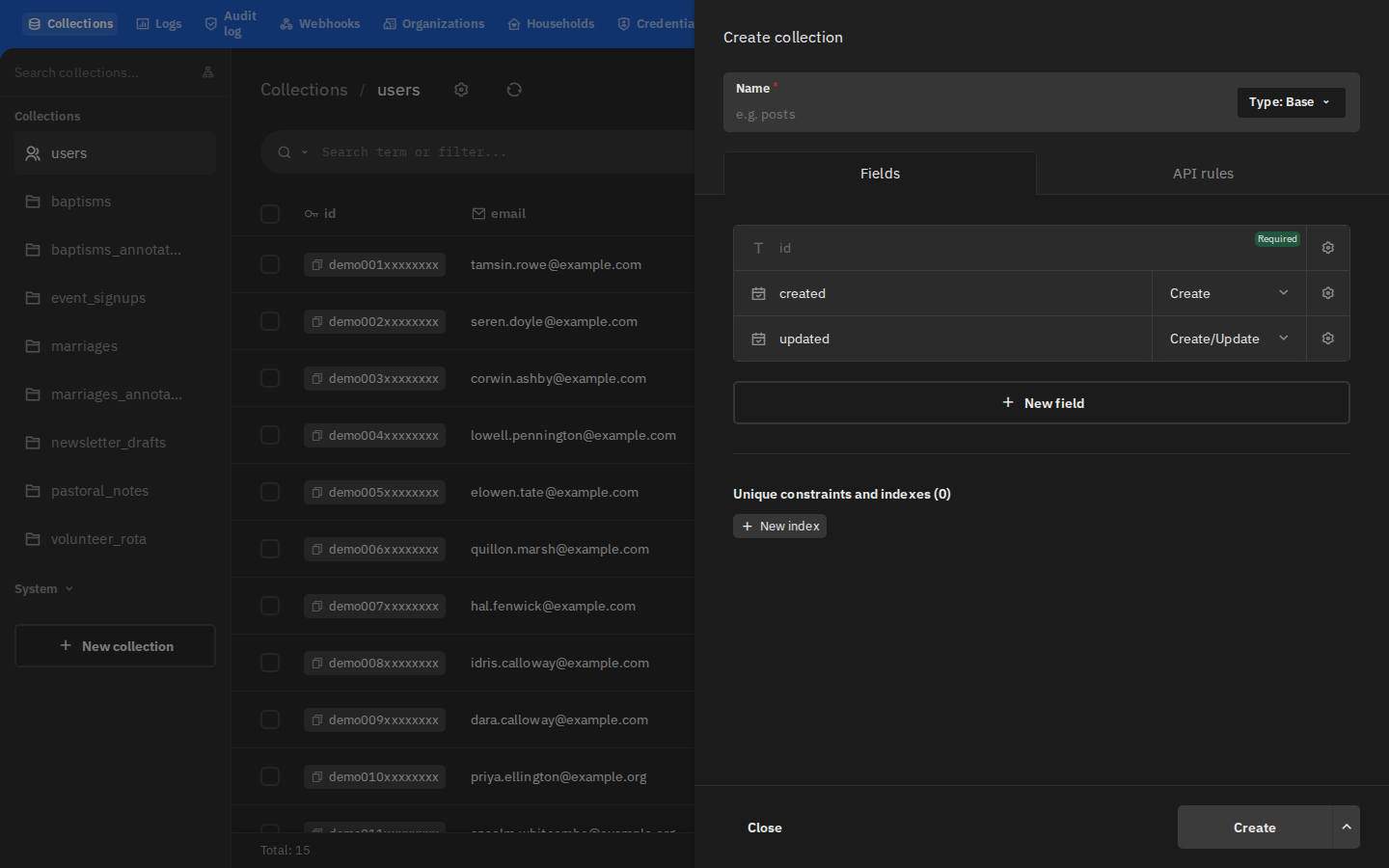
- Choose New collection at the bottom of the list.
- Type the Name. The hint shows
postsas an example. - Open the Type menu and choose one of three types.
| Type | Use it for |
|---|---|
| Base collection | Ordinary records. It has the Fields and API rules tabs. |
| View collection | A read-only list built from an SQL query. It has the Query and API rules tabs. A view has no records of its own. |
| Auth collection | Accounts that can sign in. It adds the Options tab for sign-in methods. |
2. Add fields
On the Fields tab, choose New field. Pick a type from the menu.
| Type label | Holds |
|---|---|
| Plain text, Rich editor | Text. |
| Number, Bool | A number, or yes or no. |
| Email, URL | A checked address. |
| Datetime, Autodate | A date, or a date set by Claviger on create or update. |
| Select, File, Relation | A choice, an uploaded file, or a link to another collection. |
| JSON, Geo Point | Structured data, or a map point. |
| Encrypted text, Encrypted JSON | A value stored encrypted in the database. |
Each field has switches for Required, Hidden and Presentable. Hidden keeps the value out of API responses. Presentable shows the value as the record's label. Encrypted fields have no Presentable switch.
The API still returns the value as plain text to anyone allowed to read the field. You cannot filter, sort, index or use it in an API rule. Losing the key (CLAVIGER_KEK) makes the data unrecoverable. Saving needs a key on the server.
Under Unique constraints and indexes, choose New index to add a unique constraint or an index.
3. Save, and what a save can delete
Choose Create for a new collection, or Save changes for an existing one. A menu next to the button offers Save and continue and Reset form.
Before a save that renames or removes things, Claviger shows a confirmation. Its title asks if you really want to save the changes. It lists renamed collections and fields, deleted fields and changed rules.
The dialog warns: all data associated with the removed fields is deleted for good. Rules, filters and view queries that use a renamed or deleted field are not updated. Fix them by hand.
4. Duplicate, truncate and delete
The More options menu in the editor header holds these actions.
- Copy JSON copies the collection definition.
- Duplicate starts a new collection from this one.
- Truncate deletes all records and keeps the collection.
- Delete deletes the collection and all its records. For a view it deletes only the view.
Both ask you to type the collection name before they run. Make a backup first.
If your install turned on Hide/Lock collection and record controls in the application settings, the buttons that create and update collections are hidden.
5. Quick reference card
Create a collection
- Collections, New collection.
- Set Name and Type.
- New field for each field.
- Create.
Before you remove a field
- Export the collections or make a backup.
- Read the confirmation list.
- Update any rule or view that used the field.
Back up before you truncate or delete.