Export and import collections
Move the collection definitions from one Claviger environment to another, and review the changes before they apply.
Superusers who keep a test and a live environment in step.
An import can delete fields, and a field delete removes its data. The review step shows you each change before it runs.
What you will do, in one sentence
Download the collections as JSON on one server, paste them on the other, review the diff, and confirm.
Screens are captured from a seeded test system. Every name, address and number on the screens is invented. Prepared 15 November 2026.
1. What moves
Both pages are under Settings, in the Sync group. They move the definition of the collections: fields, rules and options. They do not move records.
2. Export
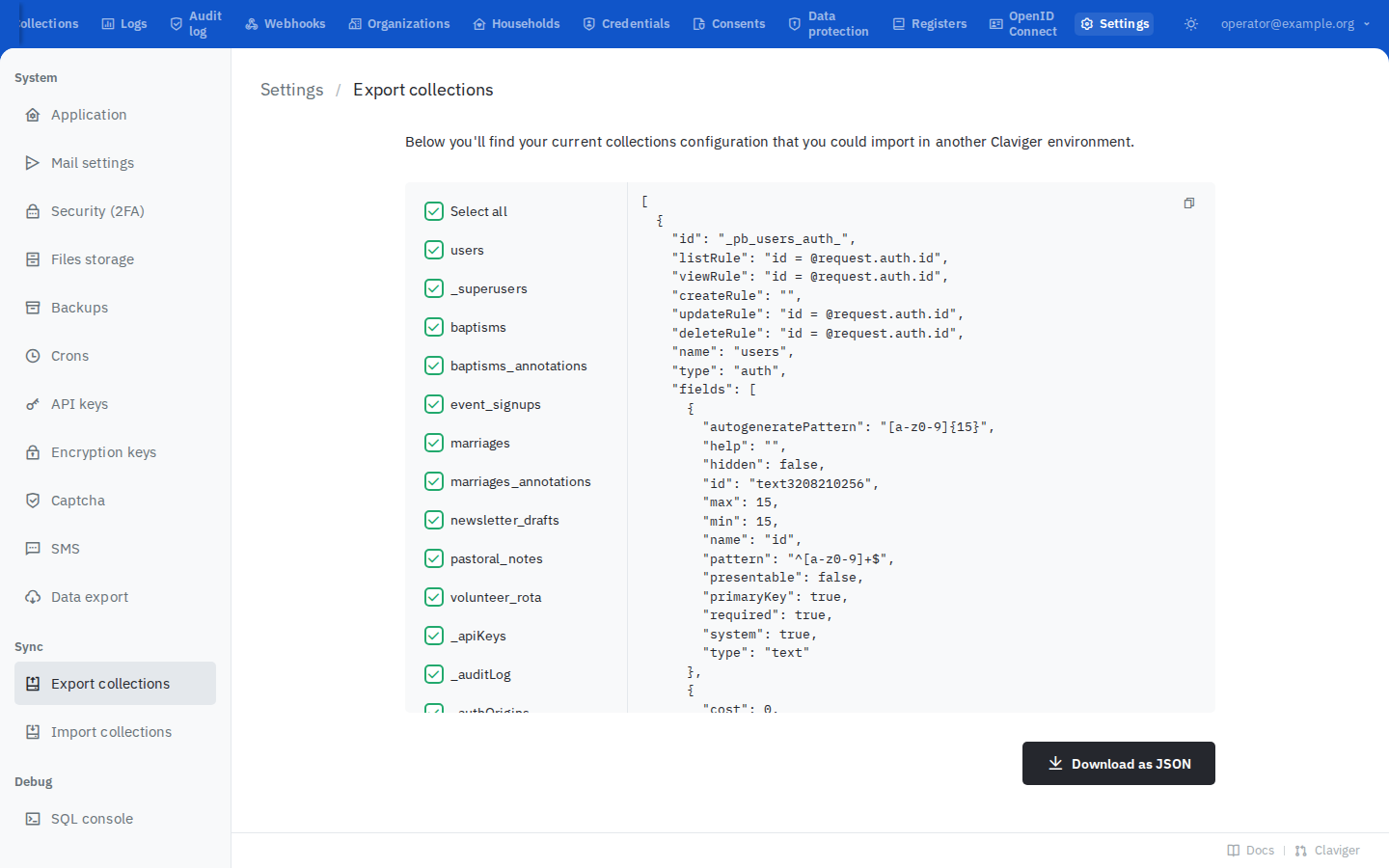
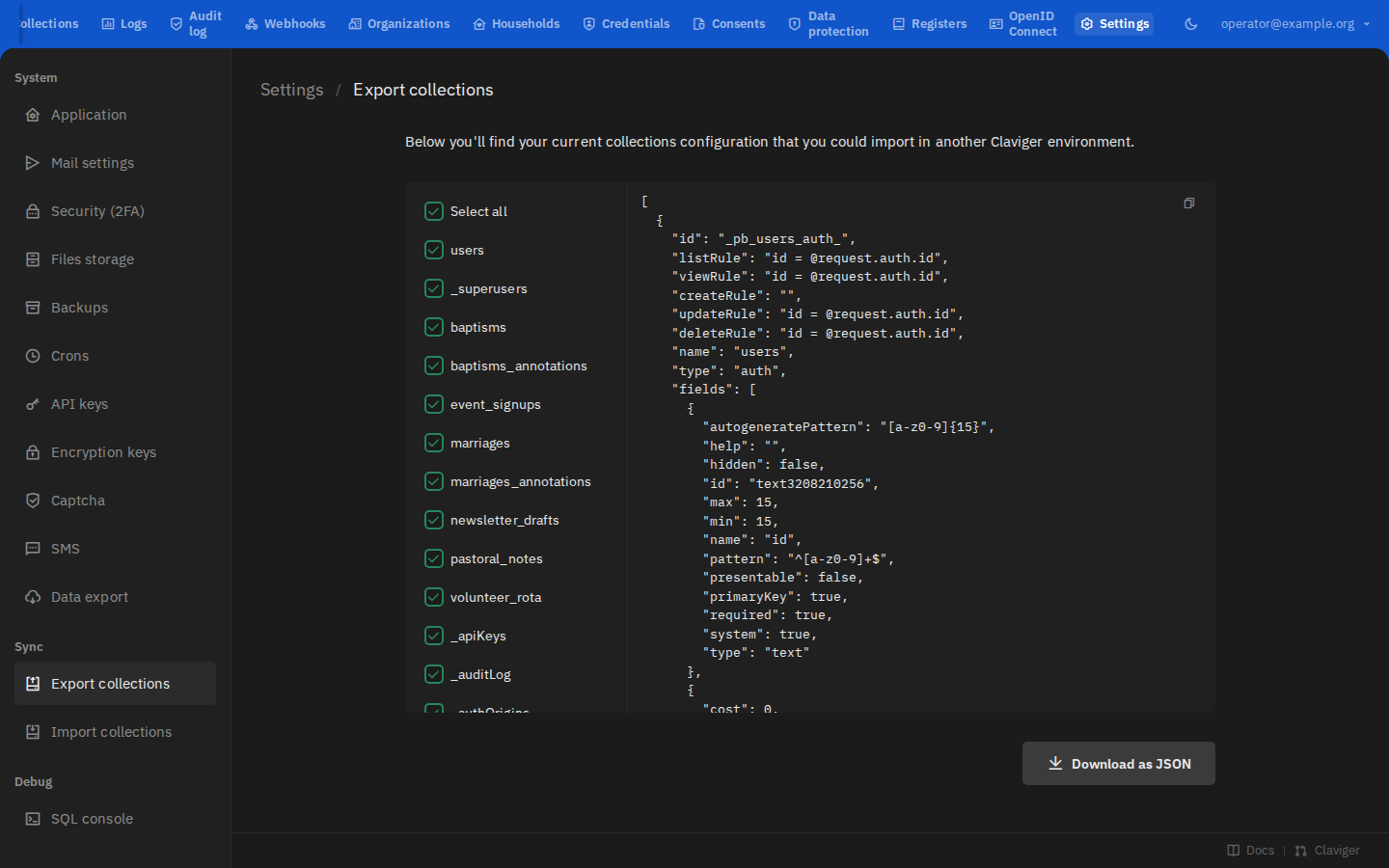
- Open Settings, then Export collections.
- Tick the collections you want. Select all ticks every one. Hold Shift to tick a range.
- Choose Download as JSON.
3. Import and review
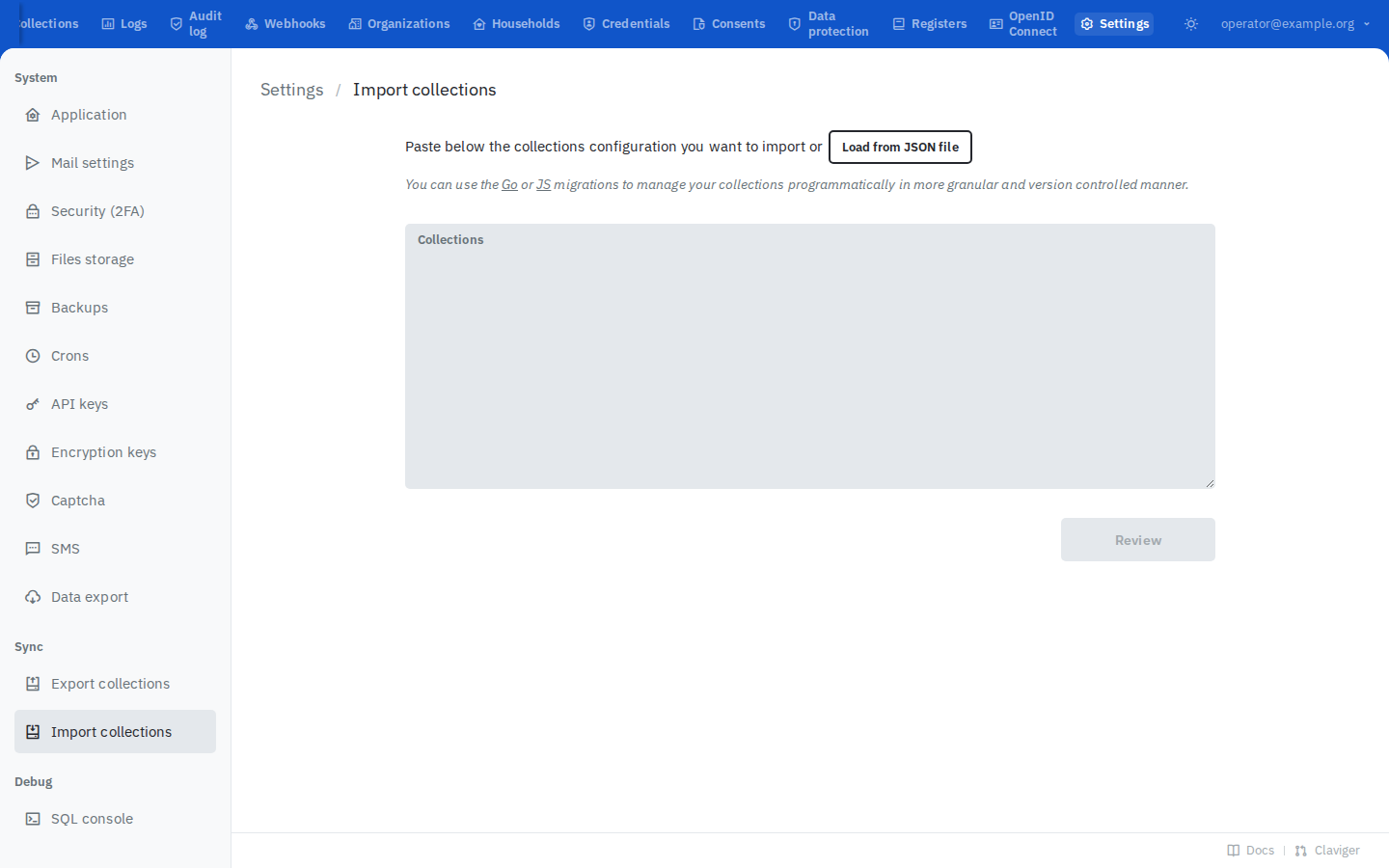
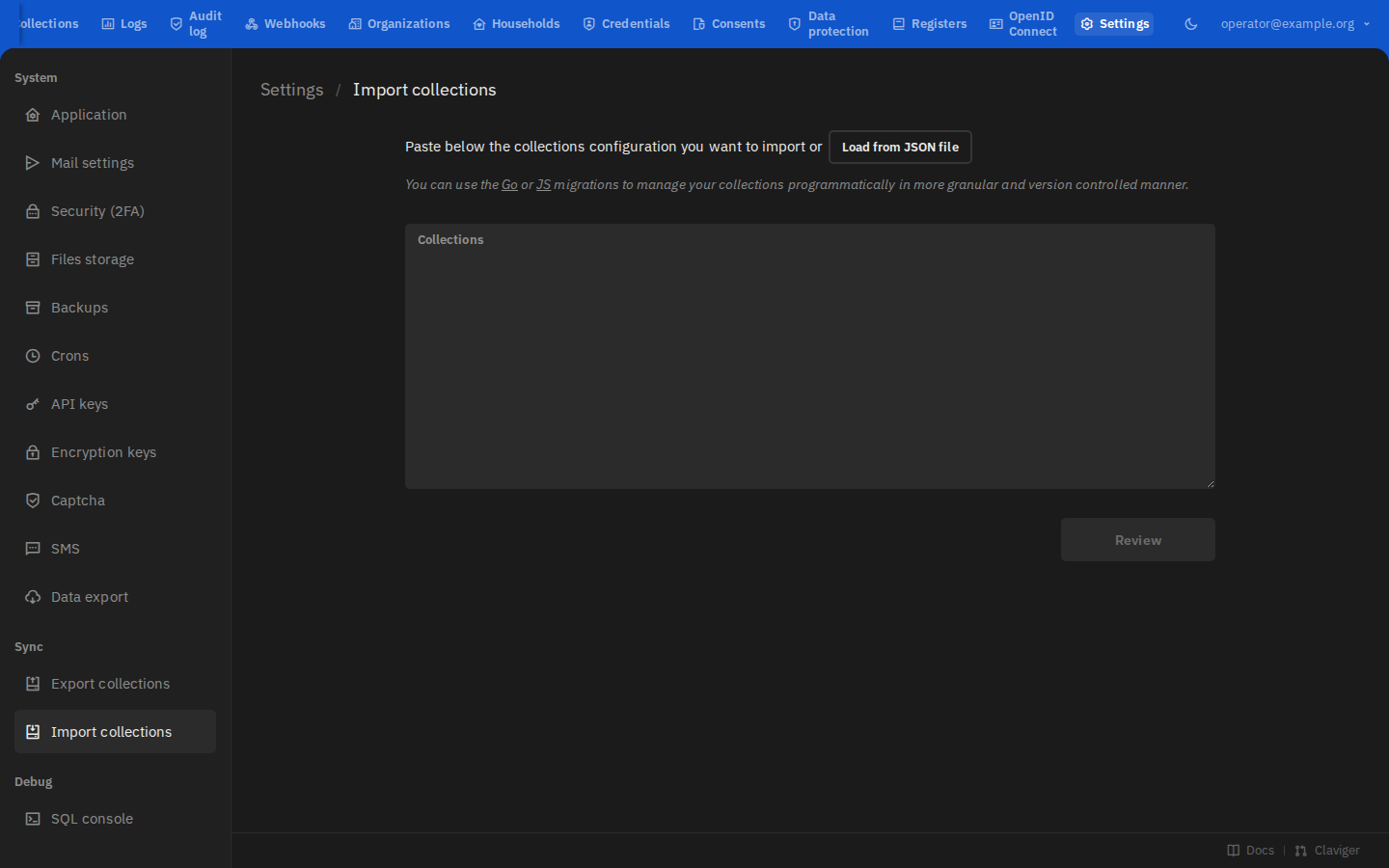
- On the other server, open Settings, then Import collections.
- Paste the JSON into Collections. Or choose Load from JSON file.
- Decide about Merge with the existing collections.
- Read Detected changes. Each entry is marked Added, Changed or Deleted.
- Choose Review. The Side-by-side diff opens.
- Choose Confirm and import.
The page says Your collections configuration is already up-to-date! when nothing differs. Clear empties the box.
If the same collections exist under different ids, a warning offers Replace with original IDs. Use it when both environments came from one source.
When Merge with the existing collections is off, collections that are not in your JSON are marked Deleted. The review shows removed fields too. The dialog warns that all data stored in a removed field is deleted. Make a backup first.
4. Check the result
Open Collections and look at the changed collections. Test the API rules of each one. A collection that arrives with a rule you did not expect can open data to the wrong people.
5. Quick reference card
Export
- Settings, Export collections.
- Tick collections.
- Download as JSON.
Import
- Settings, Import collections.
- Paste or Load from JSON file.
- Review, then Confirm and import.
Back up the target server before you import.