Connect a TV or other device with a code
Type the code a TV, kiosk or other device shows you, and approve or cancel the request.
Members who sign in to an app on a device with no easy keyboard, such as a TV or a display. You use your phone or computer for the steps.
Anyone can read a code out to you. If you approve a code you did not start, that person gets access to your account. Approve only a code from a device you are using right now.
What you will do, in one sentence
Open the device page on your phone, type the code from the device, and press Allow only if you started the request.
Screens are captured from a seeded test system. Every name, address and number on the screens is invented. Prepared 15 November 2026.
1. What you will see on the device
The device shows a short code, such as BCDF-GHJK, and a web address that ends in /oidc/device. It may also show a QR code. The code works for 10 minutes.
2. Type the code
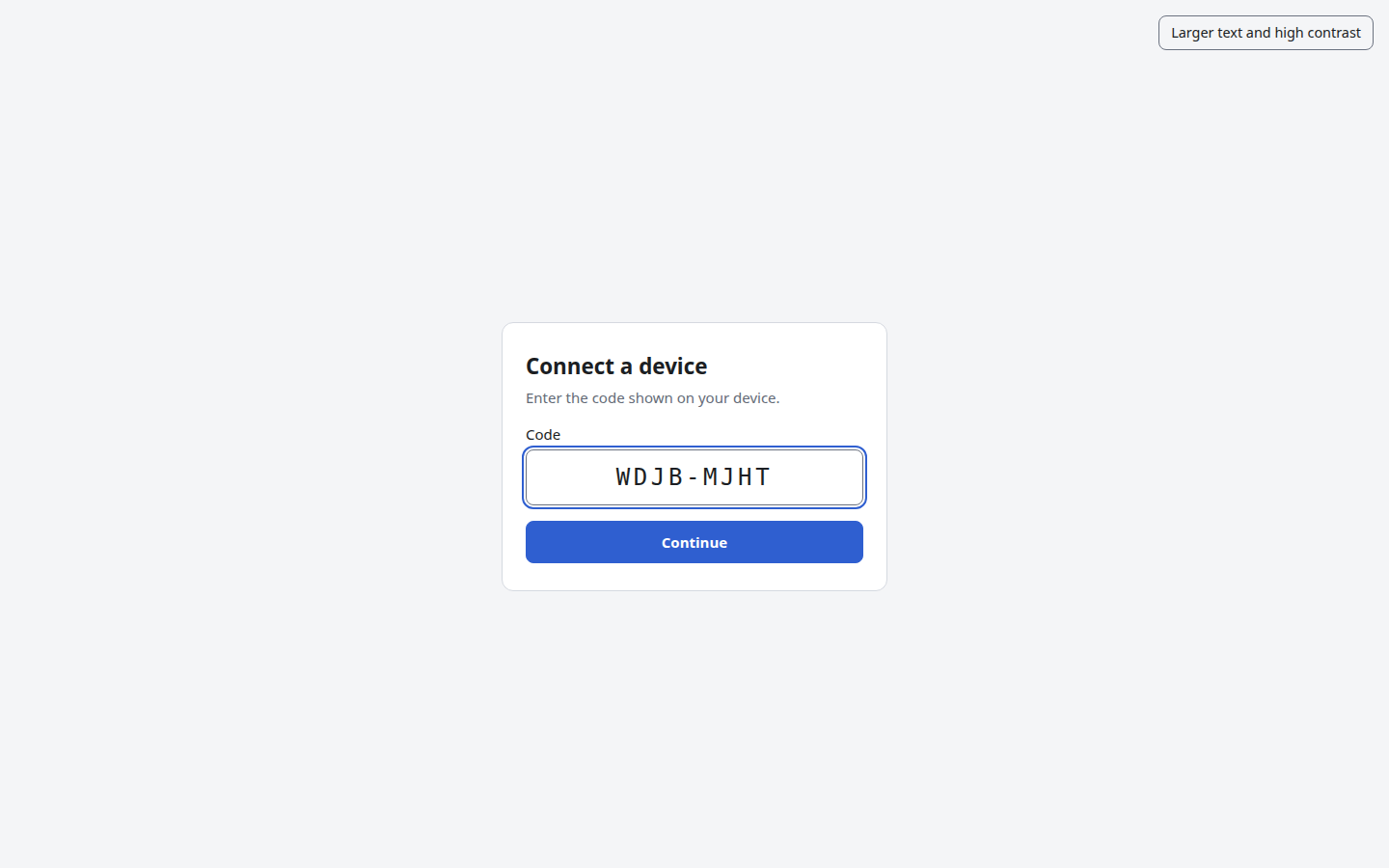
- On your phone or computer, open the web address. Or scan the QR code. The QR code fills in the code for you.
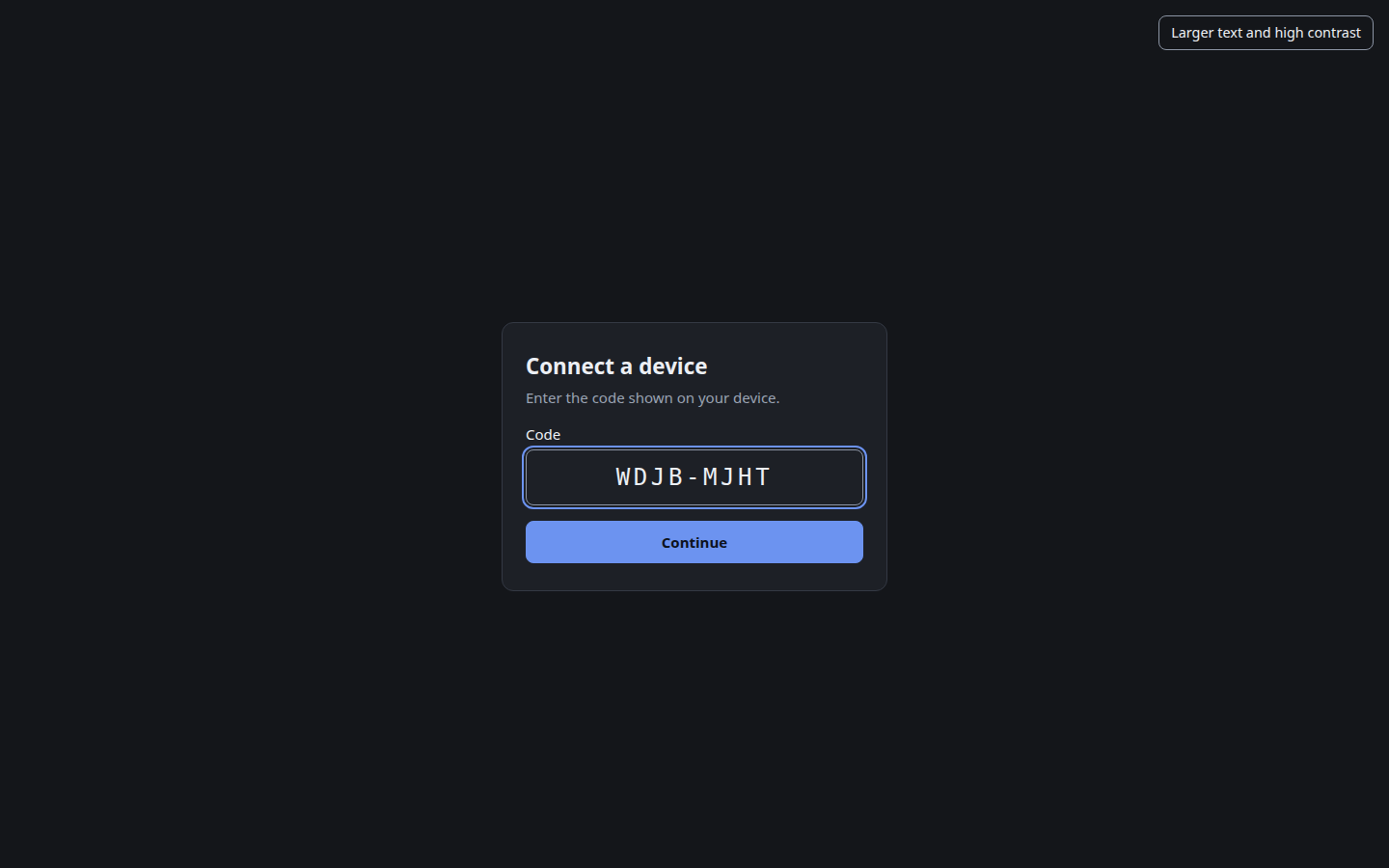
- The page says "Connect a device" and "Enter the code shown on your device."
- Type the code in the box named Code. Capital letters, small letters and the dash do not matter.
- Press Continue.
3. Sign in or choose an account
If you are not signed in, the sign-in page appears. Sign in as usual.
If your browser already has accounts, the page says "Choose an account". It does this even when you have only one. Press your account.
4. Allow or cancel
The page asks "Allow this device?" It names the app and your account. A list shows what the app may see.
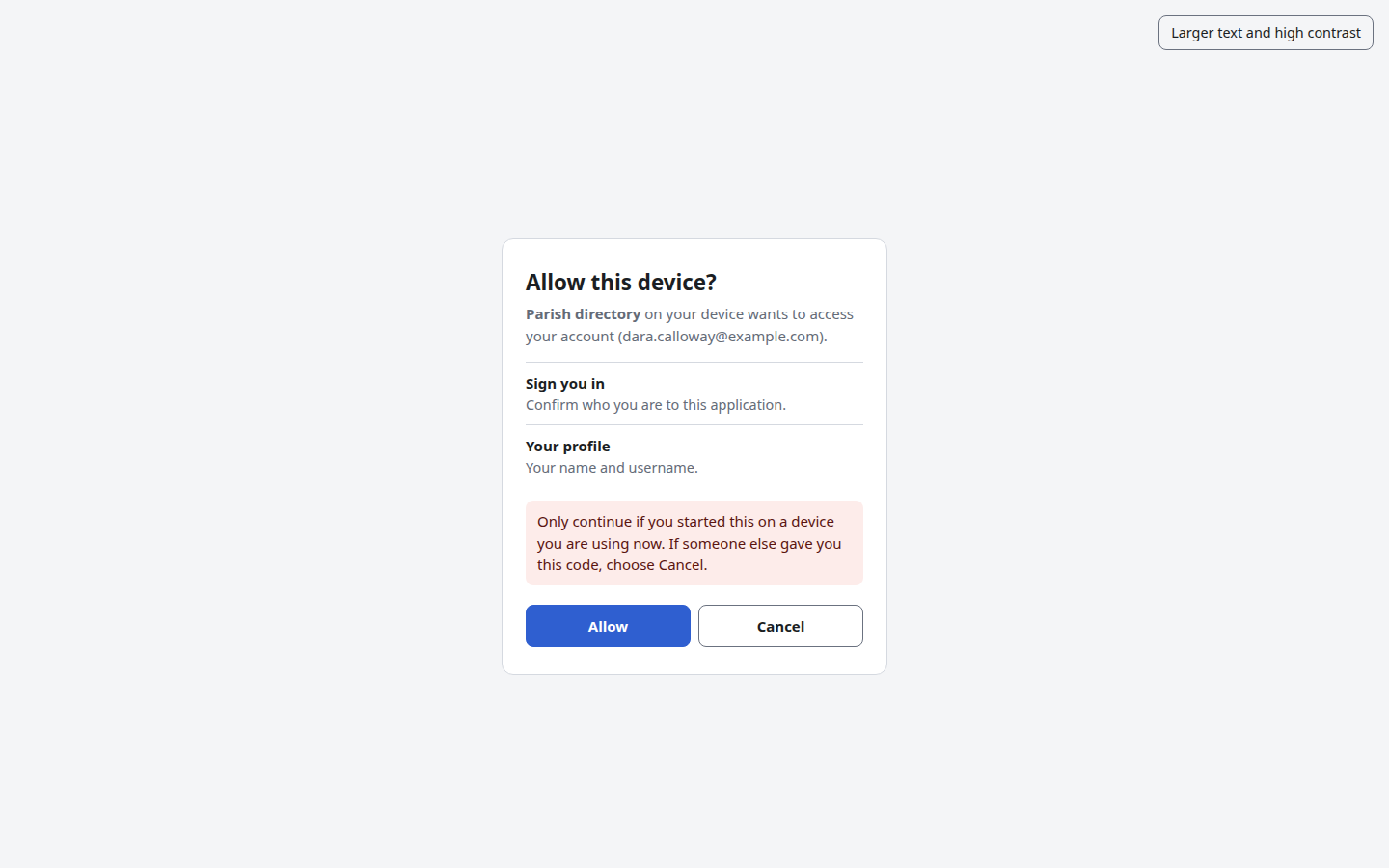
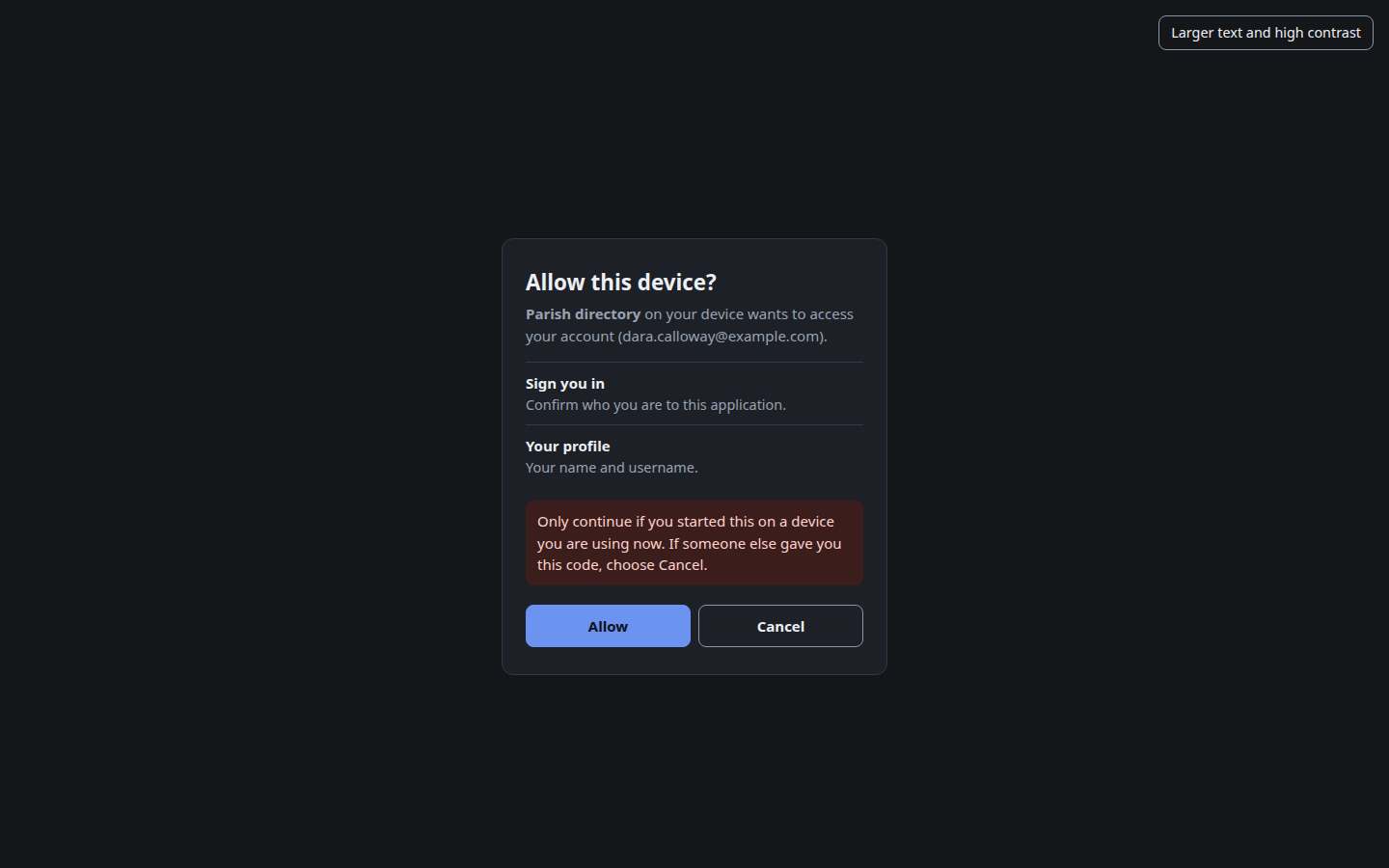
A notice says: "Only continue if you started this on a device you are using now. If someone else gave you this code, choose Cancel."
- Press Allow if you started this. The page says "Device connected" and "You can return to your device now."
- Press Cancel if you did not. The page says "Request cancelled", and the device gets no access.
A scammer can start a request on their own device and ask you to type or approve the code. If you did not start it, press Cancel. Tell the church office.
Claviger asks every time. It does not remember a device approval.
5. If the code does not work
| Message | What to do |
|---|---|
| That code is not right. Check it and try again. | Look at the device and type the code again. |
| Another browser is already using that code. Start again on your device. | Ask the device for a new code. |
| This code has expired. Start again on your device. | Ask the device for a new code. |
| This code has already been used. | Ask the device for a new code. |
| This request was started in another browser. Start again on your device. | Use one browser from start to end. |
| That sign-in has ended. Start again on your device. | Ask the device for a new code. |
| Too many attempts. Wait a few minutes and try again. | Wait a few minutes. |
6. Quick reference card
Connect a device
- Open the address on the device screen.
- Type the code. Press Continue.
- Sign in or pick your account.
Approve
- Read the app name and the list.
- Press Allow only if you started it.
Not sure
- Press Cancel.
Codes last 10 minutes. Ask the device for a new code when one fails.