Sign in to an app and say what it may see
Understand the sign-in page and the "Allow access?" screen that an app shows you, and what to do when an error page appears.
Members who use an app that signs in with their church account. The app sends you to a Claviger page.
The "Allow access?" screen decides what an app may see about you. Read it before you press Allow.
What you will do, in one sentence
Sign in on the page the app sends you to, read the list on the "Allow access?" screen, and press Allow only if you trust the app.
Screens are captured from a seeded test system. Every name, address and number on the screens is invented. Prepared 15 November 2026.
1. Sign in
An app may send you to a Claviger page to sign in. The page title is "Sign in". Under it, the page says "to continue to" and the app name.
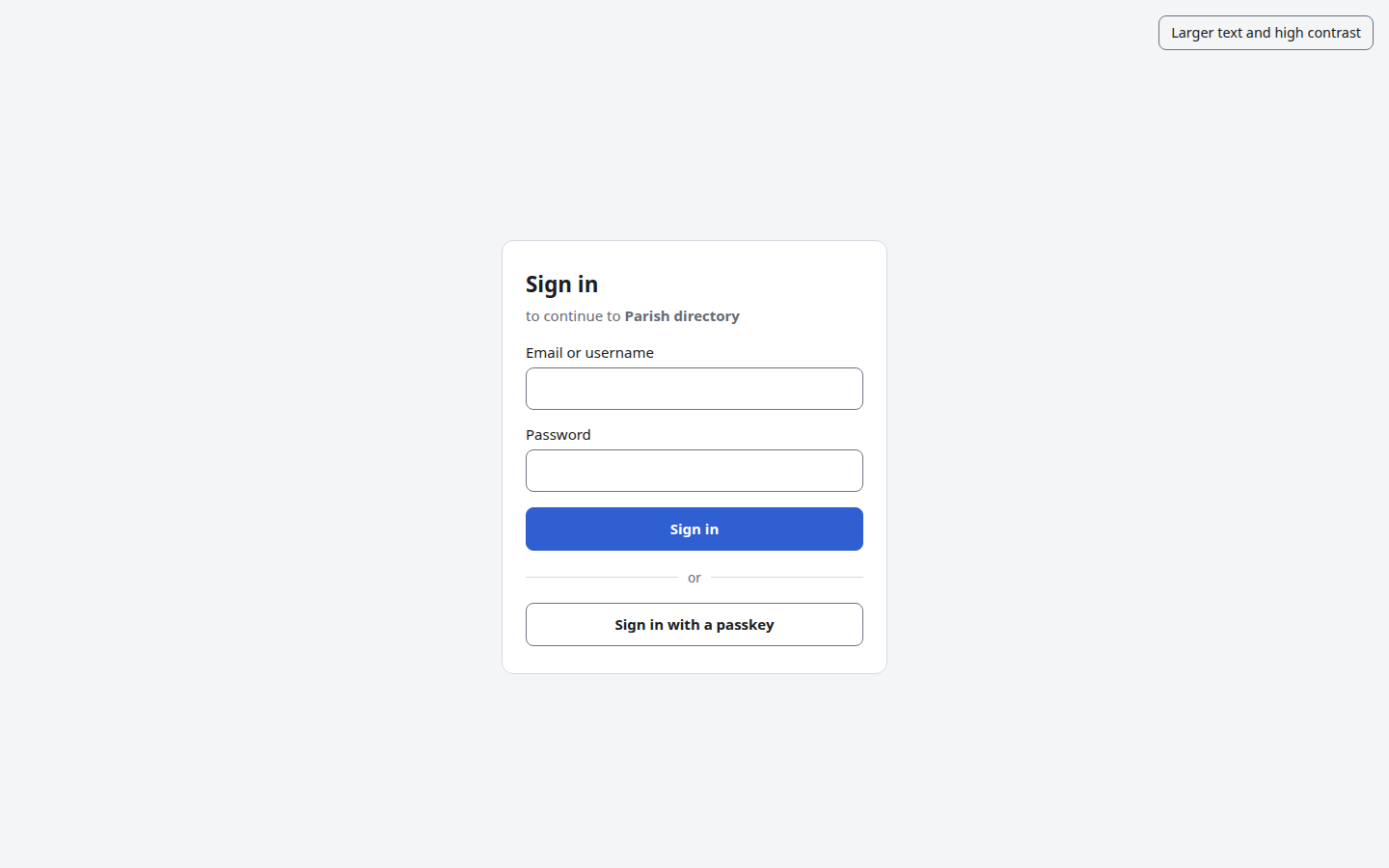
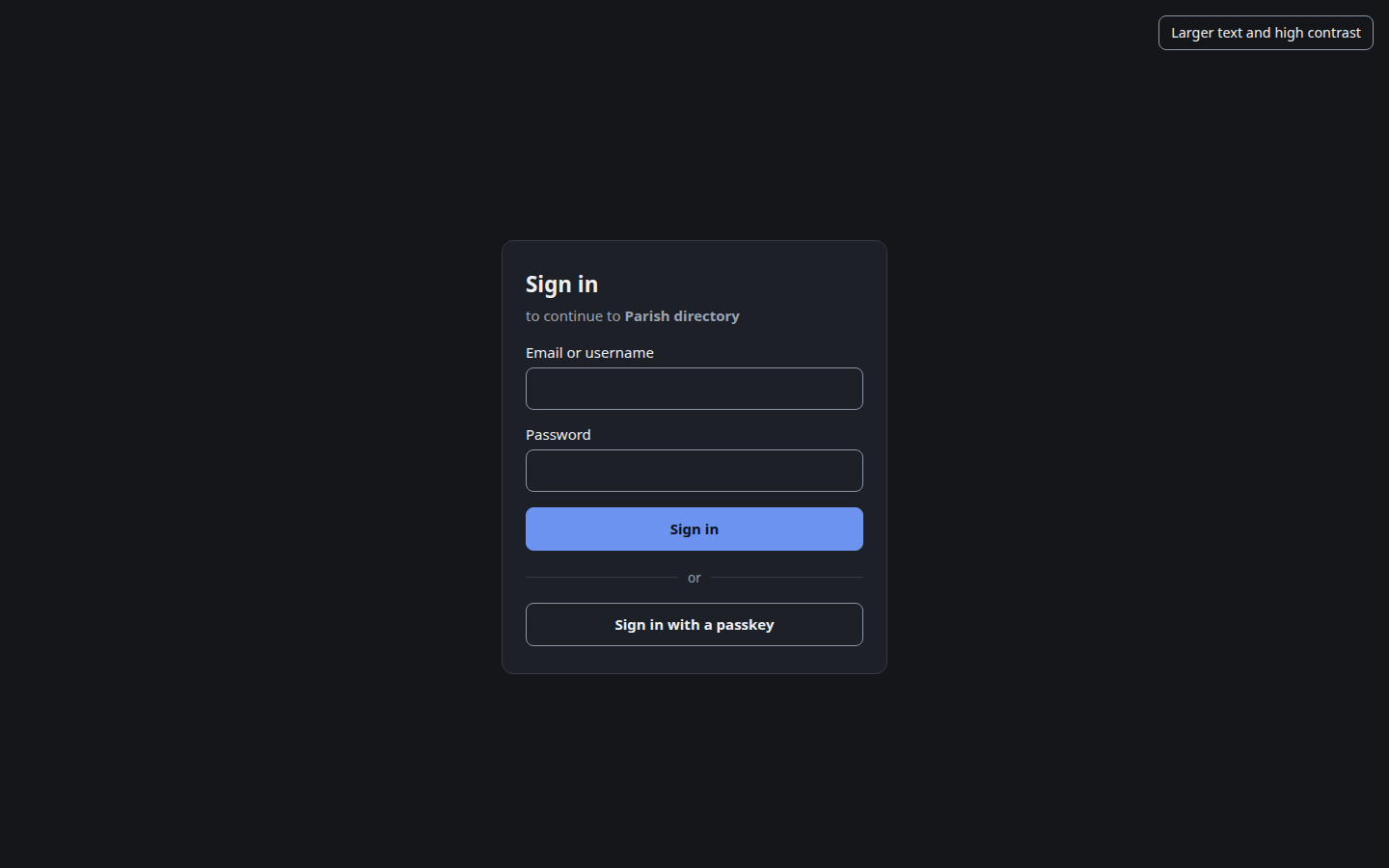
- Type your email or username in Email or username.
- Type your password in Password, and press Sign in.
- Or press Sign in with a passkey. Confirm on your device.
- If your account has a second step, a new box appears: Code from your authenticator app, or a backup code. Type the code and press Verify.
This page does not offer an emailed code. See the guide "Sign in with a passkey or another method" for all the choices.
If you already signed in a short time ago, the page may skip these steps. Or it may show a list of accounts. See the guide "Accounts on this browser and signing out".
2. Read the "Allow access?" screen
Some apps ask your permission before they see anything. The screen says "Allow access?" It then names the app and your account, for example "Garden Calendar wants to access your account ([email protected])".
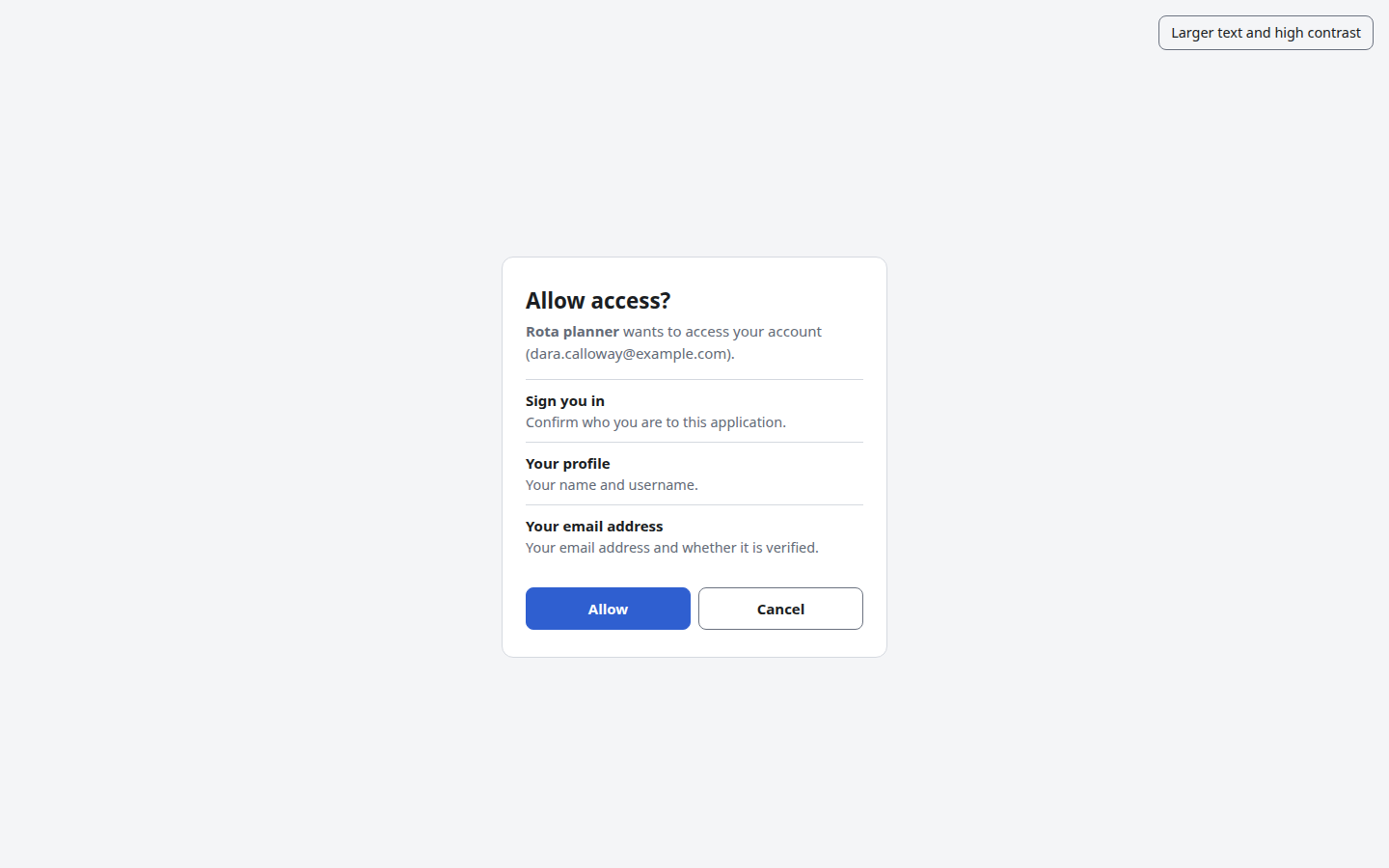
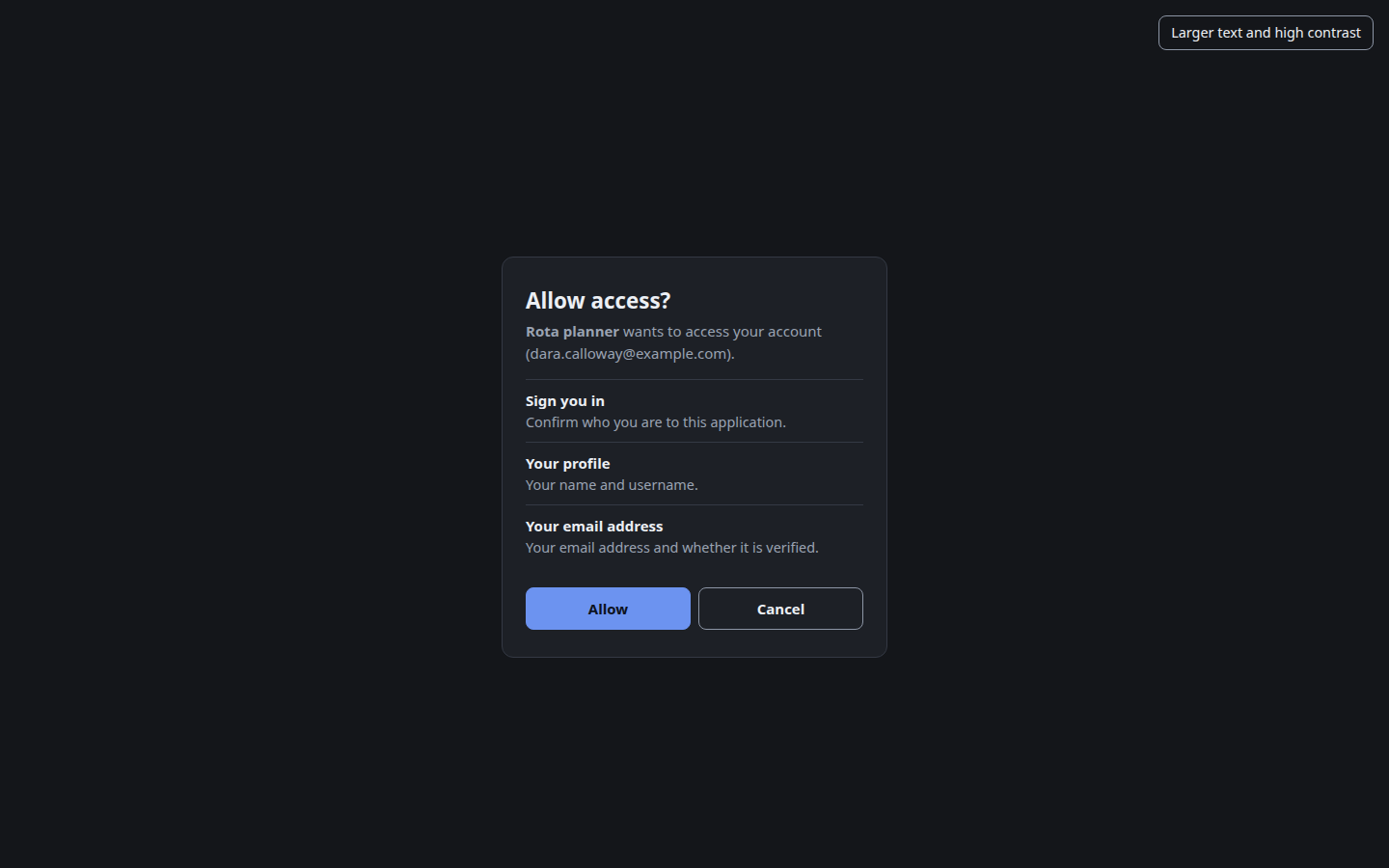
Under that line is a list. Each item says what the app asks for.
| Item on the list | What it means |
|---|---|
| Sign you in | Confirm who you are to this application. |
| Your profile | Your name and username. |
| Your email address | Your email address and whether it is verified. |
| Stay signed in | Keep access when you are not using the application. |
| Your organizations | The organizations you belong to and your role in each. |
If an item reads "Access requested by the application.", the app asked for something that has no plain description. Press Cancel if you are not sure.
3. Press Allow or Cancel
- Press Allow to let the app continue. Claviger remembers your answer for that app and that list. It does not ask again for the same list.
- Press Cancel to say no. The app gets no access.
When you press Allow, the app can see what the list says. If you did not start this sign-in, or you do not know the app, press Cancel. Tell the church office.
Apps that your church runs itself may skip this screen.
4. If an error page appears
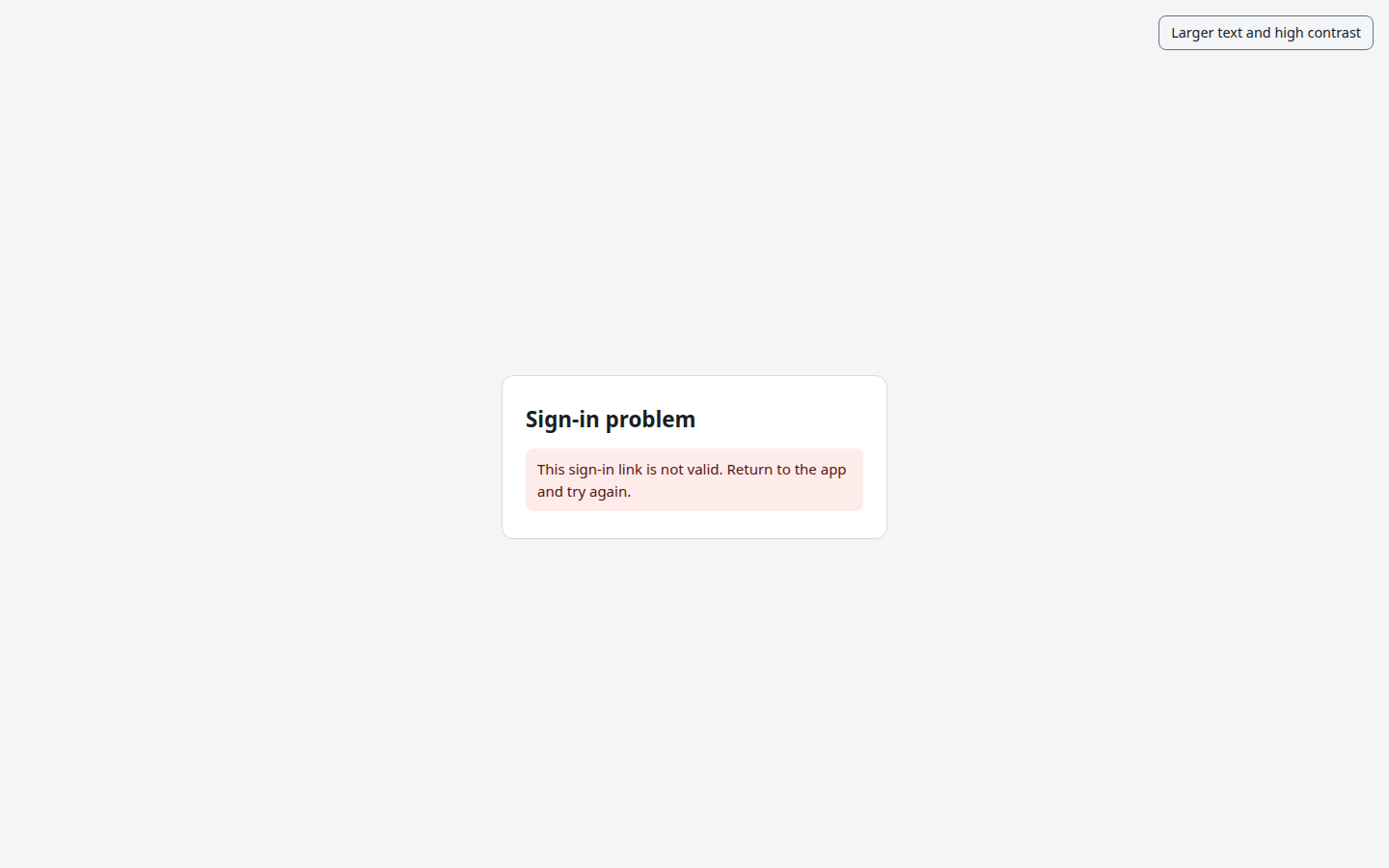
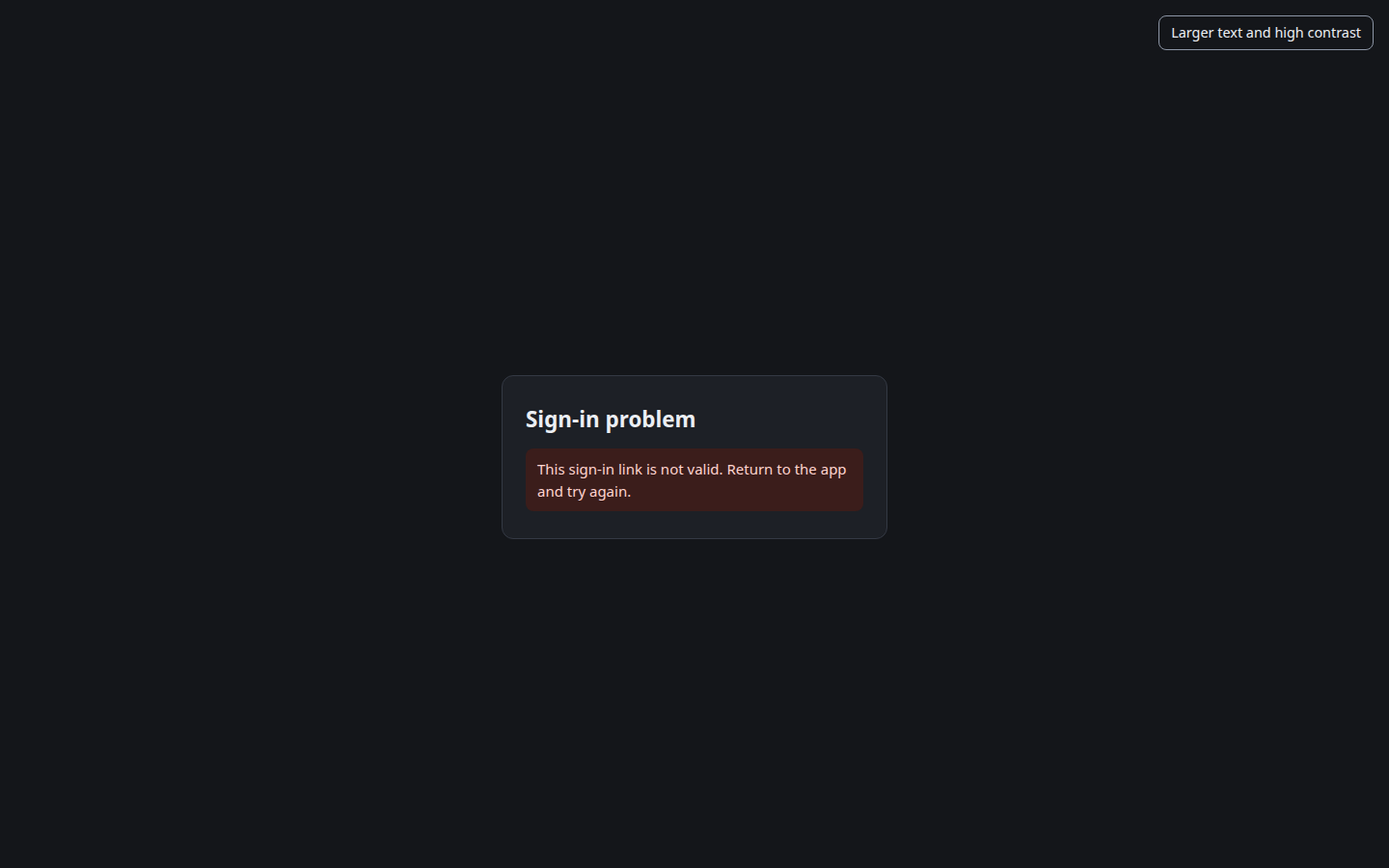
An error page has the heading "Sign-in problem". Most messages mean the sign-in took too long or started in another browser. Go back to the app and start again.
| Message | What to do |
|---|---|
| This sign-in link is not valid. Return to the app and try again. | The link was changed or is wrong. Go back to the app. Start again. |
| This sign-in link has expired. Return to the app and try again. | Go back to the app. Start again. |
| This sign-in was started in another browser. Return to the app and try again. | Use the same browser from start to end. |
| This application is not available. | Tell the church office. |
| This request has expired. Return to the app and try again. | Go back to the app. Start again. |
| Too many sign-in requests. Wait a minute and try again. | Wait one minute. |
| Please sign in again. | Sign in again. |
| This account cannot sign in. | Ask the church office. |
| Your account is not a member of the organization this application belongs to. | Ask the church office to add you. |
| Sign in with an account of the right type. | Use another account. |
5. Quick reference card
Sign in
- Type your email or username and your password.
- Press Sign in, or use a passkey.
Allow access?
- Read each item on the list.
- Press Allow if you know the app. Press Cancel if you do not.
Error page
- Go back to the app.
- Start the sign-in again in the same browser.
Press Cancel when in doubt. You can allow the app later.