Pick an account and sign out
Choose between accounts on a shared browser, sign out of one or all of them, and read the signed-out page.
Members who use more than one account in one browser, or who share a computer or tablet with family.
A browser keeps up to five signed-in accounts for 12 hours. On a shared device, sign out when you finish so that nobody else uses your account.
What you will do, in one sentence
On the "Choose an account" page, press your account to continue, and press "Sign out of all accounts" when you finish on a shared device.
Screens are captured from a seeded test system. Every name, address and number on the screens is invented. Prepared 15 November 2026.
1. When you see "Choose an account"
Claviger remembers the accounts you signed in to in this browser. The browser can hold up to five accounts at once. Each one stays for 12 hours.
When an app asks you to sign in and more than one of your accounts could be used, the page says "Choose an account". It also shows the app name after "to continue to".
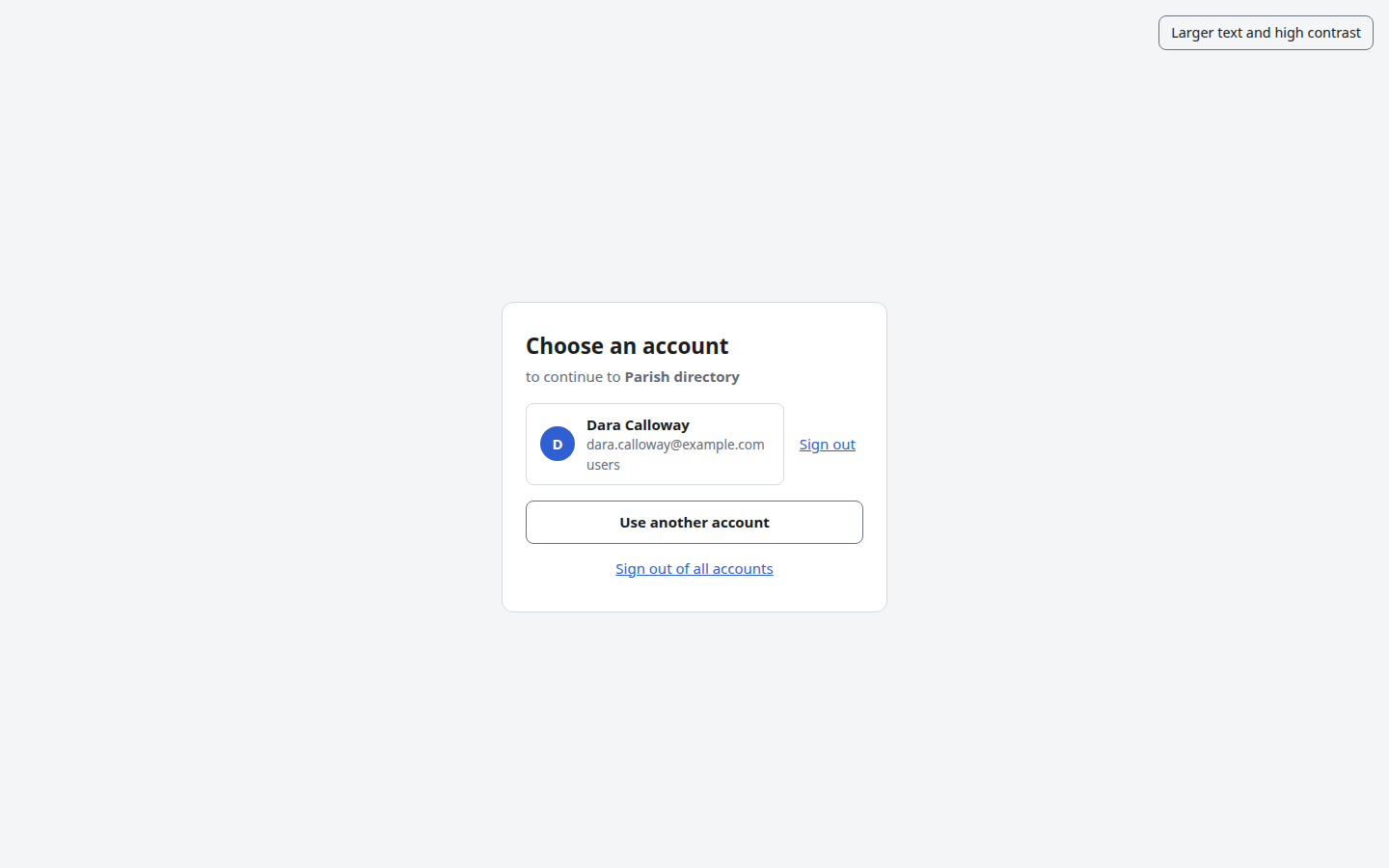
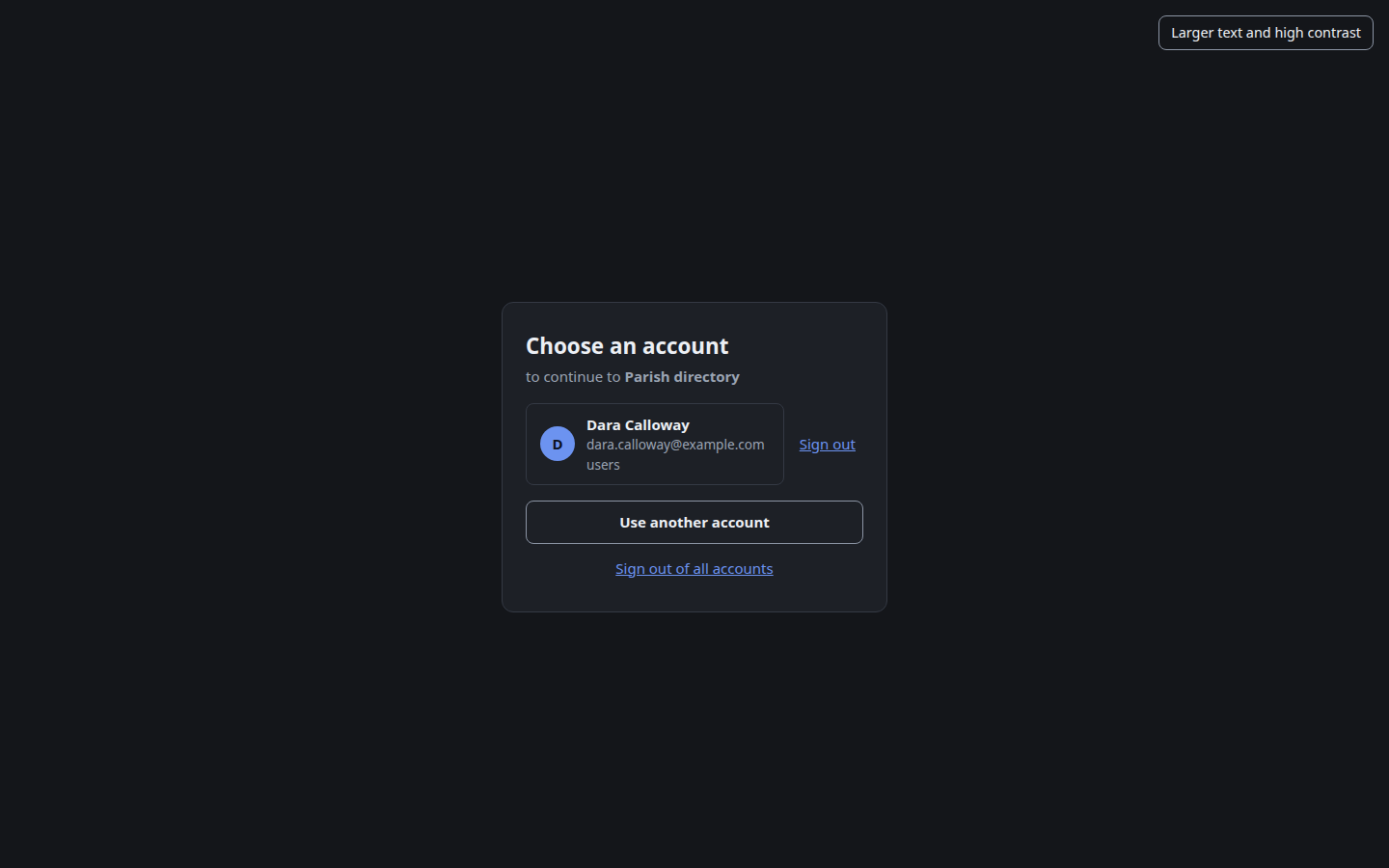
You may have a work account and a family account. Or you may share a tablet at home.
2. Choose an account
- Find your account in the list. Each line shows a round letter, the name, the email and the type of account.
- Press the line for your account.
- The page takes you on to the app.
Some accounts are grayed out. You cannot press them. A short reason appears under the name. It is one of these.
| Reason shown |
|---|
| This account cannot be used with this application. |
| This account is not a member of the organization this application belongs to. |
| This account has to sign in again. |
Pick another account, or press Use another account to sign in with a different one.
If the page says "That account is no longer signed in.", press Use another account and sign in again.
3. Sign out
Each account has a Sign out link next to it. Press it to sign out of that one account only.
Press Sign out of all accounts to sign out of every account in this browser.
If something fails, the page says "Failed to sign out." Try again.
On a shared computer, tablet or phone, press Sign out of all accounts when you finish. If you leave, the next person may use your account for up to 12 hours.
When you add a sixth account, the browser drops the oldest one. You can sign in to it again.
4. The signed-out page
After you sign out from an app, you may see a page with the heading "You are signed out". It says "You can close this window."
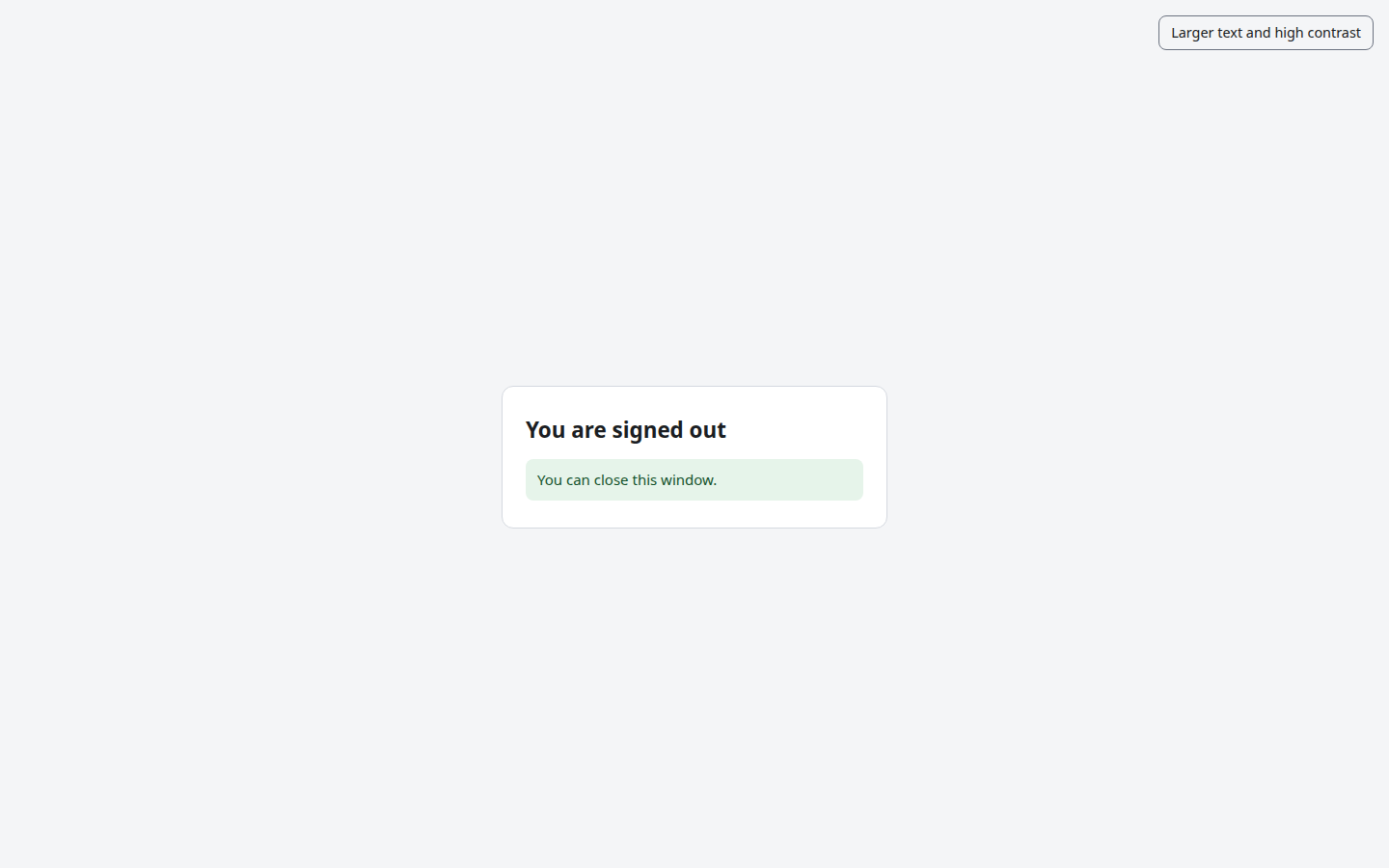
Close the window. You do not need to do anything else.
5. Quick reference card
Choose an account
- Press the line with your name.
- Or press Use another account.
Sign out
- Press Sign out to leave one account.
- Press Sign out of all accounts to leave all of them.
Shared device
- Always sign out of all accounts when you finish.
A browser keeps at most five accounts, and each lasts 12 hours.