Register an OpenID Connect client and manage its secret
Register an application that signs people in through Claviger, copy its secret, and replace it.
Superusers who connect other applications to Claviger for sign-in.
The client secret is shown once. A new secret ends the old one at once, and any application that still uses the old one stops signing people in.
What you will do, in one sentence
Open OpenID Connect, choose New client, fill in the redirect addresses, and copy the client secret when it appears.
Screens are captured from a seeded test system. Every name, address and number on the screens is invented. Prepared 15 November 2026.
1. Before you start
Nothing changes until you register a client. The OpenID Connect provider needs the settings encryption key on the server, unless you run in dev mode. It also needs the Application URL set to the public https:// address. The issuer is that URL followed by /oidc.
Open OpenID Connect in the header.
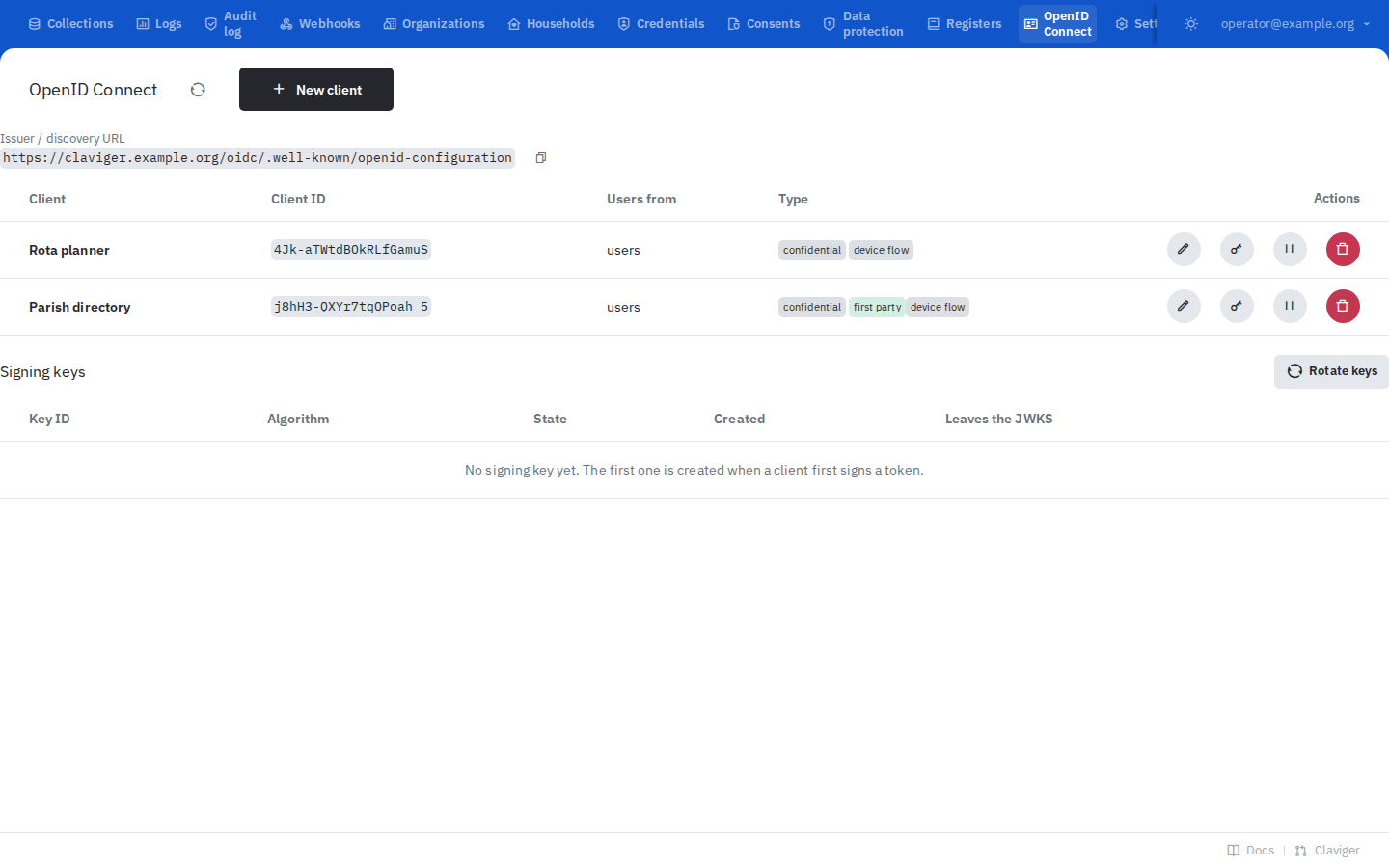
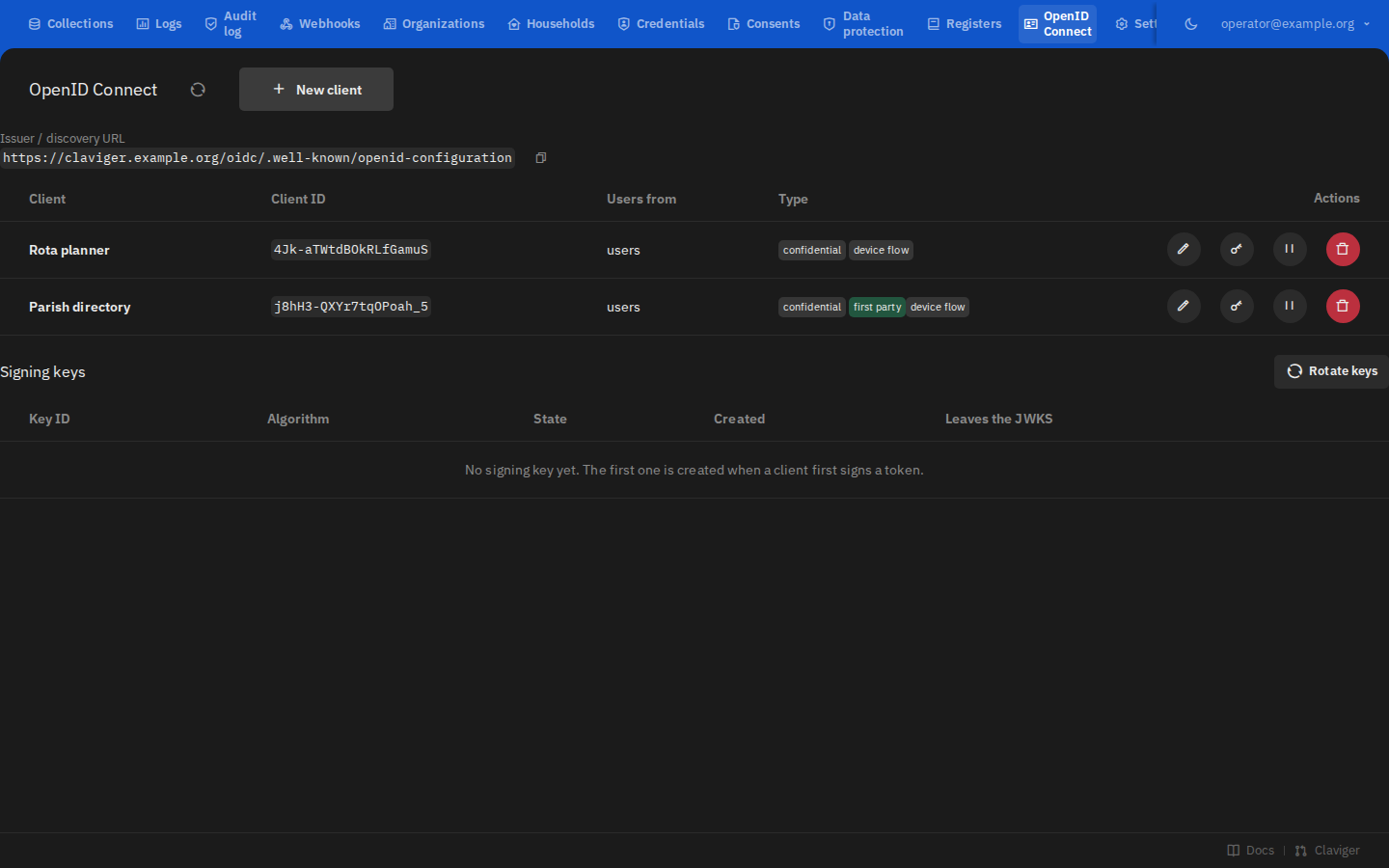
If the provider is off, a yellow box says The OpenID Connect provider is off and gives the reason. If it is on, the page shows Issuer / discovery URL. Give that address to the application you connect.
2. Register a client
- Choose New client. The window is titled New OAuth client.
- Fill in the fields.
- Choose Create.
| Field | Meaning |
|---|---|
| Name | Shown to people on the consent screen. |
| Users sign in from | The one auth collection whose accounts can sign in to this client. The superusers collection is not offered. |
| Redirect URIs (one per line) | Exact match, no wildcards. Use https. For development, http://localhost works. |
| Post logout redirect URIs (one per line) | Where Claviger may send people after sign-out. |
| Allowed scopes | Space separated. Empty means openid profile email offline_access. |
| Public client (no secret) | For single-page and native apps. PKCE is always required. The switch appears only when you create the client. |
| First party | Skips the consent screen. Use it only for applications you run yourself. |
| Require PKCE | On by default. Always on for public clients. |
| Allow the device flow | Lets a CLI, TV or kiosk sign in with a short code entered on another device. The person always approves on the verification page. |
| Access tokens | JWT (5 minutes) or Opaque (use introspection). |
| Token signing algorithm | RS256 (default) or ES256. |
| Client ID (optional) | Leave empty to generate one. |
Example redirect address: https://app.example.org/callback.
3. Copy the secret
For a confidential client, the window then shows the Client ID and the Client secret.
Copy the secret now. Claviger stores only a hash and cannot show it again. If you lose it, make a new one.
A public client has no secret. You see a toast, Client created.
4. Change, disable, replace the secret, delete
Each row of the table has buttons. The Type column shows confidential or public, and first party and device flow labels.
| Button | Effect |
|---|---|
| Edit | Change the fields above, then Save. |
| New secret | Makes a new secret. Not shown for public clients. |
| Disable or Enable | Refuses the client everywhere without deleting it. The row shows disabled. |
| Delete | Removes the client. |
New secret asks you to confirm: the current secret stops working at once. The window New client secret then shows the Client ID and the new secret, once.
The confirmation says the client's users can no longer sign in to it. Tokens it holds stop working. Disable the client first if you are not sure.
5. Quick reference card
Add an application
- OpenID Connect, New client.
- Name, Users sign in from, Redirect URIs.
- Create. Copy the secret.
- Give the app the Issuer / discovery URL.
Replace a leaked secret
- New secret on the row.
- Confirm. Copy the new secret.
- Update the application at once.
Keep First party off for any application you do not run yourself.