Record, verify, renew and revoke credentials
Record a person's credential, verify it, renew it, revoke it, and see who is cleared.
Superusers who record credentials for an organization, and coordinators who need to know what the screen shows.
Access to children's data follows the credential. A lapse or a revoke closes access at once. A lapse must never become public shaming, so keep these lists to coordinators.
What you will do, in one sentence
Open Credentials, pick the organization, press Record credential, and use the row buttons to verify, renew or revoke.
Screens are captured from a seeded test system. Every name, address and number on the screens is invented. Prepared 15 November 2026.
1. See who is cleared
Choose an Organization. The Who is cleared table shows counts for each credential type: cleared, expiring, pending, lapsed, revoked and missing. It covers the active members of the organization.
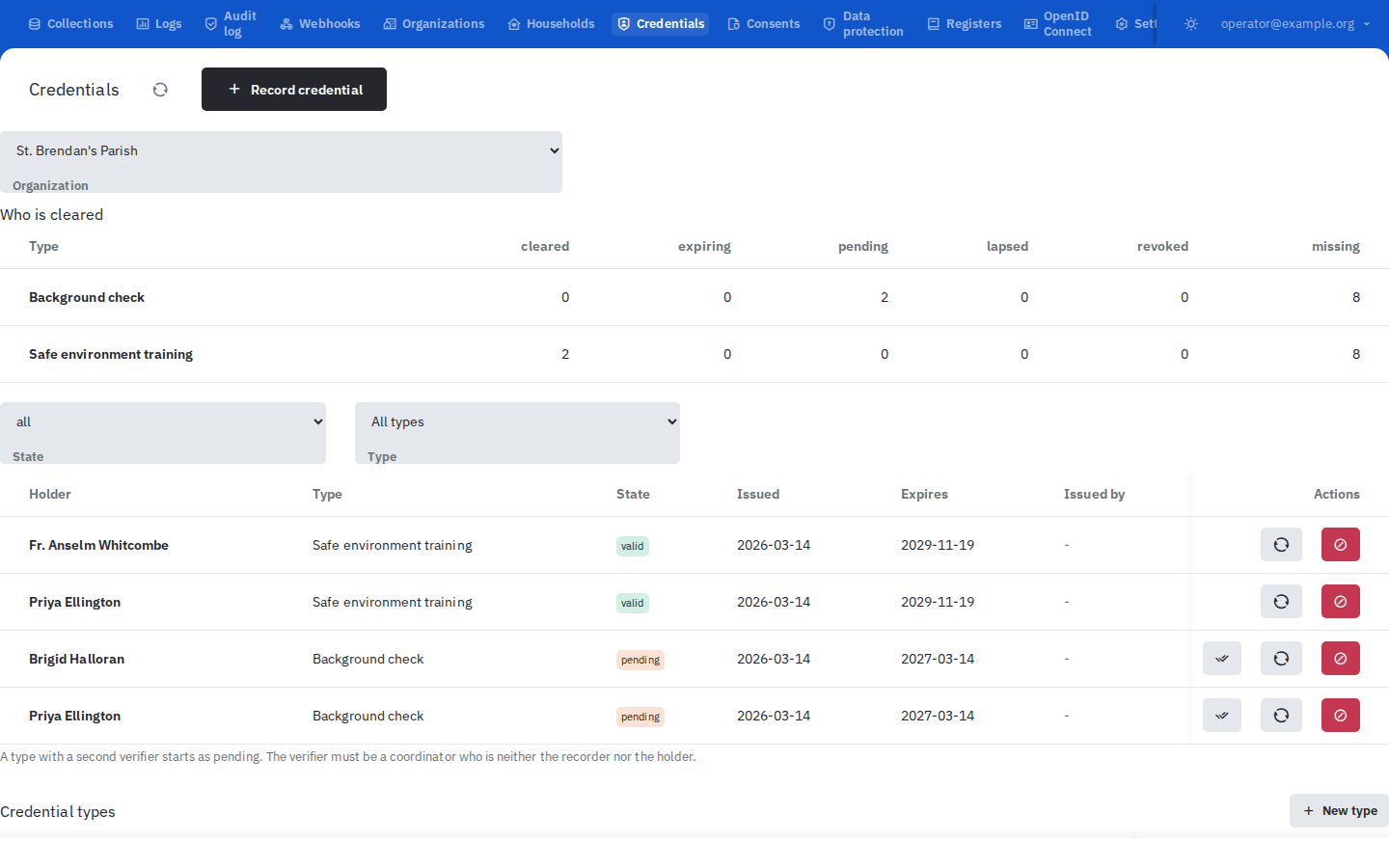
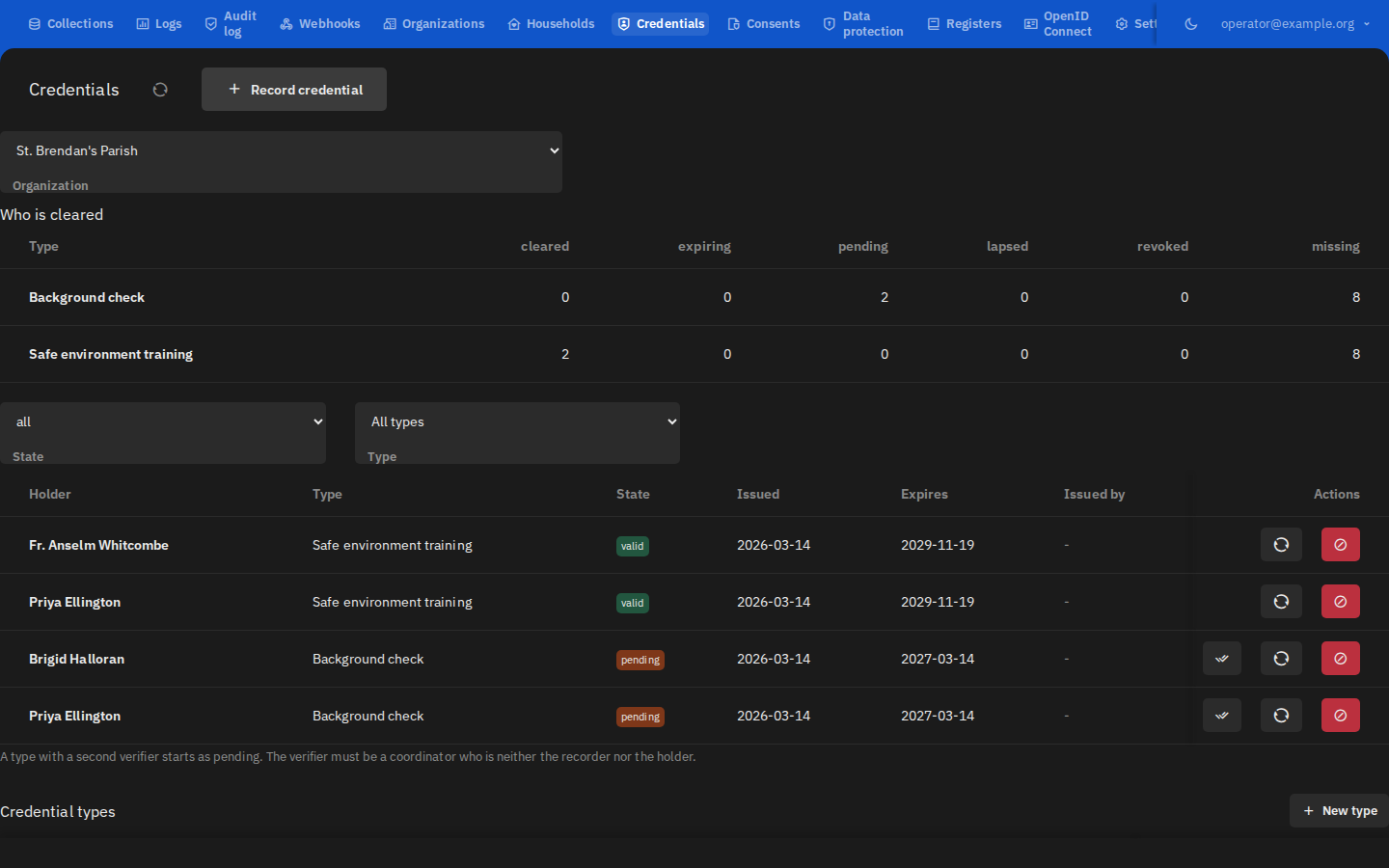
The best credential of a person wins. The screen is for coordinators and superusers. Do not copy it into a public place.
2. Record a credential
- Press Record credential.
- Choose the Holder from the organization's active members and a Credential type.
- Enter Issued on (YYYY-MM-DD, optional). Enter Expires on (YYYY-MM-DD), or leave it empty to use the validity of the type. A date without a time means the end of that day in UTC.
- Enter Issued by (optional), such as the training provider. Press Record.
The server keeps the rules. Nobody records, renews or verifies their own credential. A holder must belong to the issuing organization or one below it. The screen shows a refusal in words.
3. Filter, verify, renew and revoke
The Credentials table has the filters State (all, valid, expiring, pending, lapsed, revoked) and Type. An expiring credential is a valid one that ends within 60 days. The table shows the first 500 rows, so filter when the list is long.
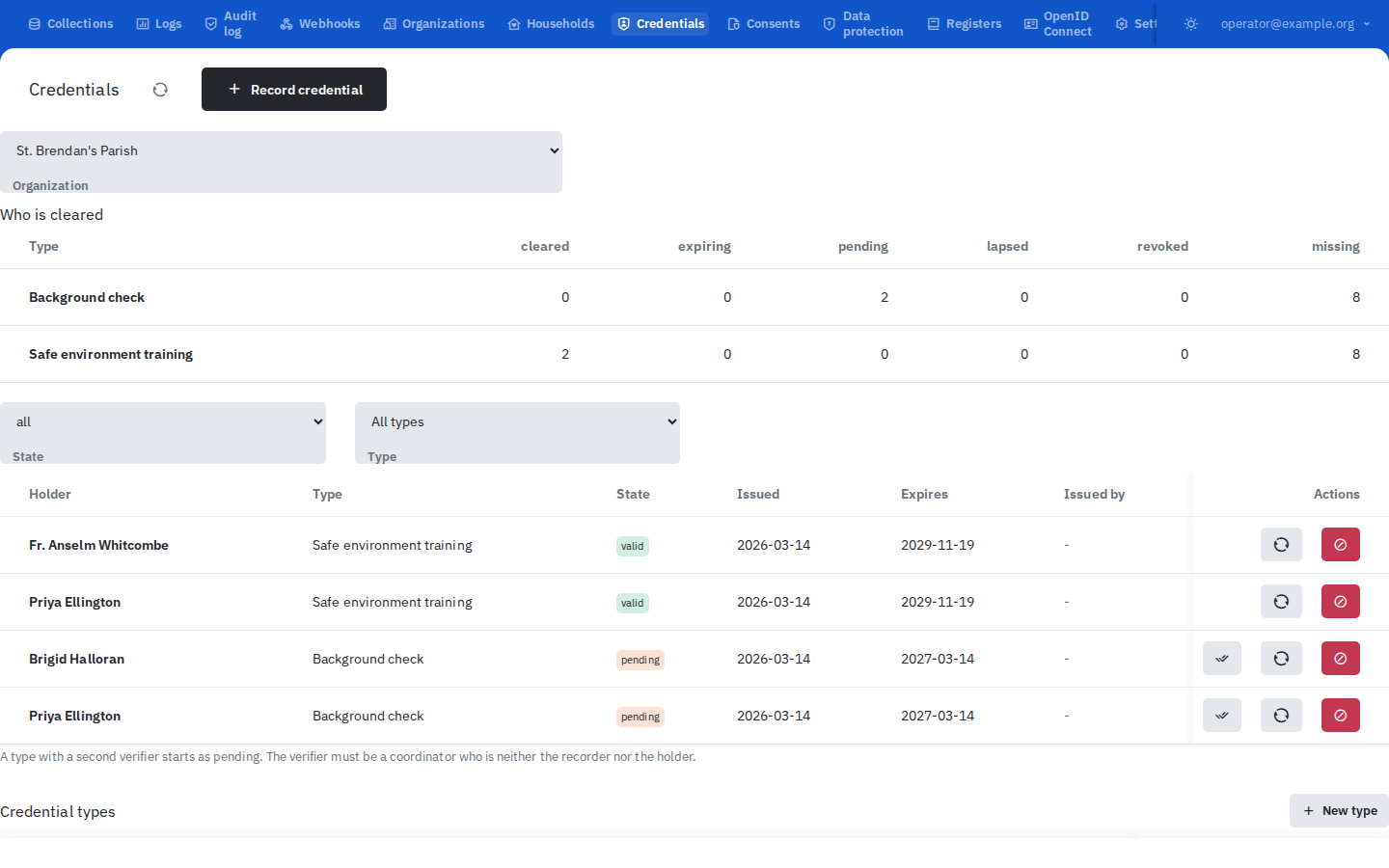
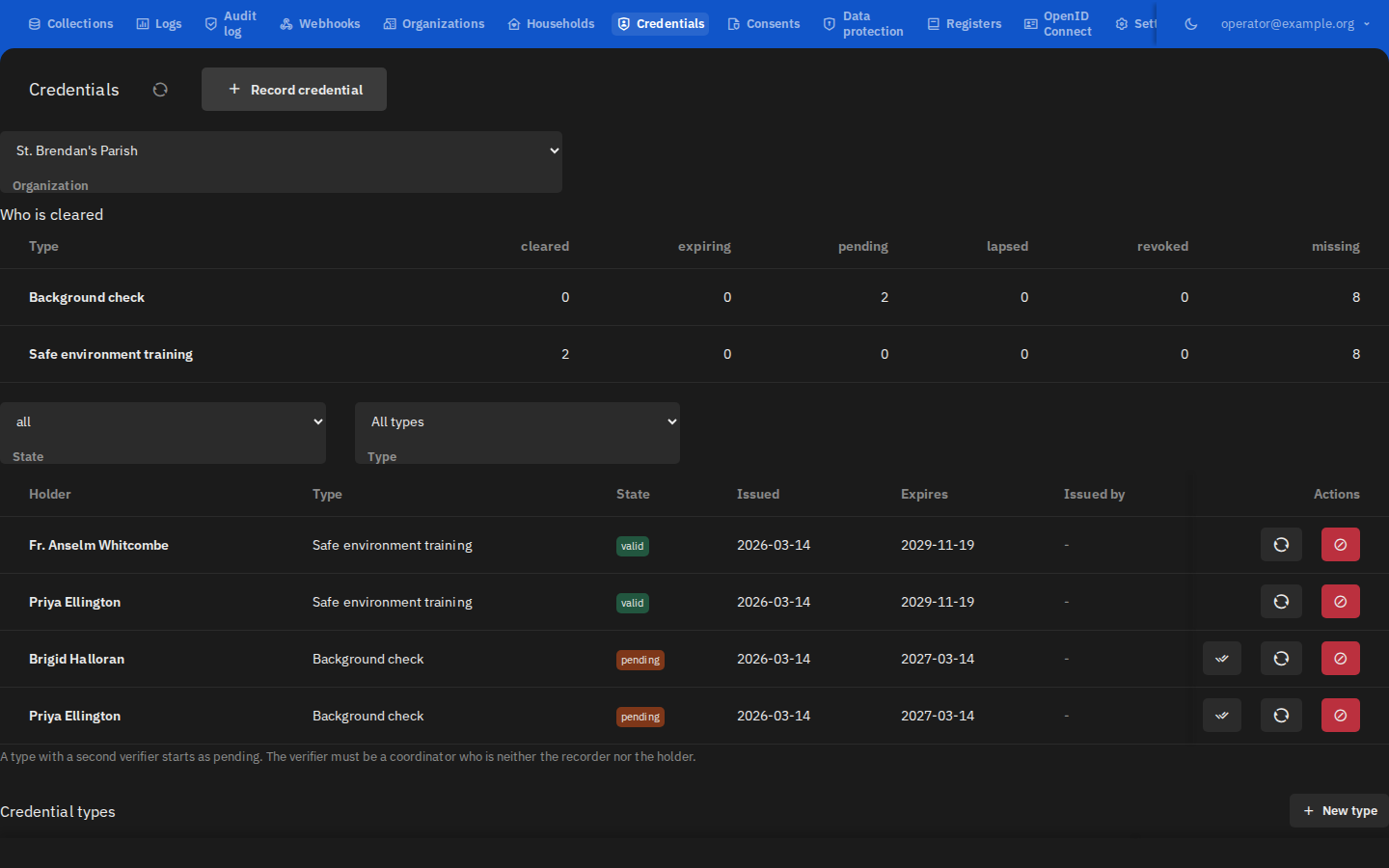
- Verify appears for a
pendingcredential. A type that needs a second verifier starts aspendingand grants nothing. A second coordinator, who is neither the recorder nor the holder, verifies it. - Renew changes the dates or the issuer. New dates restart the reminders. A type with a verifier needs verifying again.
- Revoke asks for a Reason. It takes effect at once.
A revoked row has no Renew or Revoke button, so this screen has no undo. The reason is kept for coordinators. The holder does not see it. To restore access, record a new credential.
4. Reminders and lapses
A daily job marks credentials that have passed their expiry as lapsed. It writes the audit events credential_expiring and credential_lapsed. Webhooks receive credential.expiring and credential.lapsed.
When a threshold is crossed, Claviger emails the holder and the coordinators. Each threshold sends at most once. The mail names the type, the organization and the expiry date. A person without an email address is skipped. Revoked and unverified credentials get no reminder.
Access never depends on the job. The rule reads the expiry date, so a late job never leaves access open.
5. Volunteers see their own standing
A volunteer opens the hosted page /credentials/mine after signing in. A lapse reads as "ready to renew", never as a failure. The page names the safeguarding coordinators to talk to. The reason for a revoke is not shown.
6. Quick reference card
Record
- Record credential.
- Pick Holder and Credential type. Enter the dates.
- Press Record.
Act on a row
- Verify a pending credential.
- Renew after a new check.
- Revoke with a Reason.
Deleting an organization is refused while any credential belongs to it. Remove the rows first, under your retention policy.