Sign in with a passkey or another method
Learn the ways you can sign in on Claviger pages, and what each message means.
Members who sign in on the hosted Claviger pages. This covers the passkeys page, the church pages, and the page an app sends you to.
Each page offers the methods your church turned on. If you know the choices, you can pick the easiest one and fix a failed sign-in quickly.
What you will do, in one sentence
Type your email or username, then use a passkey, a password, or an emailed code, whichever the page offers.
Screens are captured from a seeded test system. Every name, address and number on the screens is invented. Prepared 15 November 2026.
1. The methods
| Method | What you do |
|---|---|
| Passkey | Type your email or username. Press the passkey button. Confirm with your fingerprint, face or screen lock. |
| Password | Type your email or username and your password. Press Sign in. |
| Emailed code | Press Email me a sign-in code. Type the code from the email. |
| Authenticator code | Some accounts ask for a second step. Type the code from your authenticator app, or a backup code. |
Your church decides which methods are on. A page shows only the ones that apply to your account.
2. The passkeys page
The /passkeys page is for managing passkeys. It also lets you sign in.
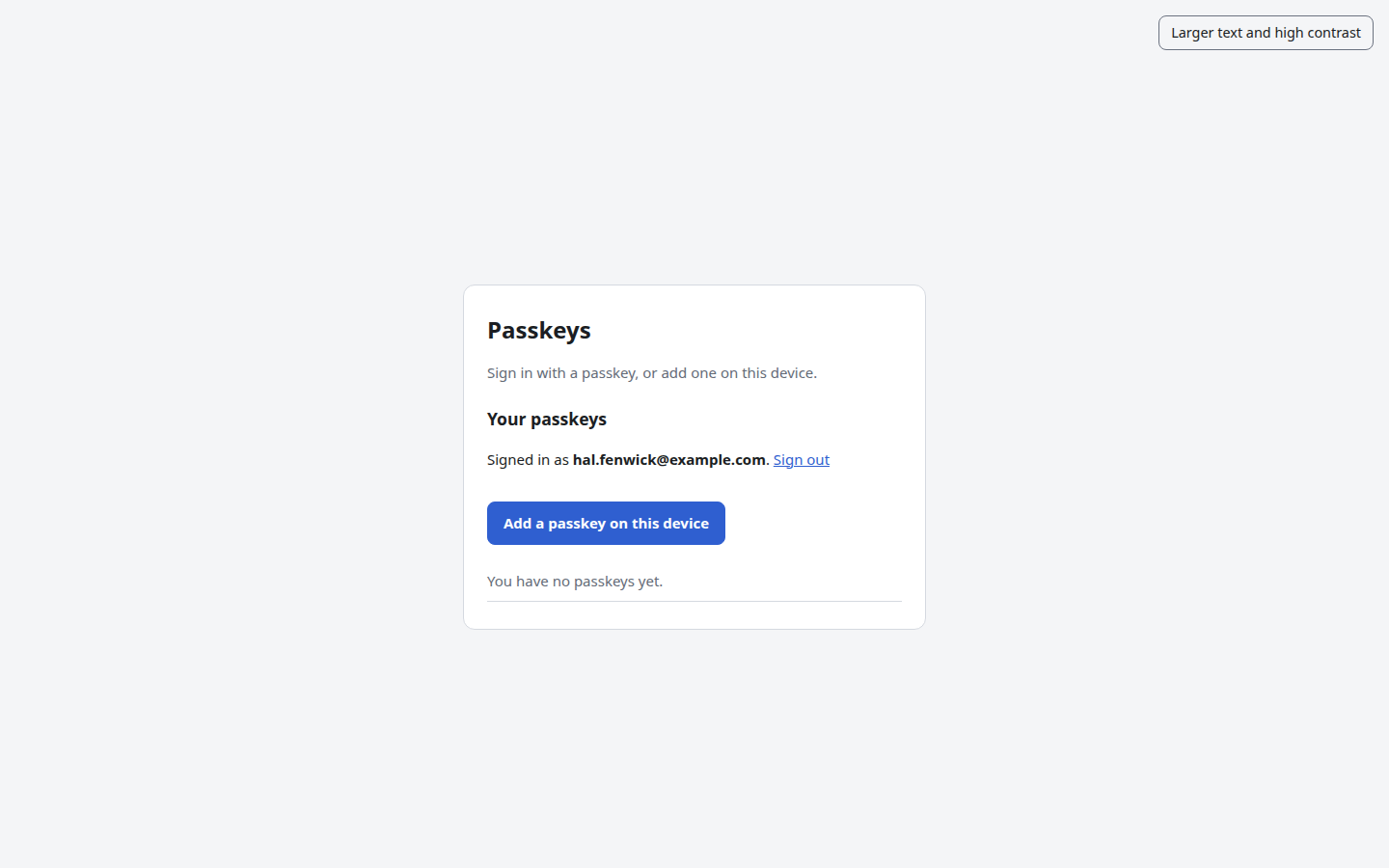
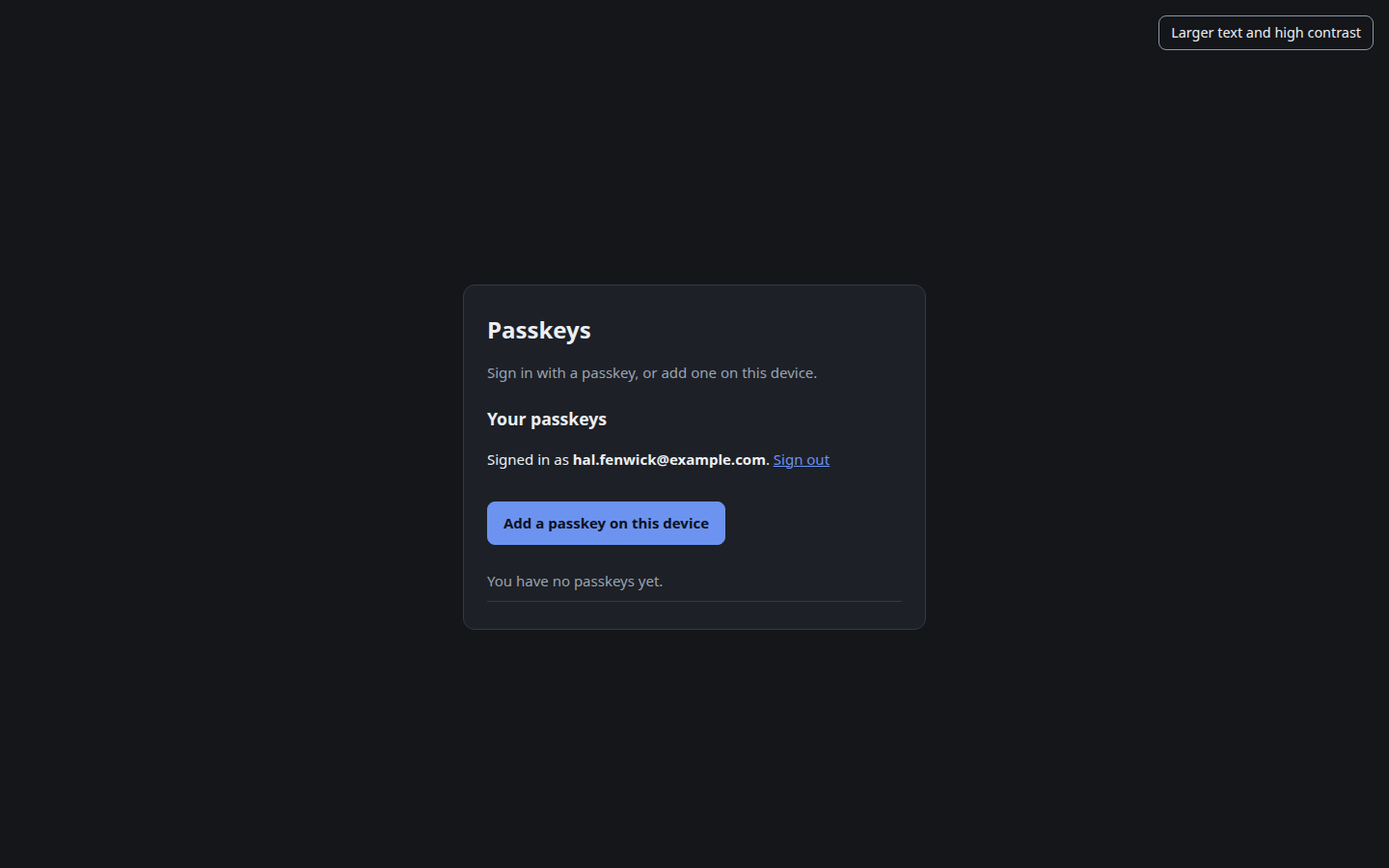
- Under Sign in with a passkey, type your email or username in the box named Email or username.
- Press Sign in with passkey.
- Your device asks you to confirm. Do it.
- The page says "Signed in."
Some browsers show your saved passkeys when you click in the box. If you see yours, pick it. You do not need to type anything.
No passkey yet? Press Sign in with your password to add one. Then type your email and password.
If your account has no password, the page offers Email me a link to set one up. Use it when you lose your passkey. Use it also on your first visit.
3. The church pages
Pages such as your invitation, your household and your group page share one sign-in box. It can show:
- Email or username and Password, with the Sign in button.
- Email me a sign-in code, then Code from the email.
- Sign in with a passkey.
- Code from your authenticator app, or a backup code, with the Verify button.
The passkey button and the emailed code button need your email in the first box. If you leave it empty, the page says "Enter your email first."
4. The page an app sends you to
When an app asks you to sign in, you see this page. It says "to continue to" and the app name.
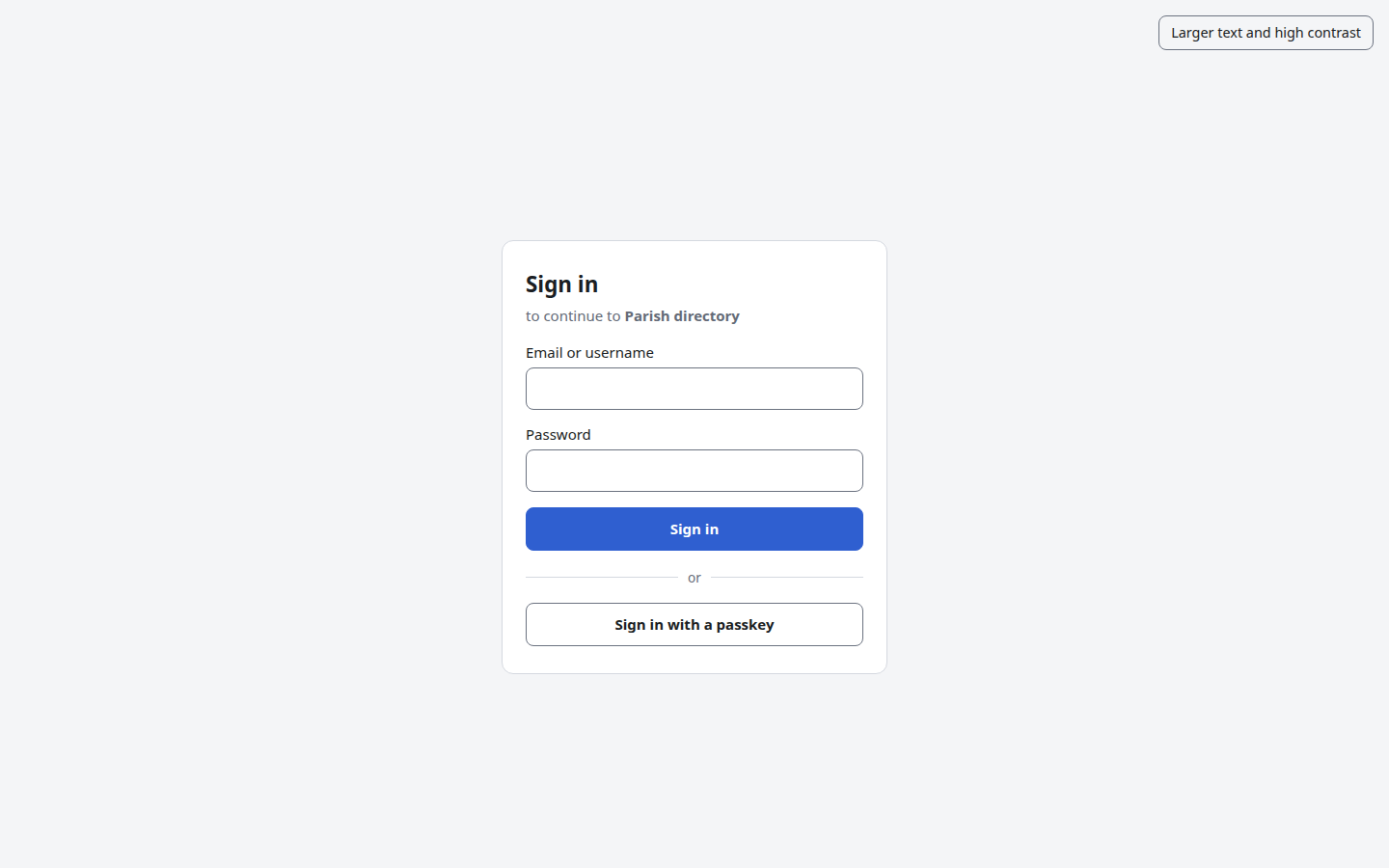
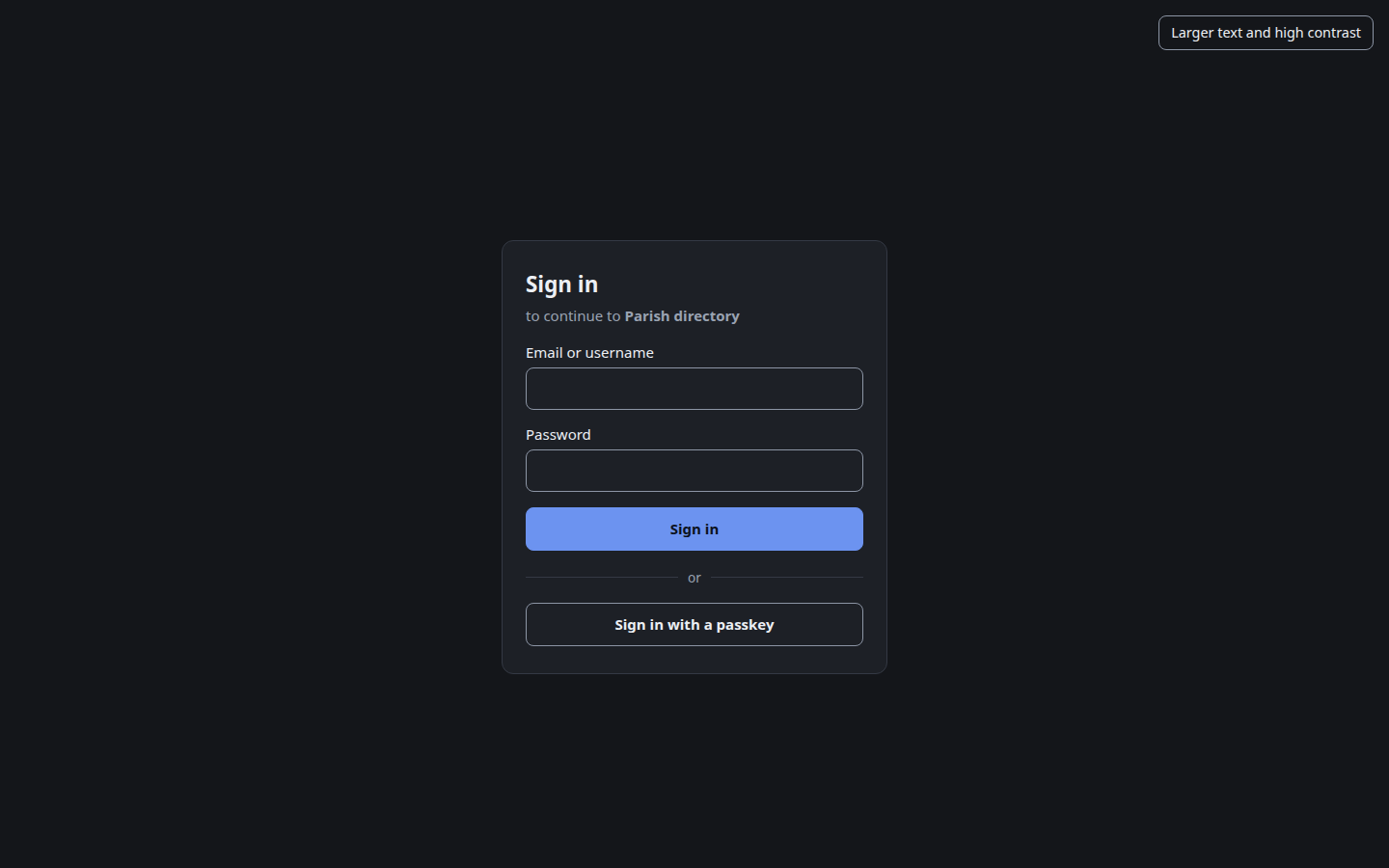
It offers a password, a passkey and an authenticator code. It does not offer an emailed code.
5. When a sign-in fails
| Message | What to do |
|---|---|
| Wrong email or password. | Check both and try again. |
| That code was not accepted. | Check the code and type it again. If it still fails, ask for a new one. |
| Too many attempts. Try again later. | Wait a few minutes. Then try again. |
| The passkey sign-in did not finish. | Try again. Check that you picked the right passkey. |
| This browser cannot use passkeys. Try a newer browser. | Use another browser or device. |
| This account needs an extra step that this page cannot do yet. | Use another sign-in page, or ask the church office. |
| No sign-in method is available. | Ask the church office. |
Some pages show a small check, called a captcha, before they sign you in. Complete it and go on.
6. Quick reference card
Sign in with a passkey
- Type your email or username.
- Press the passkey button.
- Confirm on your device.
Sign in with a code
- Type your email.
- Press Email me a sign-in code.
- Type the code from the email.
Lost your passkey
- Press Email me a link to set one up, if the page shows it.
- Or ask the church office for a recovery code.
If nothing works, ask the church office. Do not share your password or a code with anyone.