Add, name and remove a passkey
Add a passkey to your phone or computer, give it a name, and remove one you no longer use.
Members of a church or group that runs Claviger. You use the page at /passkeys on your church's sign-in address.
A passkey lets you sign in with your fingerprint, your face or your screen lock. You do not need to remember a password. If you get a new phone, you must add a passkey there too.
What you will do, in one sentence
Sign in at /passkeys, press "Add a passkey on this device", and give the passkey a name such as "My phone".
Screens are captured from a seeded test system. Every name, address and number on the screens is invented. Prepared 15 November 2026.
1. What a passkey is
A passkey is a safe way to sign in. It lives on your phone or computer. You unlock it with your fingerprint, your face or your screen lock.
- You do not type a password.
- A passkey needs no secret that you must remember or copy.
- You can have more than one passkey, for example one for your phone and one for your laptop.
Your church's sign-in address ends in /passkeys. Ask the church office for the full address if you do not have it.
2. Add a passkey
- Open the
/passkeyspage. - If you already have a password, press Sign in with your password to add one. It sits under the text "No passkey yet?"
- Type your email and password, and press Sign in.
- The page says "You are signed in. You can now add a passkey."
- Press Add a passkey on this device.
- A box asks you to name the passkey. Type a name you will know later, such as "My phone". Press OK.
- Your device asks you to confirm. Use your fingerprint, your face or your screen lock.
- The page says "Passkey added."
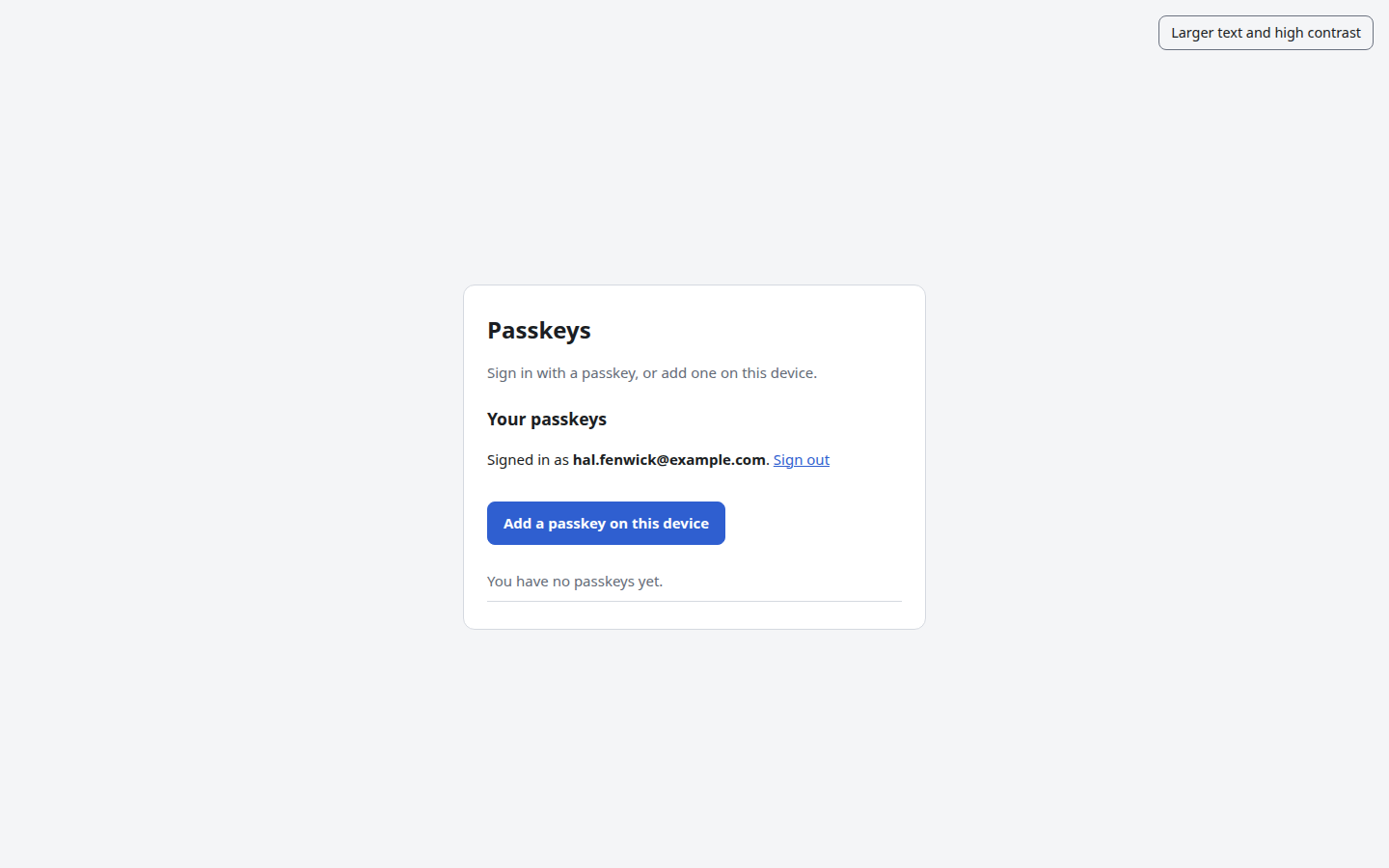
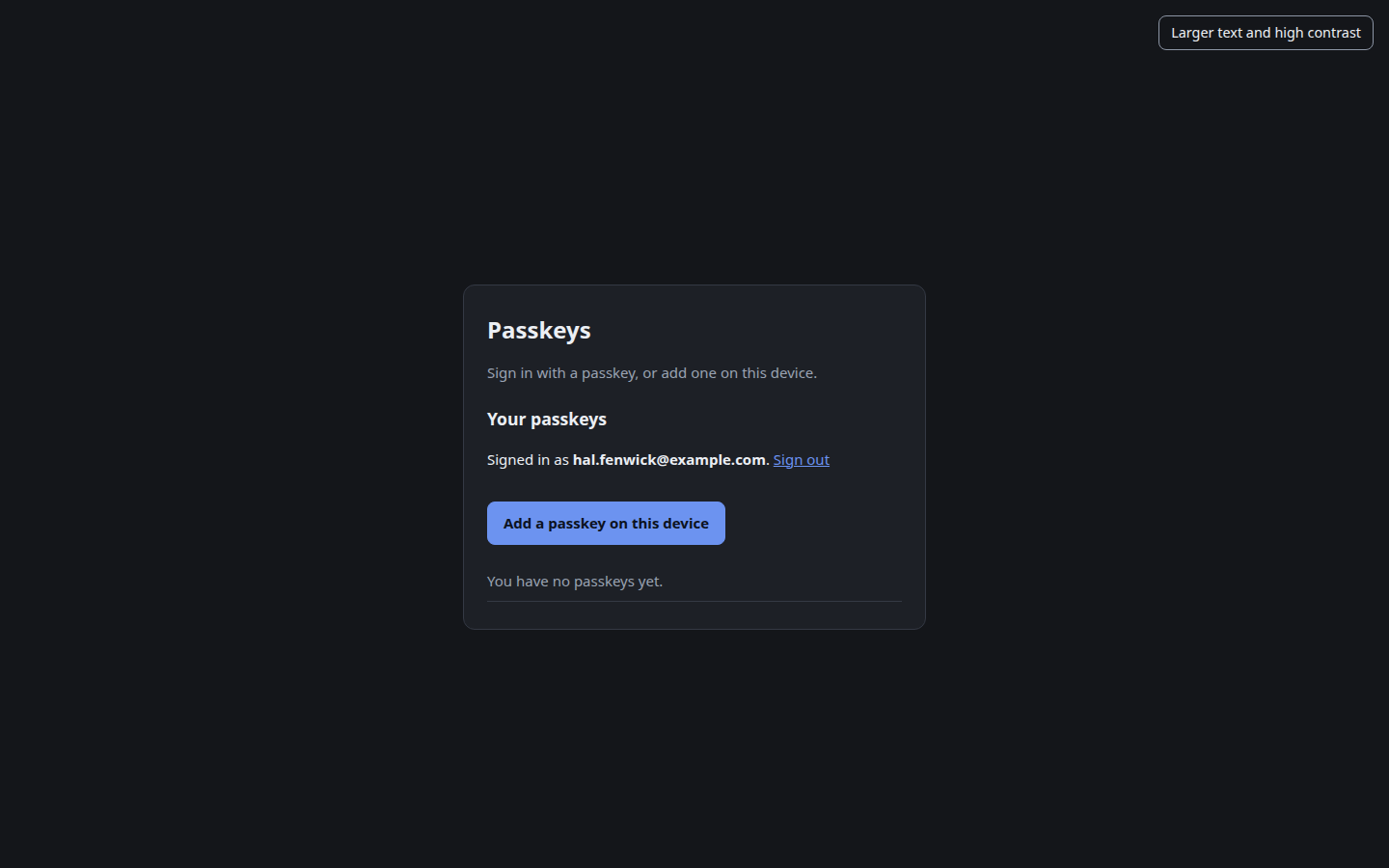
If the page says "This browser cannot use passkeys. Try a newer browser.", open the page in another browser or on another device.
3. See, rename and remove your passkeys
Under Your passkeys the page lists each passkey. Each line shows:
- the name you gave it.
- "Added" and the date.
- "Last used" and the date, or "Not used yet".
- "Uses" and how many times it was used.
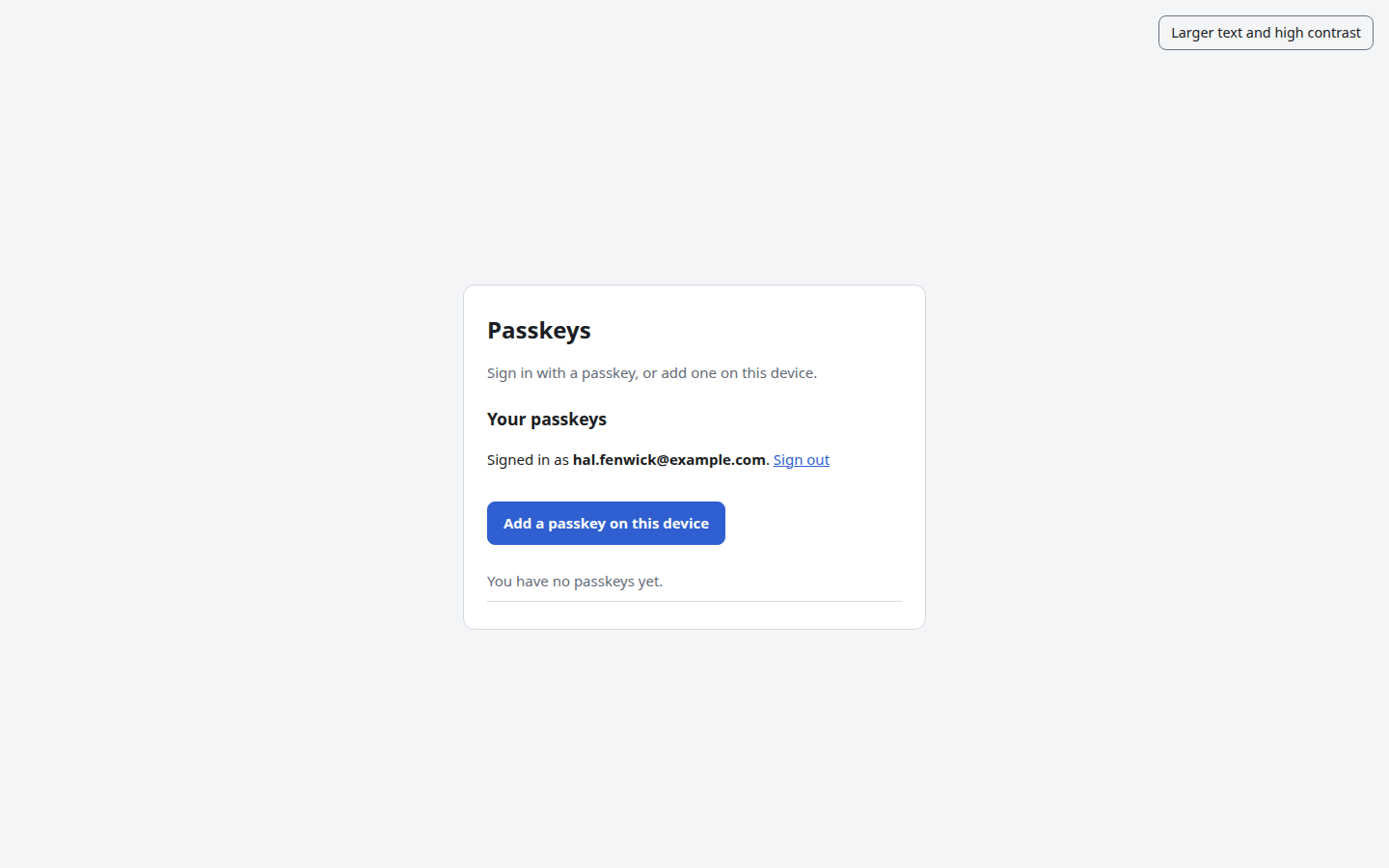
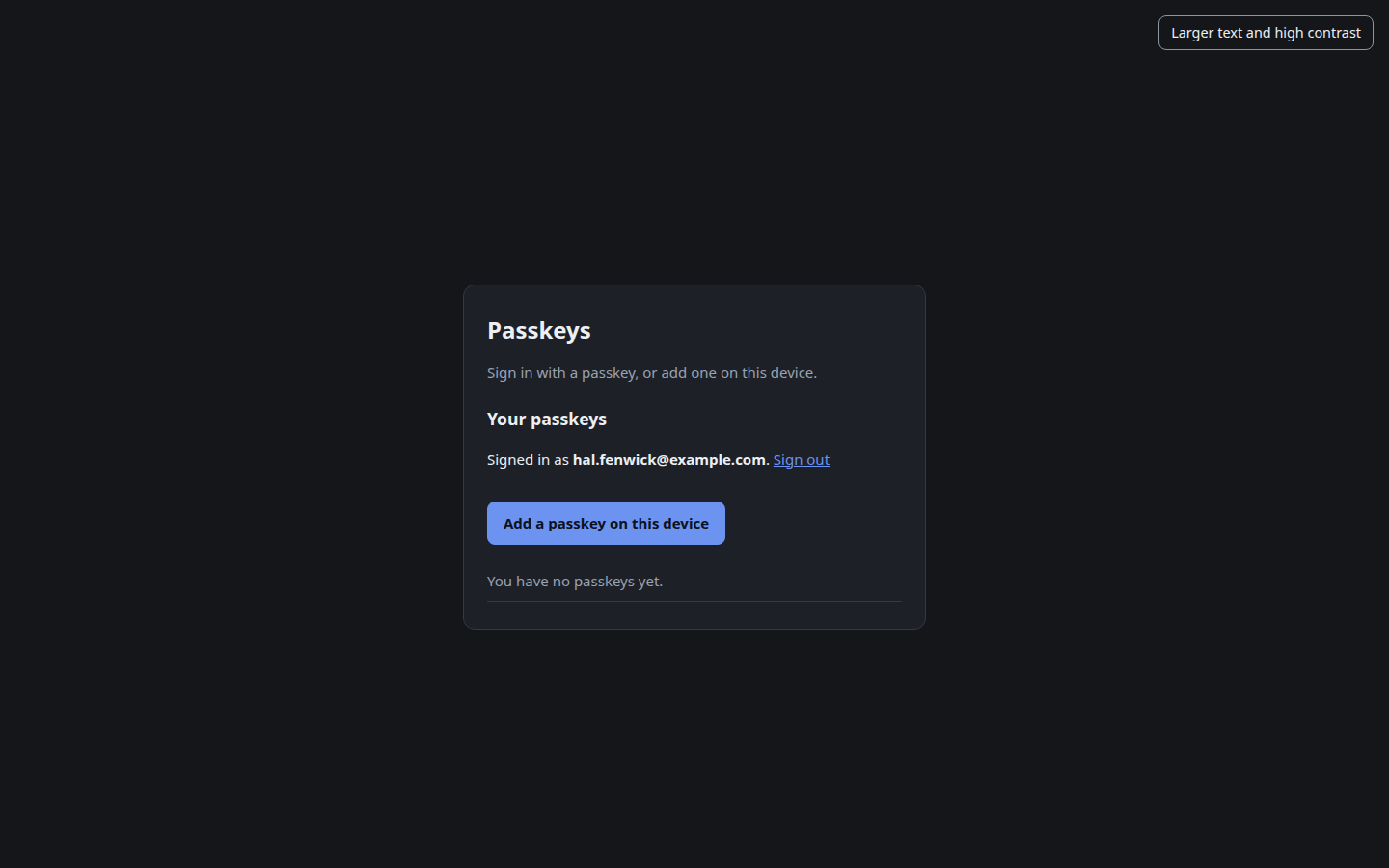
To change a name, press Rename, type the new name, and press OK.
To remove a passkey, press Delete. The page asks "Delete this passkey?" Press OK. Your device may ask you to confirm with a passkey first. Do this on a passkey you still have.
If you remove every passkey and you have no password, you cannot sign in the usual way. You would need the emailed link or a recovery code from the church office. Add the new passkey first. Delete the old one after.
4. You got a new phone
A passkey you made on your old phone may not be on your new phone. Do this to be safe:
- Open
/passkeyson the new phone. - Sign in with your password, if you have one. Then add a passkey as in section 2.
- If you have no password, press Email me a link to set one up. Type your email and press Send link. The page says "If we find an account for that email, we have sent a link." Open the link in your email.
- If you cannot use email, ask the church office for a recovery code. See the guide "Use a recovery code".
When you set up a passkey from an emailed link or a recovery code, Claviger removes your old passkeys. Your old sessions stop working too. Add your passkey on each device you use after that.
5. Quick reference card
Add a passkey
- Open
/passkeysand sign in. - Press Add a passkey on this device.
- Name it. Confirm with your fingerprint, face or screen lock.
Rename or remove
- Find the passkey under Your passkeys.
- Press Rename or Delete.
New phone
- Sign in with your password, or press Email me a link to set one up..
- Add a passkey on the new phone.
Add a passkey on every phone or computer you use to sign in.