Rotate and retire the keys of encrypted fields
Read the key status of every encrypted field, rotate keys, prune retired keys, and move to a new key-encryption key.
Superusers who run collections with Encrypted text or Encrypted JSON fields.
Rotation limits how much data one key protects. Pruning a retired key is final. Losing the key-encryption key loses the data.
What you will do, in one sentence
Open Encryption keys, check the row counts, choose Rotate, and prune retired keys only when no row uses them.
Screens are captured from a seeded test system. Every name, address and number on the screens is invented. Prepared 15 November 2026.
1. Two kinds of key
Each encrypted field has its own data key. A key-encryption key (CLAVIGER_KEK) wraps every data key. The server holds the key-encryption key. The wrapped data keys sit in the database.
| Key | Rotate it to | Cost |
|---|---|---|
| Data key | Re-encrypt the rows of a field under a new key. | Grows with the data. Runs in the background. |
| Key-encryption key | Wrap every data key under a new key. No row changes. | Seconds. |
Open Settings, then Encryption keys. Both rotations run inside the live server. Reads and writes keep working.
2. Read the table
The page lists every encrypted field.
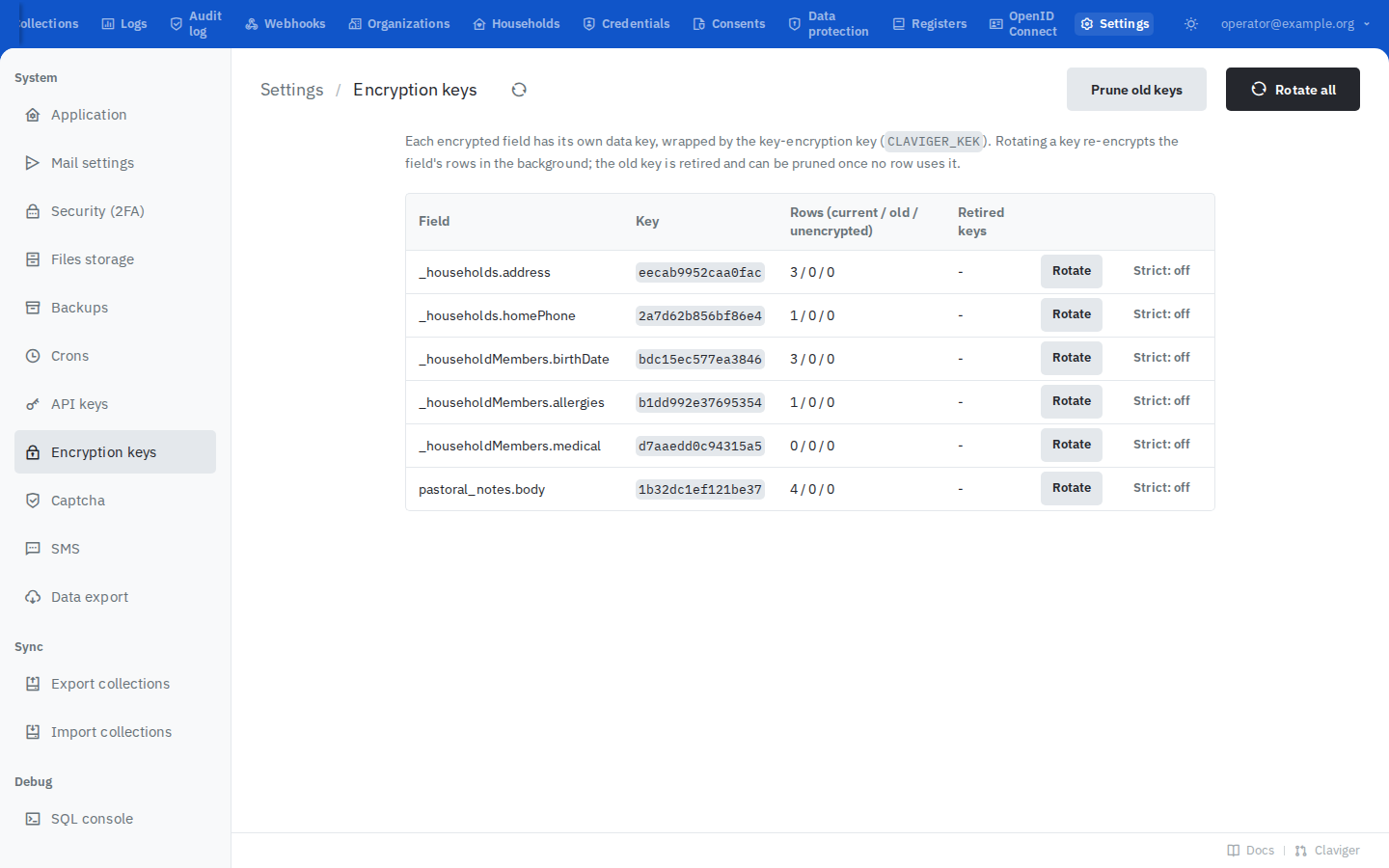
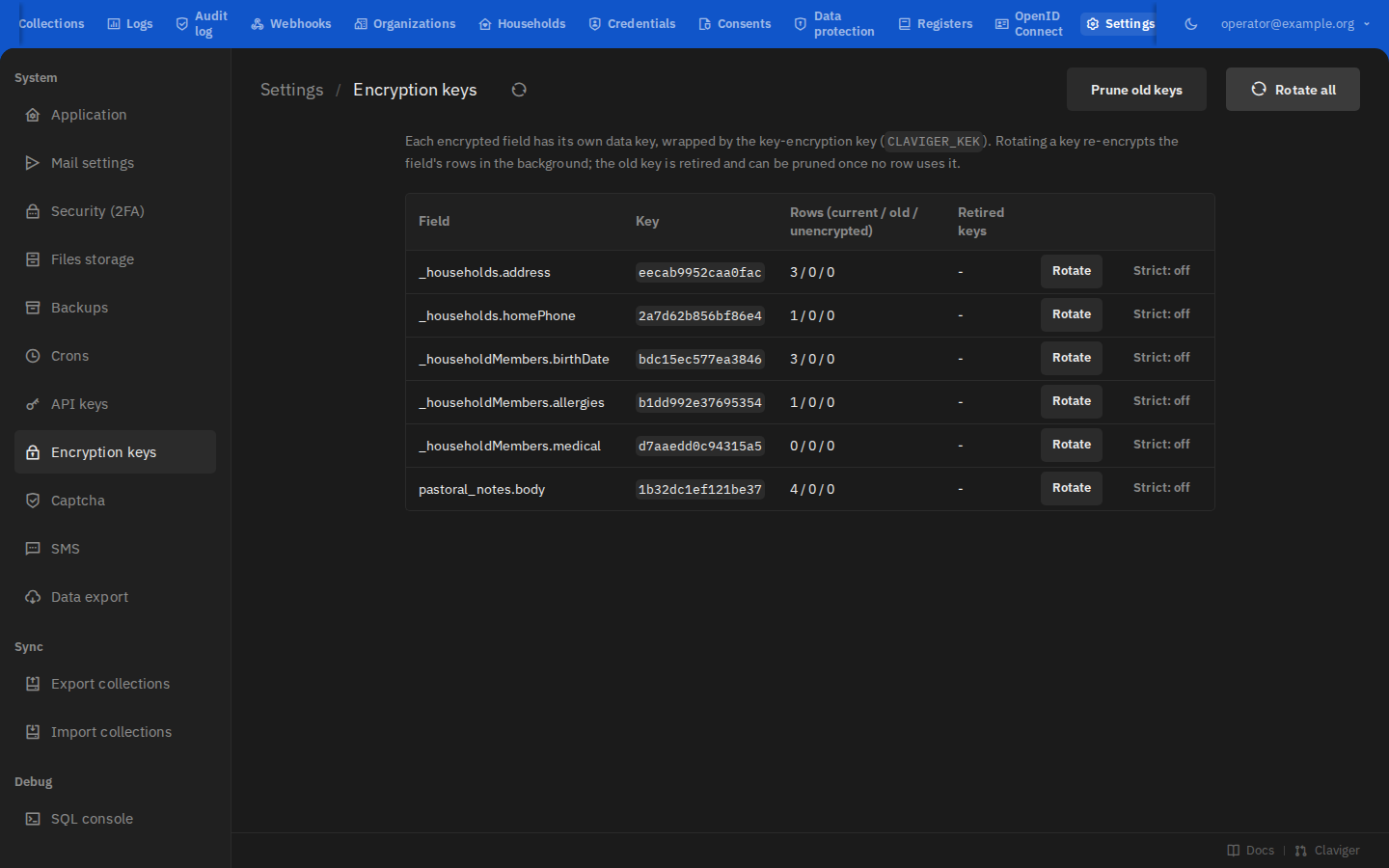
The table has four columns.
| Column | Meaning |
|---|---|
| Field | collection.field. |
| Key | The id of the current data key. (old KEK) means a rewrap is due. |
| Rows (current / old / unencrypted) | How many rows use the current key, an old key, or no encryption. |
| Retired keys | Old keys and how many rows still use each. |
If you have no encrypted fields, the page says No encrypted fields. A box shows the running job and its progress, or the last result. Only one job runs at a time.
3. Rotate a data key
- Choose Rotate on a field, or Rotate all at the top.
- Confirm. The question says a new key is created and every row is re-encrypted in the background.
- Watch the progress box until it says the job finished.
The old key is now retired but kept, so no data is lost. If a run stops, choose Rotate again. It continues where it stopped.
When the Rows column shows no row on the old key, choose Prune old keys and confirm.
Prune deletes the retired keys that no row uses. A backup from before the prune still holds the key, together with the rows of that time. Keep such a backup until you are sure the rotation is good. Claviger refuses to prune a key that a row still uses.
4. Rotate the key-encryption key
- Make a new key and store it away from the server and the backups.
- Deploy with the new key as the main key, and the old one as
CLAVIGER_KEK_OLD. The page then shows: A previous key-encryption key is configured. - Choose Re-wrap under the new KEK and confirm. No row changes.
- Remove
CLAVIGER_KEK_OLDand restart.
If the key is missing or wrong, the server refuses to start and names the field. Changing the key without these steps makes the encrypted data unreadable. Keep a copy of the key in a second place. Test a restore together with the key.
Old encrypted backups need the key they were made with. Keep CLAVIGER_KEK_OLD as long as you keep them.
5. Legacy values and strict mode
If you changed a text field to Encrypted text, old values stay readable as plain text. On the field's row:
- Choose Encrypt legacy values and confirm.
- Then choose Strict: off to turn strict mode on.
In strict mode a stored value that is not encrypted is a read error. That stops a value written around the app from passing as data. The button is disabled while unencrypted rows exist. Choose Strict: on to turn it off.
6. Quick reference card
Rotate one field
- Rotate on its row.
- Wait for the job to finish.
- Prune old keys when no row uses the old key.
Move to a new KEK
- Set the new key, and
CLAVIGER_KEK_OLDto the old one. - Re-wrap under the new KEK.
- Remove
CLAVIGER_KEK_OLD. Restart.
Keep the key-encryption key somewhere other than the server and the backups.