Read the audit log and flag collections for read audit
Find out who changed or read what, and turn on read logging for sensitive collections.
Superusers who run a Claviger install. You need to sign in to the admin screen at /_/.
Claviger records every change by default. It records reads only for collections you flag, because most reads are routine and would flood the log. Flag the collections that hold sensitive data, and the log answers "who looked at this?".
What you will do, in one sentence
Open the audit log to see what happened, then list the sensitive collections under "Audit reads of collections".
Screens are captured from a seeded test system. Every name, address and number on the screens is invented. Prepared 14 November 2026.
1. What the log records
Claviger keeps an append-only log. Only superusers can read it through the API.
| Action | When it is written |
|---|---|
create, update, delete | Every record change, with the values before and after. Secrets, hidden fields and encrypted fields are hidden. |
settings.update, collection.create, collection.update, collection.delete | An admin changes a setting or the schema. |
Feature actions, such as field_key_rotate or recovery_issue | An operation that is not a plain record change. |
read | Someone reads a collection you flagged. Nothing is recorded for a read by default. |
Each entry names the actor (superuser, record, scim or system), the client IP address, and a meta object. meta.orgId is set when the record belongs to an organization.
2. Turn on read audit
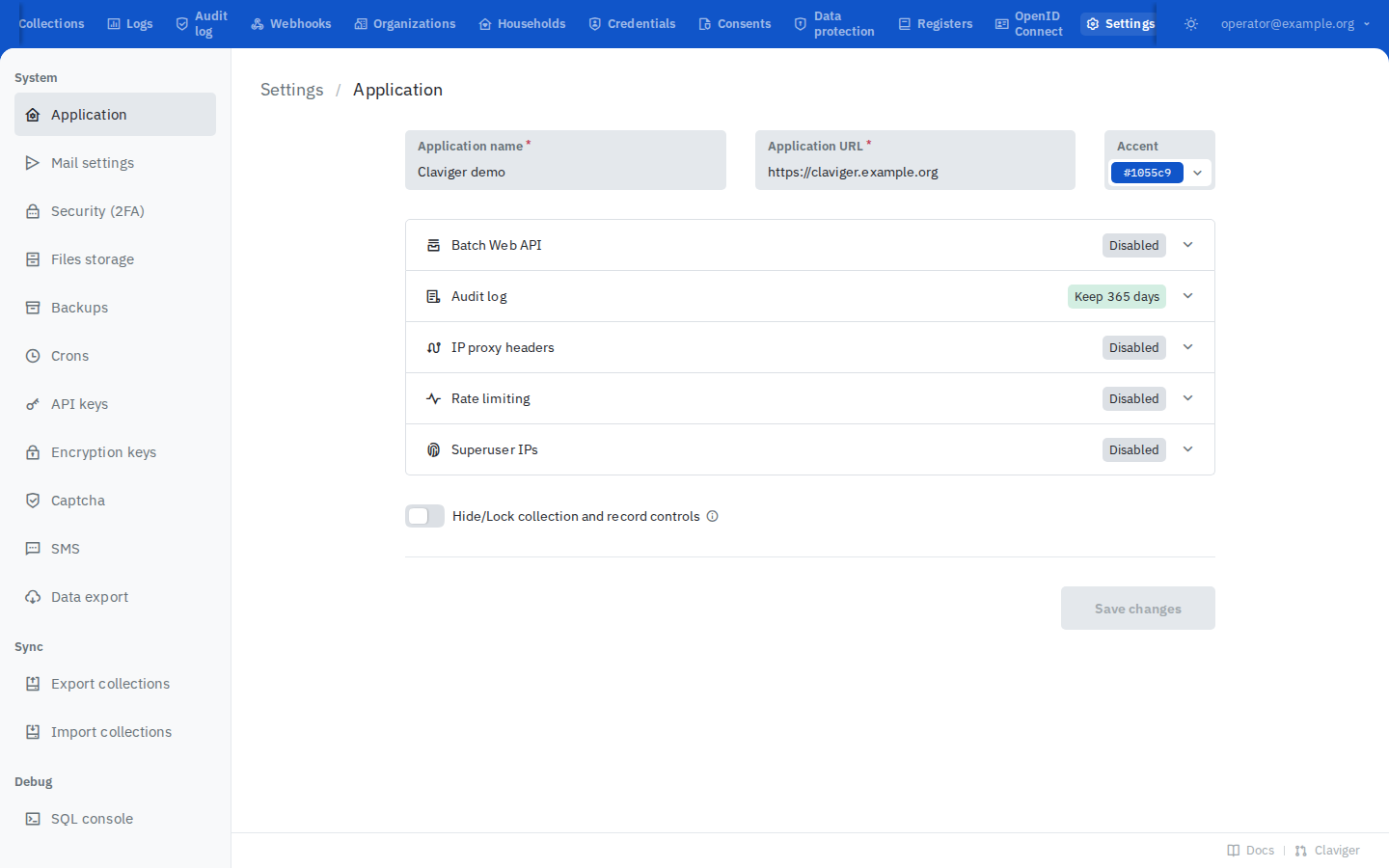
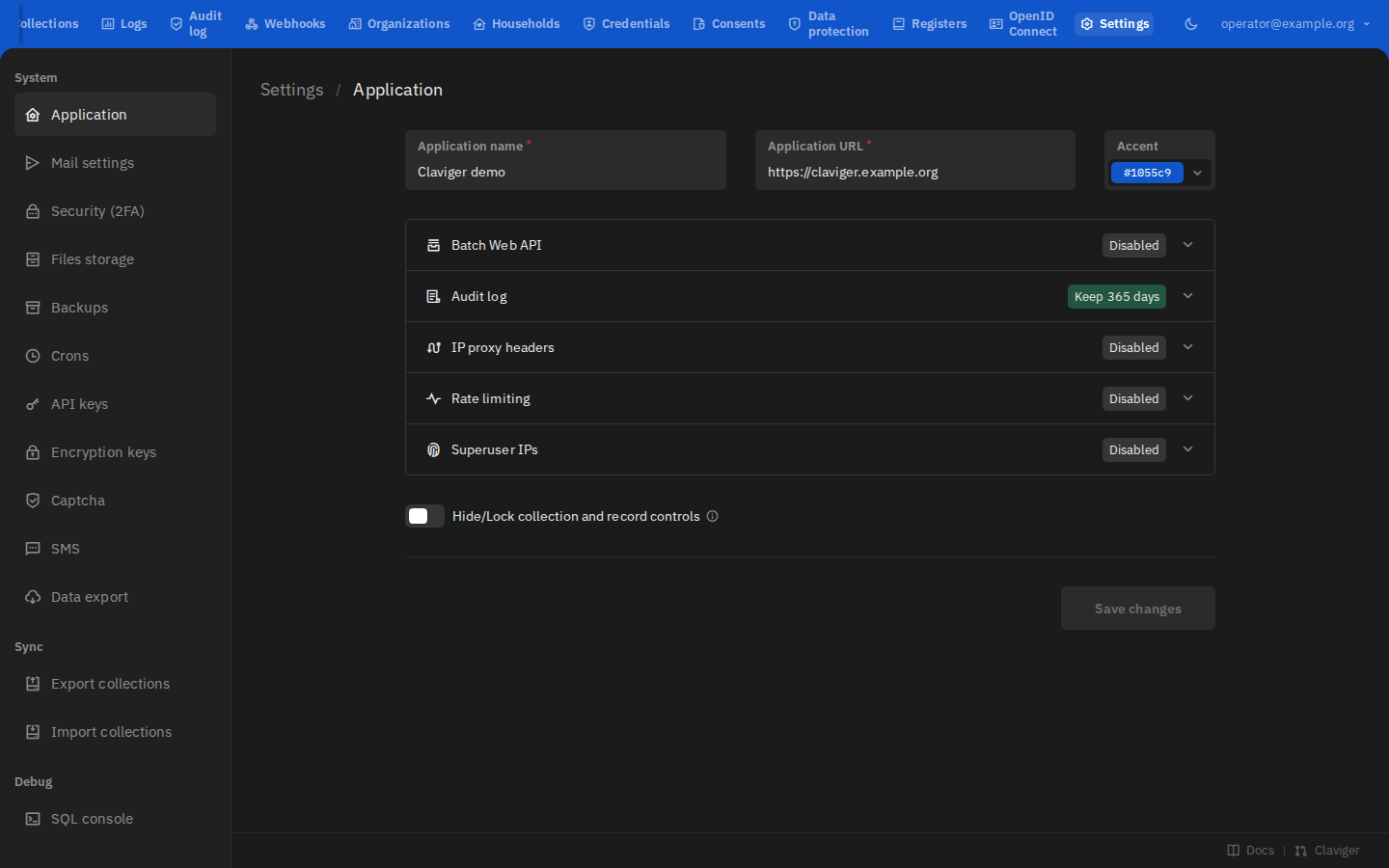
- Open Settings, then Application, then Audit log.
- In Audit reads of collections, add each collection you want to watch. System collections such as
_orgMembersare allowed. - Save.
Rules to know:
- Each name must be a collection that exists.
_auditLogcannot be flagged, because reading the log would write to it.- An empty list turns read audit off.
- The change itself is logged as
settings.update.
You can do the same from the API:
PATCH /api/settings
{"audit": {"readCollections": ["pastoral_notes", "_orgMembers"]}}
3. Read a read entry
One entry is written for each request. It stores ids, never record content.
| Field | Meaning |
|---|---|
targetCollection | The collection that was read. |
targetId | The record id, when exactly one record was read. Empty for a list. |
meta.recordIds | Ids of the records returned, at most 100. |
meta.count | How many records came back. |
meta.truncated | true when more records came back than the ids kept. |
meta.via | expand or realtime. Absent for a plain view or list. |
Superusers are logged too. A read in the admin screen shows as superuser.
File downloads, sign-in responses, create and update responses, the SQL console and server-side code are not logged as reads. Do not rely on read audit for file fields.
A read entry holds the reader's IP address. It follows the normal audit retention setting, and it appears in a person's data export.
4. Quick reference card
Turn on read audit
- Settings, Application, Audit log.
- Add the collections. Save.
Find who read a record
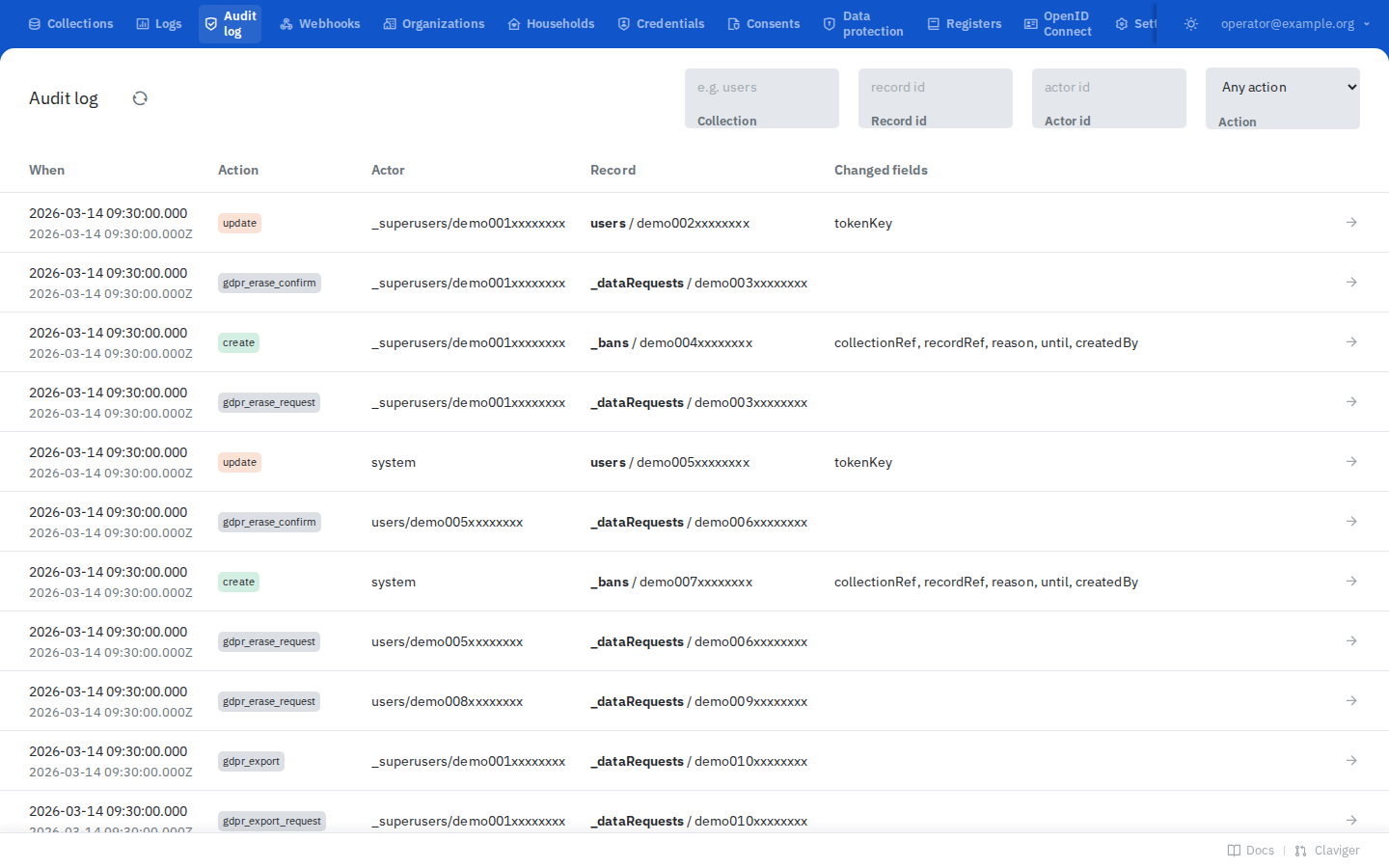
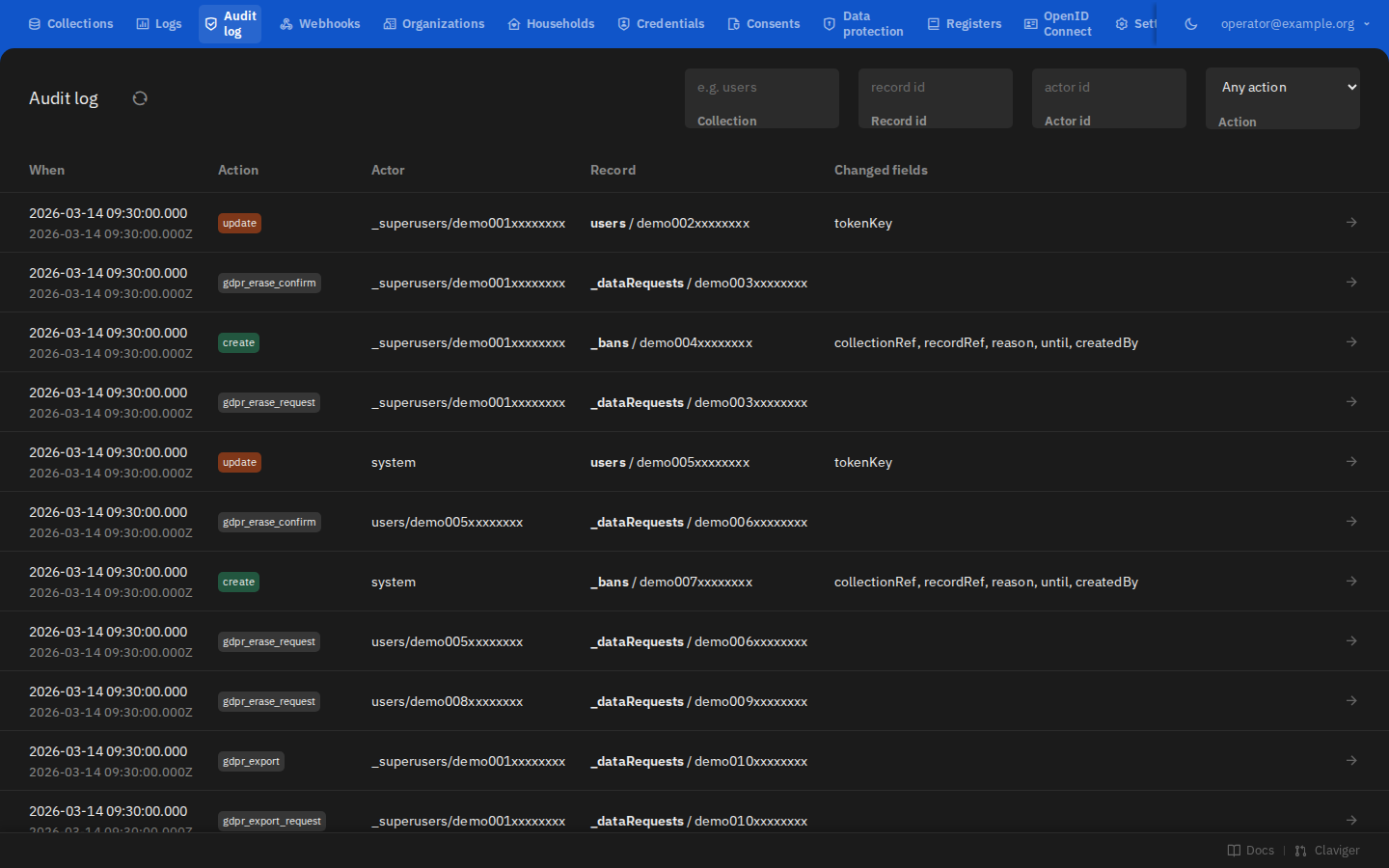
- Open Audit log in the header.
- Set Action to
read, and type the collection name in Collection. - Add a Record id or Actor id to narrow it.
Read audit is off until you flag a collection.