Manage members, roles and tags on the organization page
Change who is in your organization, what each person may do, and which tags they carry.
Owners and admins of an organization. You open the hosted page at /orgs/<slug>. You do not need the admin screen.
A role decides what a person can do. A wrong role gives too much access or too little. Claviger blocks the worst mistakes, but it cannot know who should be an owner.
What you will do, in one sentence
Sign in at your organization page, change the Role, Status or Tags of a person, and press Save.
Screens are captured from a seeded test system. Every name, address and number on the screens is invented. Prepared 15 November 2026.
1. Open your organization page
Every organization has a page at /orgs/<slug>. For example, /orgs/riverside-parish. Ask your administrator for the slug.
- Open the page.
- Sign in. You can use a password, a second-factor code, an emailed code or a passkey, as the page offers.
- The page says "You are an owner." or "You are an admin." Members see the list of people and nothing else.
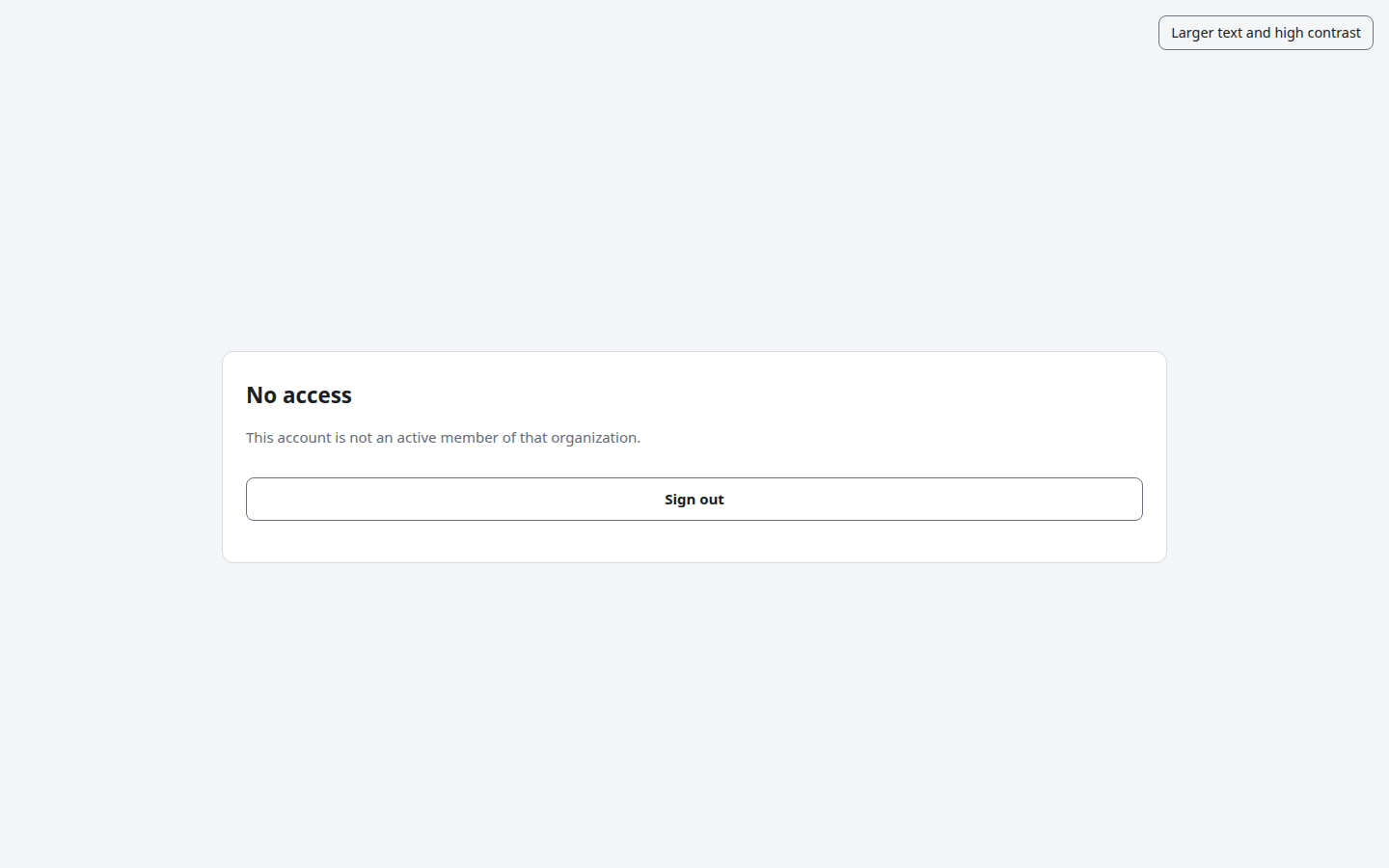
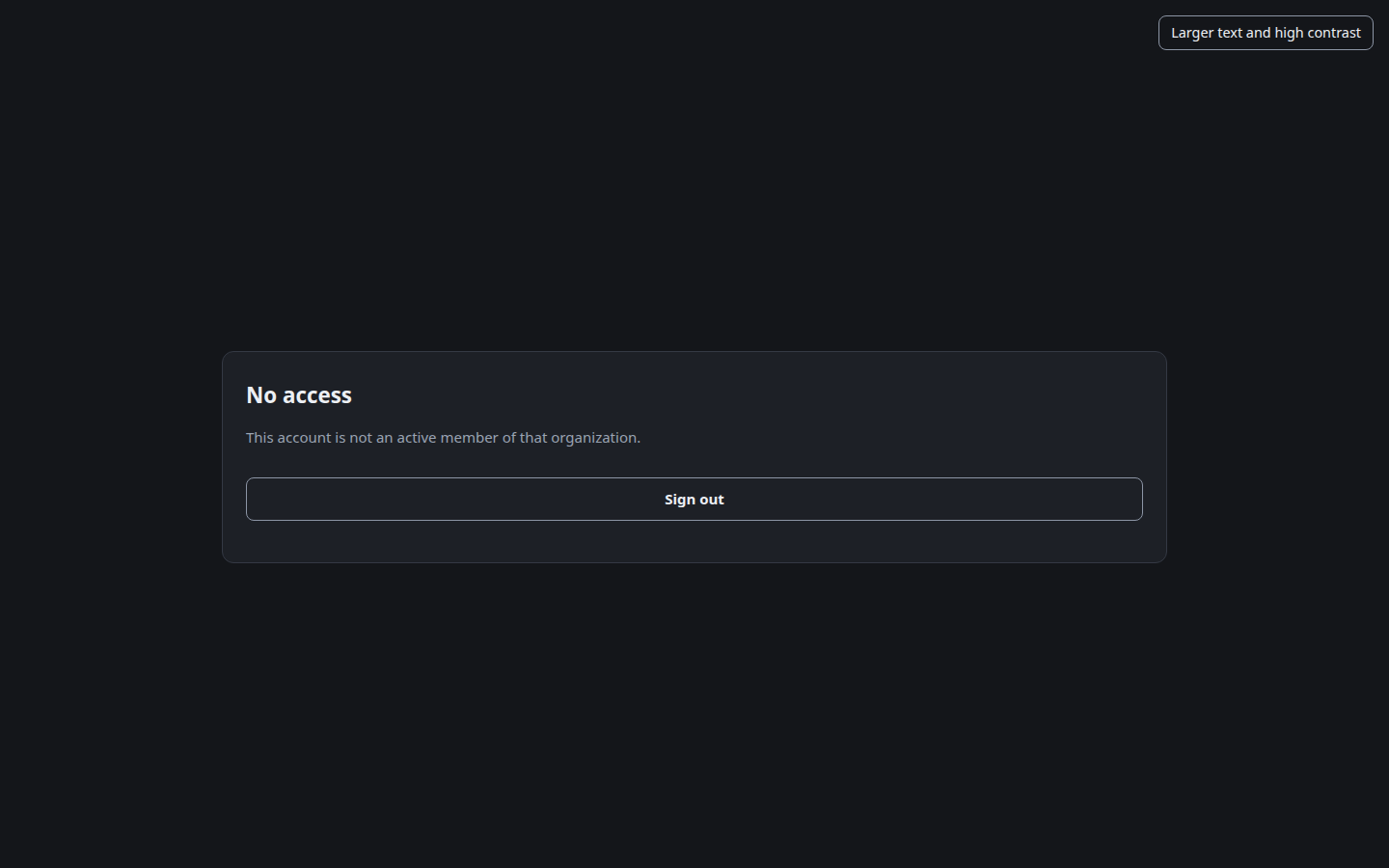
If the page says "No access", your account is not an active member of that organization.
Links to other staff pages appear under that line:
| Link | Shown to |
|---|---|
| Recovery codes | Owners, admins and people with the greeter tag |
| Consent purposes | Owners, admins and people with the registrar tag |
| Registers | Owners, admins and people with the registrar tag |
2. The four roles
Roles are fixed. They rank from the highest to the lowest.
| Role | What it means |
|---|---|
| owner | Runs the organization. Can archive it and name other owners. |
| admin | Manages members, invitations, tags and SCIM tokens. |
| member | Takes part. Sees who is in the organization. |
| viewer | Has no special meaning. Rules usually leave viewers out of write access. |
Rules Claviger enforces for everyone:
- You cannot give a role above your own.
- You cannot change or remove someone who ranks above you. An admin cannot touch an owner.
- You cannot change your own status.
- The last active owner cannot be removed, demoted or suspended. Make another person an owner first.
3. Change a role, a status or tags
- Find the person in the Members table. The columns are Member, Role, Status and Tags.
- Pick a new Role. Pick active or suspended under Status.
- Edit the Tags field. Separate tags with commas.
- Press Save. The page says "Saved."
A suspended member loses all access that goes through the rules, at once. Their account and their records stay.
A tag such as registrar or greeter opens pages and actions. Give a tag only to people you trust with it. Review who holds each tag from time to time.
4. Add and delete tags
The Tags section lists the tags of the organization.
- Type a name in New tag.
- Press Add tag. The page says "Tag added."
To delete a tag, press the x beside it. Claviger asks "Delete the tag? It is removed from every member." Confirm only when you mean it. The tag leaves every member who carried it.
Invitations can carry tags too. You can type a tag name that does not exist yet in an invitation, and the tag appears in the list.
5. Remove a person, leave, or archive the organization
To remove a person, press Remove in their row and confirm "Remove this member?" To leave yourself, press Leave. Removing someone from one organization does not sign them out of Claviger.
Archiving and deleting an organization have no button on this page. An owner does them with the API. Ask a developer or your administrator for your sign-in token.
curl -X PATCH https://auth.example.org/api/orgs/$ORG_ID \
  -H "Authorization: Bearer $TOKEN" -H "Content-Type: application/json" \
  -d '{"archived": true}'
An archived organization is hidden. Members lose access through the rules, and member changes are refused. An owner can restore it with {"archived": false}.
DELETE /api/orgs/$ORG_ID with the body {"confirm": "riverside-parish"} works only on an archived organization. It is refused while child organizations, safeguarding credentials or organization records exist. Registers with final entries also block it. A delete cannot be undone.
6. Quick reference card
Change a person
- Open
/orgs/<slug>and sign in. - Change Role, Status or Tags in their row.
- Press Save.
Remove a person
- Press Remove in their row.
- Confirm "Remove this member?"
Add a tag
- Type a name in New tag.
- Press Add tag.
The last active owner cannot be removed. Add a second owner before you change the first.