Use a recovery code from the church office
Get back into your account with a short code that church staff give you, and set up a new passkey.
Members who cannot sign in, have lost their passkey, or cannot use email. You need your phone or computer and a staff member who knows you.
The code lets a new passkey take over your account. Staff give it only to you, in person. If you get a notice about a code you did not ask for, you can stop it.
What you will do, in one sentence
Meet staff, type the code at /recovery, then create a passkey when your device asks.
Screens are captured from a seeded test system. Every name, address and number on the screens is invented. Prepared 15 November 2026.
1. How it works
You cannot sign in. Someone at the church office knows you and can vouch for you. Staff check who you are. They give you a short code. You use the code to make a new passkey.
Staff never see or set your password.
2. Get a code from staff
- Go to the church office, or join a video call that you trust.
- Staff check who you are. They may know you by sight, or they may ask to see an ID.
- Staff show you a code on their screen, or read it out loud. An example looks like
K7M2Q 9XWTD. It has 10 letters and numbers. - Staff may also give you a link or a QR code. Open it on your own phone. It fills in the code for you.
- Staff may send a text message to your phone. The text has a link only. It never has the code.
Staff read the code to you. Nobody sends it by message. If someone calls or writes and asks you for your code, or asks to recover your account for you, say no. Tell the church office.
3. Type the code
The code usually works for 15 minutes. It works once.
- On your phone or computer, open
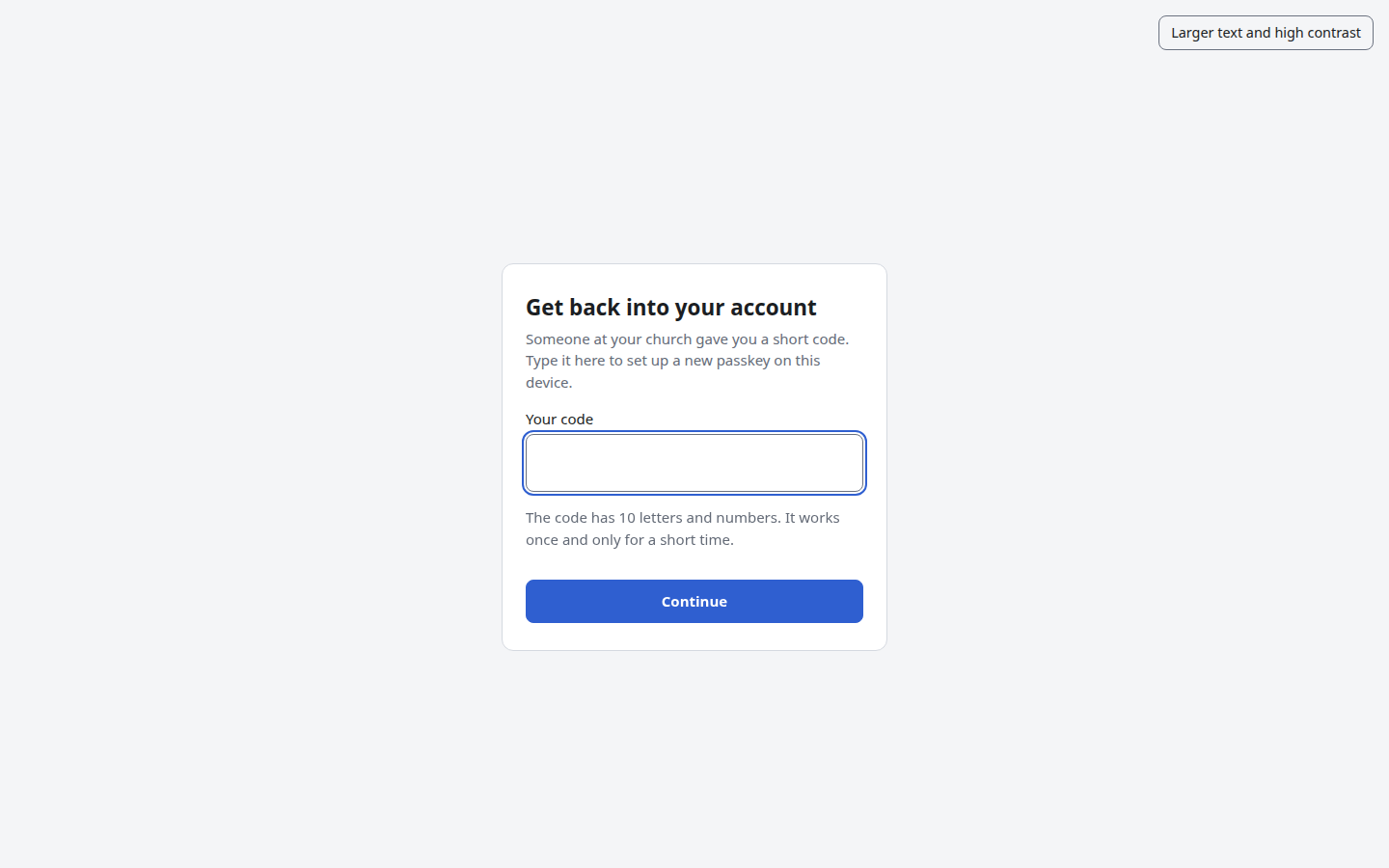
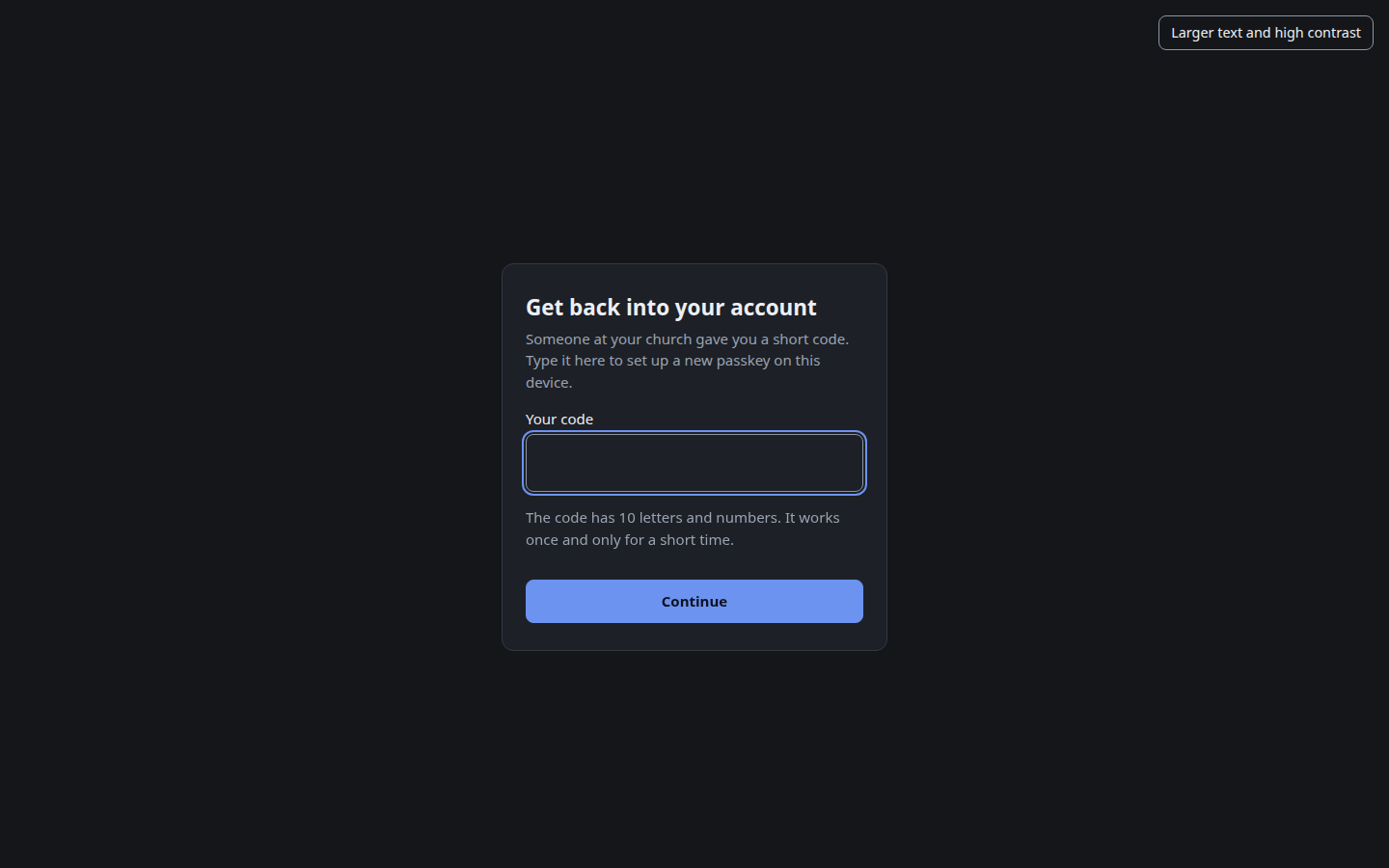
/recoveryon your church's address. - The page says "Get back into your account."
- In the box Your code, type the code. Press Continue.
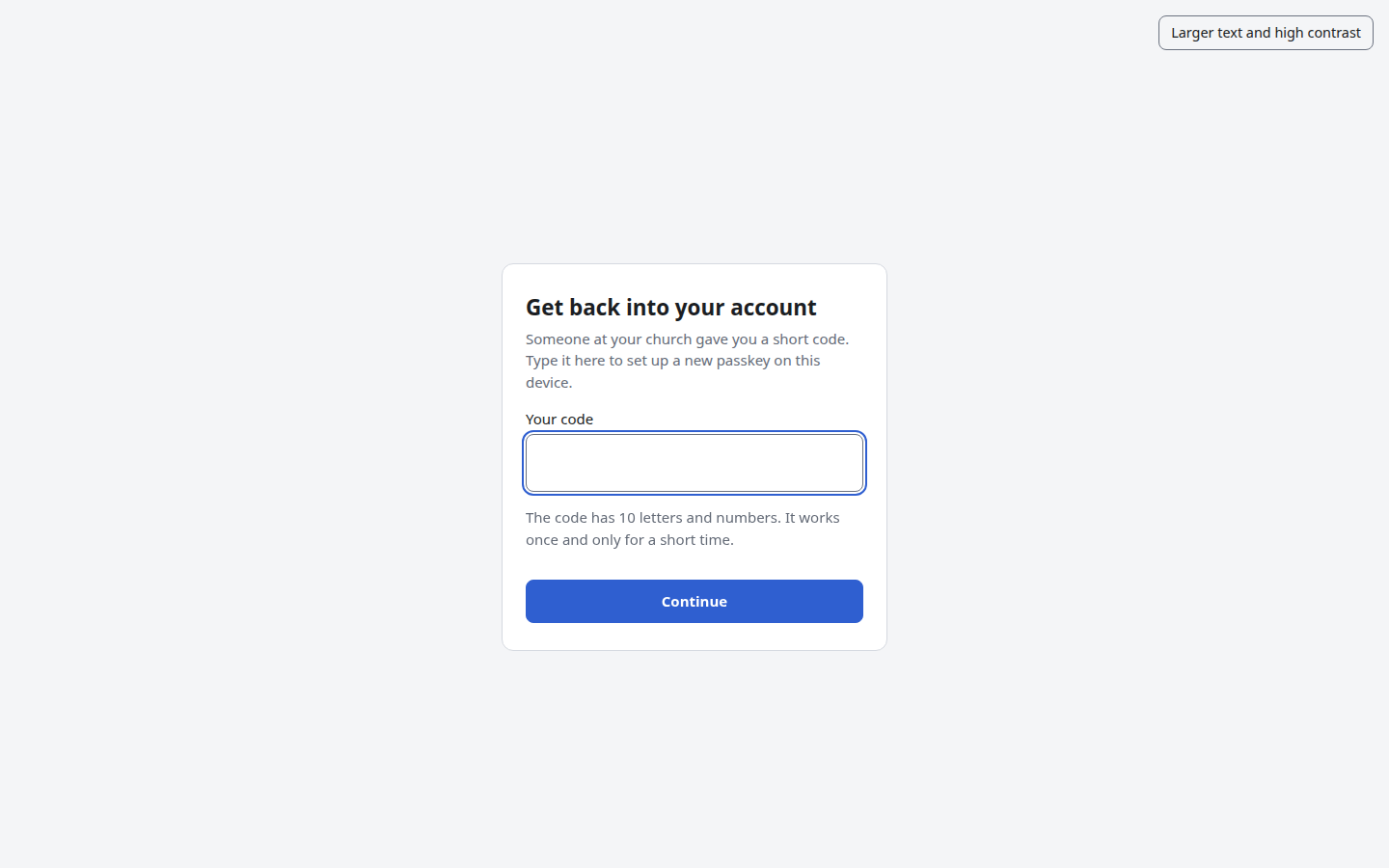
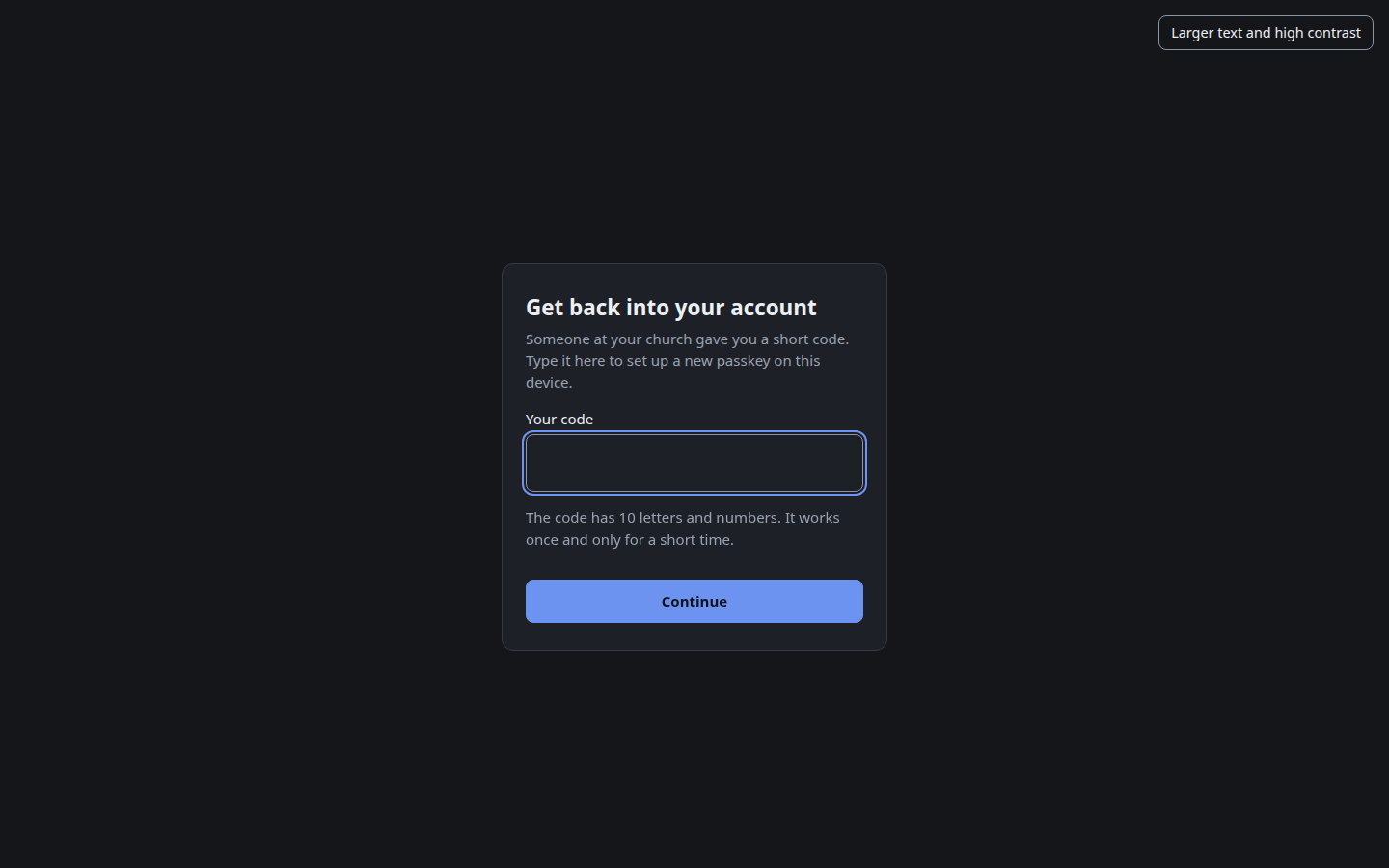
If the code is wrong, the page says "That code did not work. Check it and try again, or ask the person who gave it to you." Three wrong tries with a real code lock that code. Ask staff for a new one.
4. Create your passkey
The page says "The code is correct." Your device will ask you to create a passkey.
- If you like, type a name in Name for this device (optional). Without a name, the page uses "My device".
- Press Create my passkey.
- Your device asks you to confirm. Use your fingerprint, your face or your screen lock.
- The page says "Your passkey is ready. You can use it to sign in now."
- Press Go to sign in.
If the passkey fails, the page says "The passkey was not created. Press the button to try again." If your browser cannot make a passkey, use another browser or device.
Creating the new passkey removes your old passkeys. It also signs you out everywhere else. Add a passkey on each device you use after this. See the guide "Add, name and remove a passkey".
Make your passkey before you leave the office. If the code runs out, ask staff for a new one. A new code cancels an older code for you.
5. "Did you ask for a recovery code?"
If staff issue a code, Claviger may send you a notice by email. It says staff issued a recovery code at a time. It never contains the code. If you have a phone number but no email, you get the same notice as a text.
The notice has a link. The page asks "Did you ask for a recovery code?" It says: "Staff at your church issued a recovery code for your account. If you did not ask for it, press the button. The code stops working right away."
- If you did ask, ignore the notice.
- If you did not, press This was not me. The page says "Thank you. The code has been cancelled. Please tell the church office."
6. Quick reference card
Get a code
- Visit the church office, or join a trusted video call.
- Staff check who you are and give you the code.
Use the code
- Open
/recovery. - Type the code in Your code. Press Continue.
- Press Create my passkey. Confirm on your device.
Notice you did not expect
- Press This was not me.
- Tell the church office.
The code works once and only for a short time. Never send it to anyone.