Larger text, high contrast and language
Make Claviger pages easier to read with larger text and high contrast, use the keyboard, and change the language of a page.
Members who find small text hard to read, who use a keyboard or screen reader, or who prefer another language.
Every hosted page has these choices. You set them once for your browser. Machine translations may sound odd, so ask the church office if a message does not make sense.
What you will do, in one sentence
Press "Larger text and high contrast" at the top of any page, and add ?lang=es (or another language code) to the address to change the language.
Screens are captured from a seeded test system. Every name, address and number on the screens is invented. Prepared 15 November 2026.
1. Larger text and high contrast
Every hosted page has a button at the top. It says Larger text and high contrast. The hosted pages are the passkeys page, the group pages, the recovery page, the household page and the pages an app sends you to.
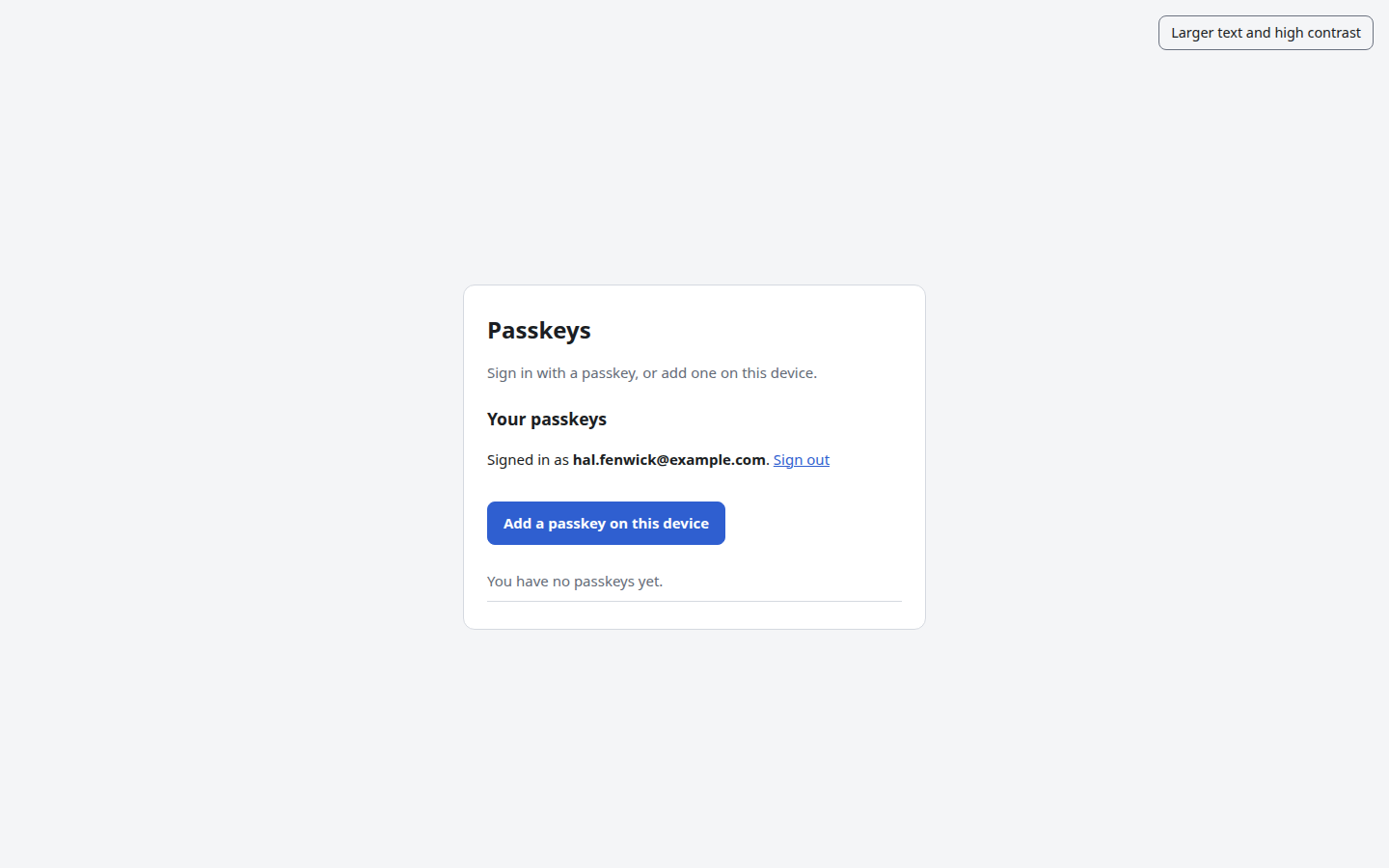
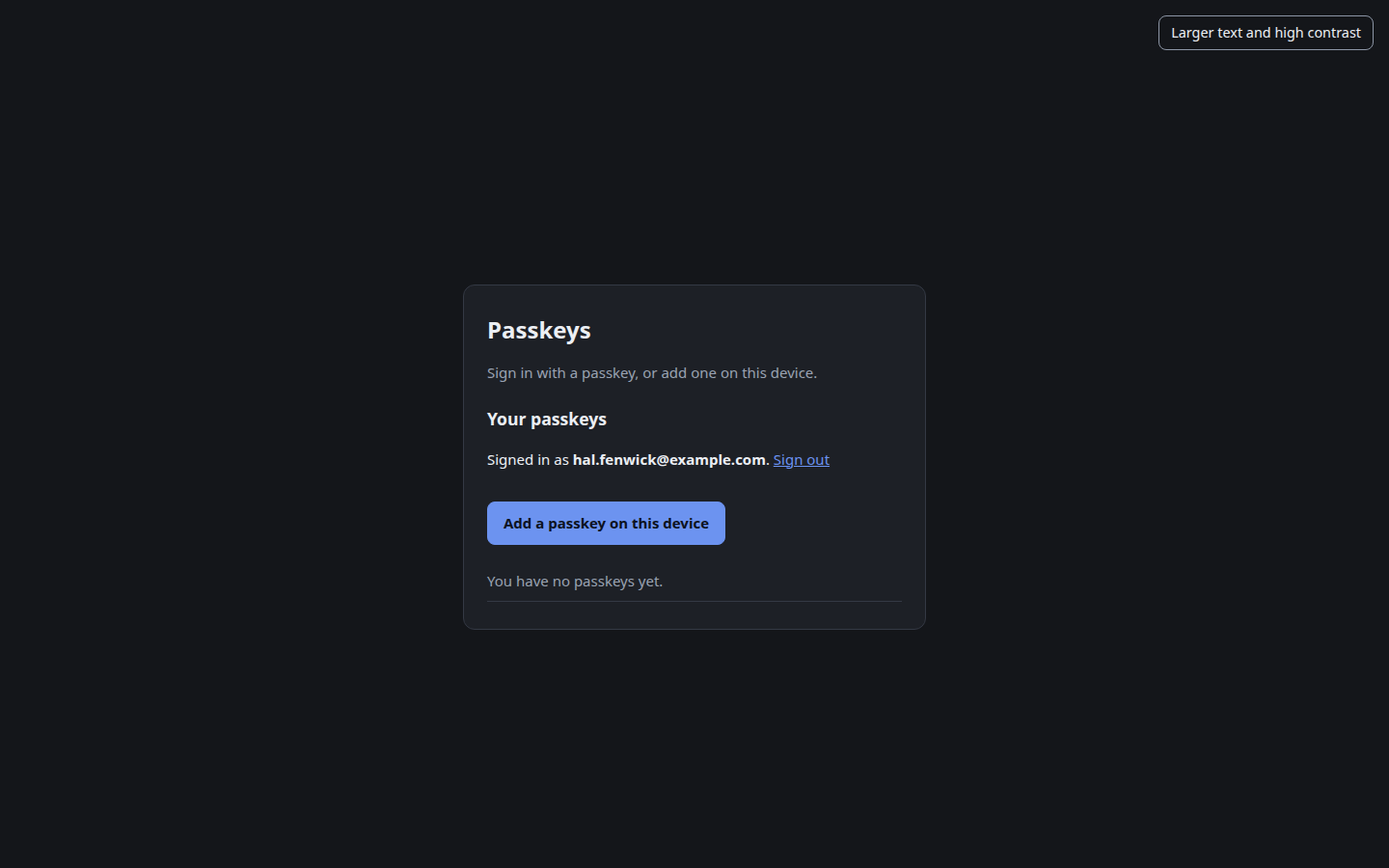
- Press Larger text and high contrast.
- The text becomes bigger. Buttons and boxes become bigger too. The page turns black on white. If your device uses a dark theme, it turns white on black.
- Press the button again to go back.
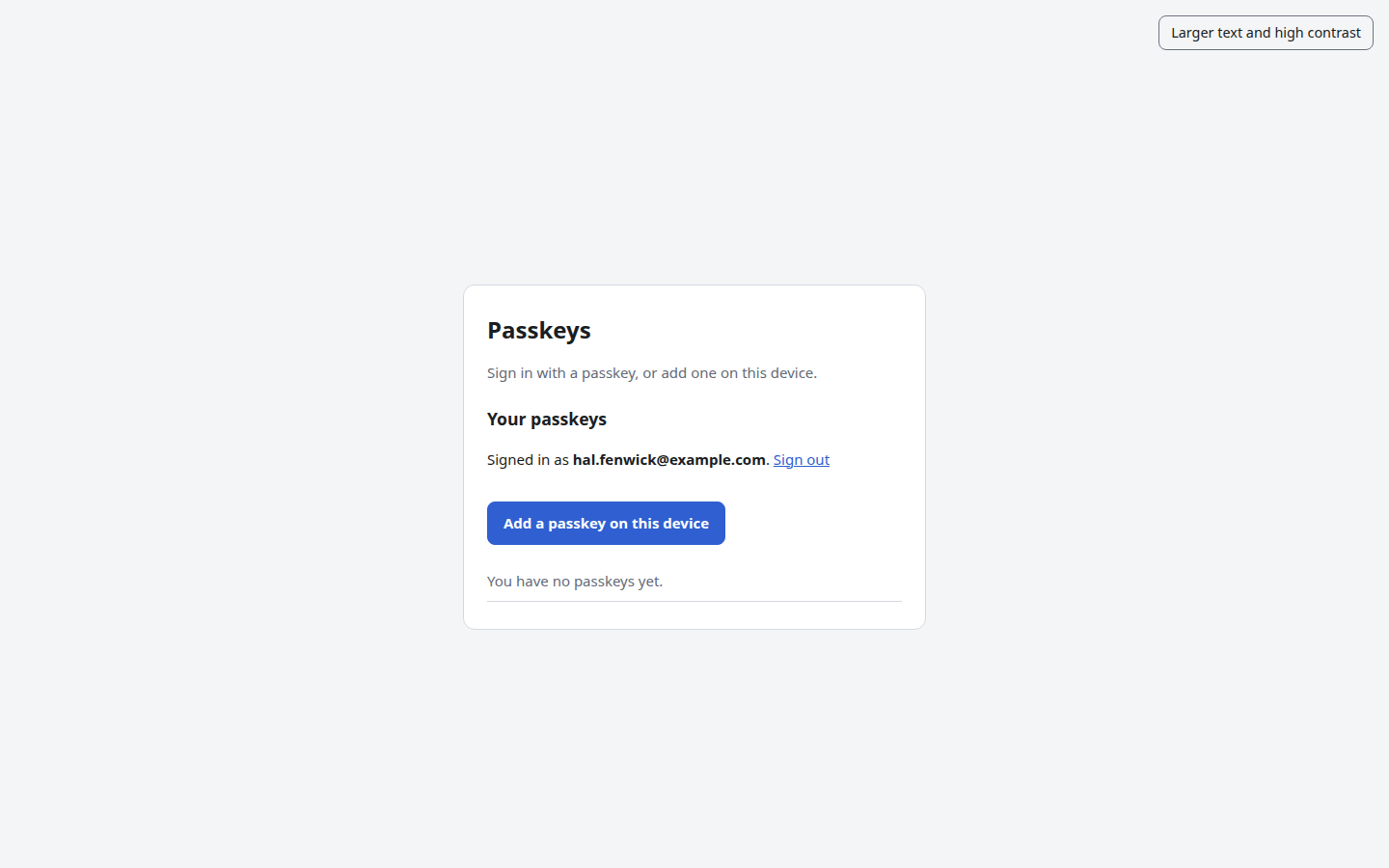
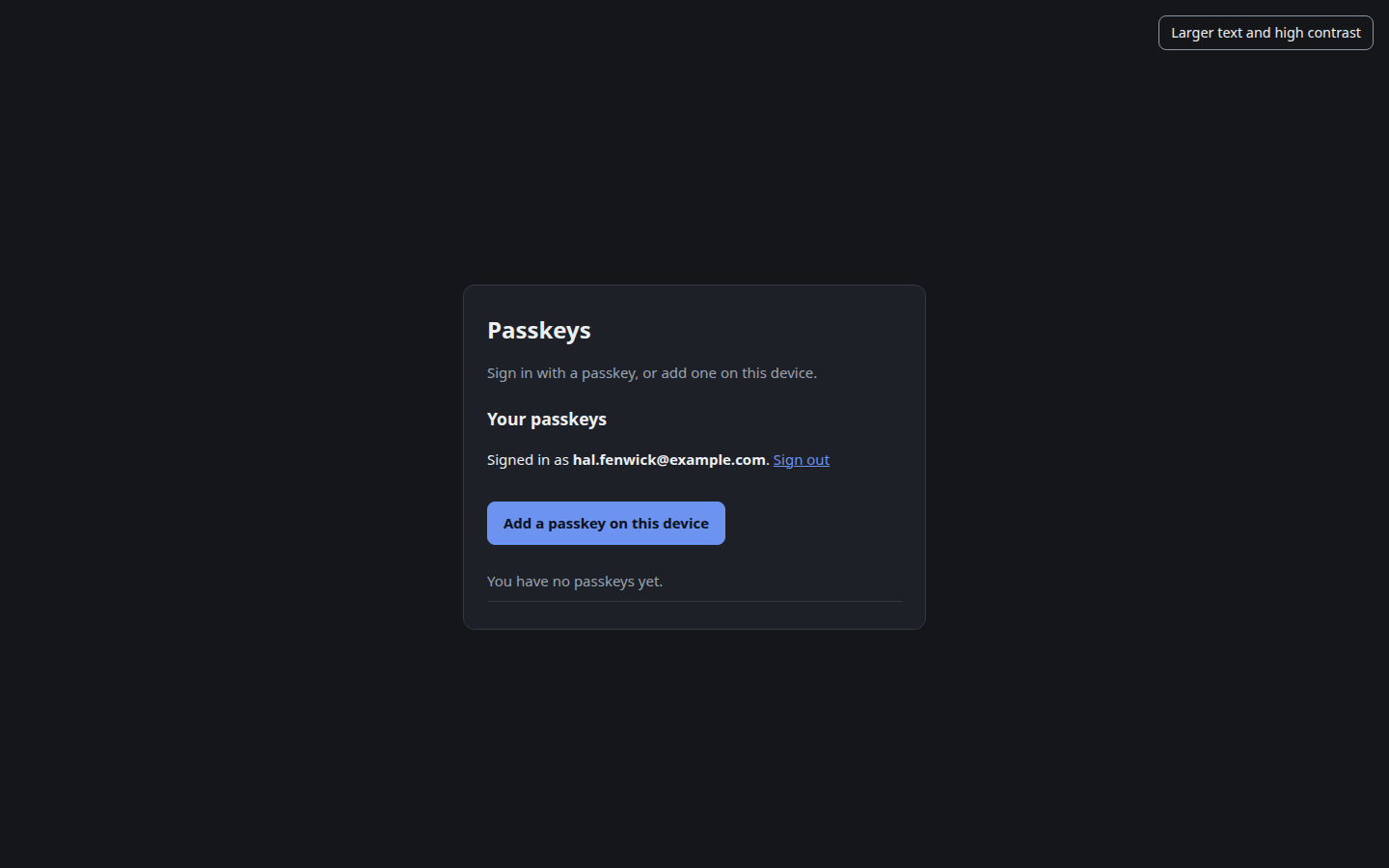
Your choice is saved in your browser. It stays on the next time you open a page, and in other open tabs. If your browser blocks this storage, the choice lasts only until you close the page.
The button appears after the page loads. If you do not see it, wait a moment.
If your device already asks for high contrast, the pages use the high-contrast colors without a click. They also turn off movement if your device asks for less motion.
2. Use the keyboard
You can use every page without a mouse.
- Press Tab to move to the next button or box. Press Shift + Tab to go back.
- The first stop on each page is a link, "Skip to the main content". Press Enter to jump to the page itself.
- A box or button you are on has a clear outline.
Claviger aims to follow level AA of the WCAG 2.2 rules. Passkeys help, because you do not need to remember or copy a secret.
These pages have no timer and no automatic sign-out. One exception is the recovery code. It works for a limited time. The page that takes it tells you.
The engine notes say nobody has yet tested these pages with a real screen reader, or checked them with an older reader. The pages are built for screen readers, but tell the church office if something does not work.
3. Change the language
Claviger shows pages in nine languages:
| Language | Code | Status |
|---|---|---|
| English | en | Reviewed |
| Spanish (Español) | es | Draft machine translation |
| Portuguese, Brazil (Português) | pt-BR | Draft |
| French (Français) | fr | Draft |
| Tagalog | tl | Draft |
| Vietnamese (Tiếng Việt) | vi | Draft |
| Korean (한국어) | ko | Draft |
| Chinese, Simplified (简体中文) | zh-Hans | Draft |
| Arabic (العربية) | ar | Draft, reads right to left |
The eight languages other than English are machine translations. A native speaker has not yet reviewed them. Some words may feel stiff or wrong. This is true most often for short button labels and for the word "passkey".
To pick a language:
- Open any page of your church.
- At the end of the address, add
?lang=and the code. For example,/passkeys?lang=esshows the page in Spanish. - Press Enter. The page changes, and your browser remembers your choice for a year.
If you do not pick one, Claviger chooses a language for you in this order:
- the language saved from
?lang=. - the language in your account, if your church stores one.
- your browser's language.
- your church's default language.
A code that is not on the list is ignored. A Traditional Chinese browser gets Simplified Chinese.
Emails use the language saved in your account, or your church's default.
These parts stay in English: the admin screen that church administrators use, messages that apps get from the server, and the names of roles in the data.
4. Quick reference card
Larger text
- Press Larger text and high contrast at the top of the page.
Keyboard
- Tab moves forward. Shift + Tab goes back.
- The first stop skips to the main content.
Language
- Add
?lang=es(or another code) to the address. - Press Enter.
Translations are drafts. Ask the church office if a message is unclear.