Add passkey sign-in to your app with the API
Turn on passkeys for an auth collection, then register, sign in, list and revoke passkeys over HTTP.
Developers who build a web app on a Claviger auth collection and can call REST routes from a browser.
Passkeys are tied to one host name and to an HTTPS origin. A wrong host name or origin makes every ceremony fail in the browser, and a changed host name makes existing passkeys stop working.
What you will do, in one sentence
Enable WebAuthn on the collection, then run the two-step begin and finish calls for each ceremony.
Screens are captured from a seeded test system. Every name, address and number on the screens is invented. Prepared 15 November 2026.
1. Turn on passkeys for a collection
Passkeys belong to an auth collection, such as users.
- Open Collections in the admin screen and edit the auth collection.
- Open the Options tab and the WebAuthn / Passkeys section.
- Switch Enable on, then save.
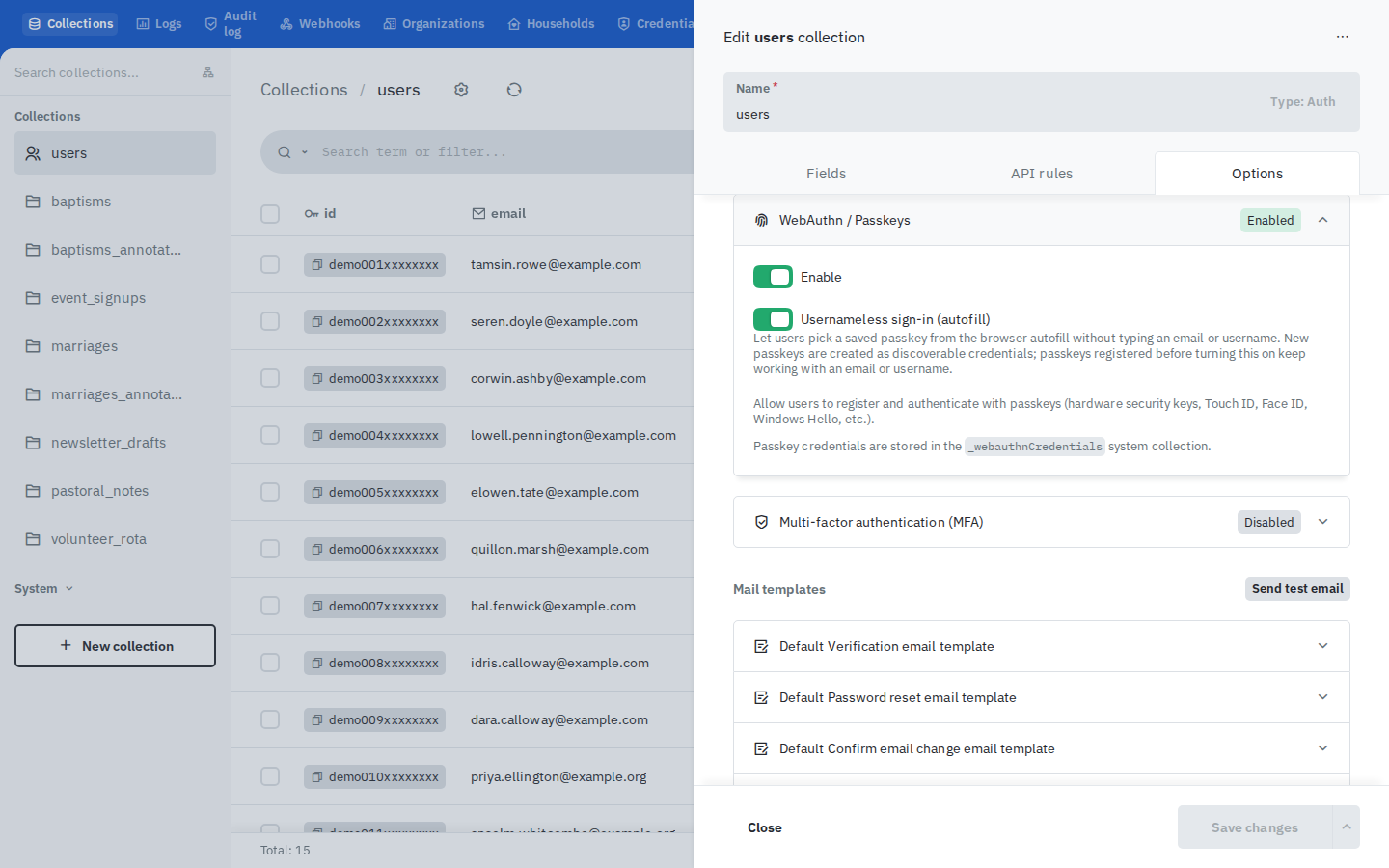
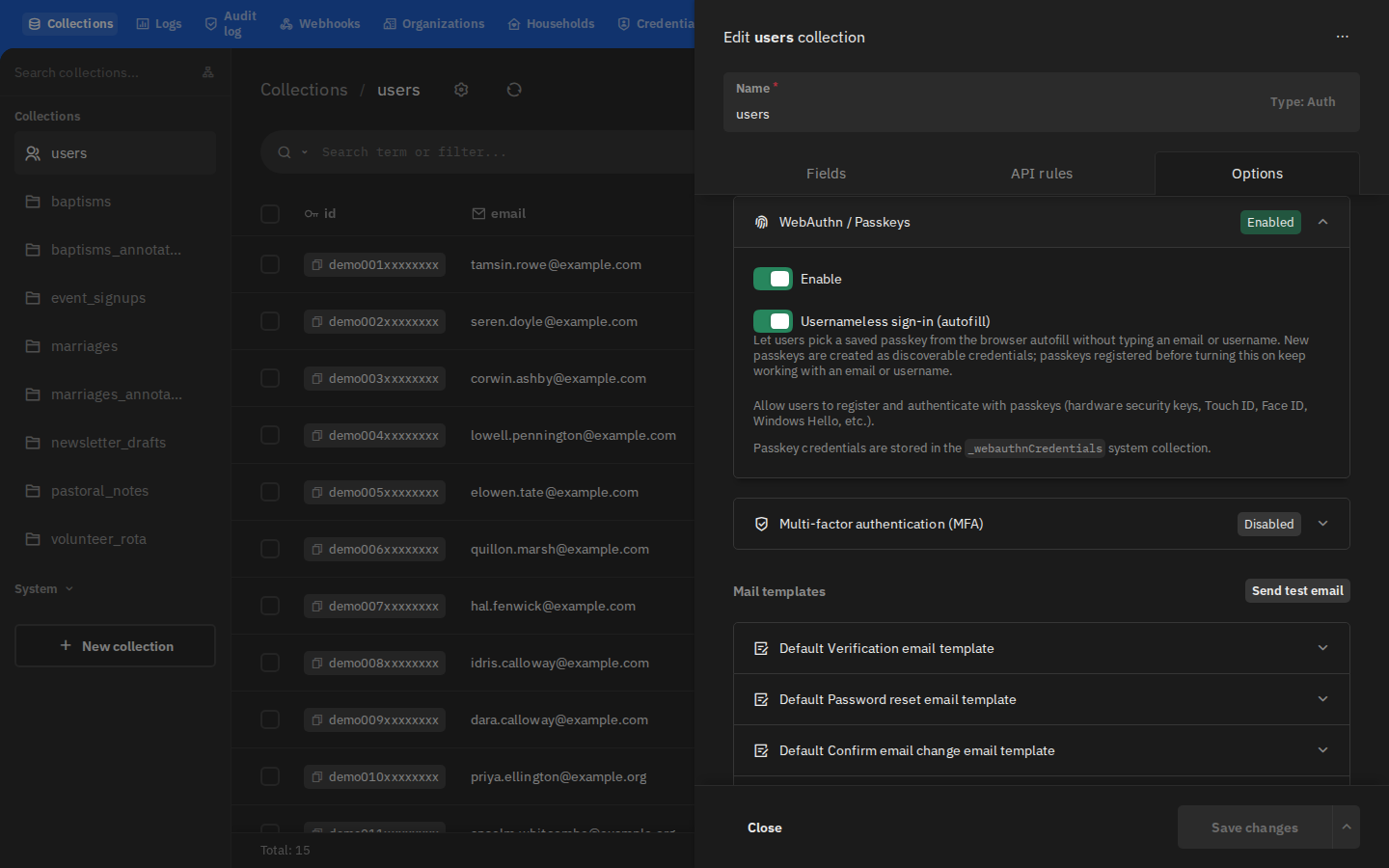
The section has one more switch, Usernameless sign-in (autofill). It lets people pick a saved passkey from the browser without typing an email or username. New passkeys are then created as discoverable credentials. Older passkeys keep working with an email or username.
Claviger stores the credentials in the _webauthnCredentials system collection. While the collection has passkeys off, every route in this guide answers an error.
2. Set the host name and origins
A passkey is bound to a host name, the RP ID. By default Claviger derives it from the Application URL in Settings, Application. The URL must use https. localhost may use http.
Your app may run on a parent domain while Claviger runs on a subdomain. In that case, set two environment variables:
| Variable | Meaning |
|---|---|
WEBAUTHN_RP_ID | The domain that passkeys belong to, for example example.org. It must be a domain, never an IP address. |
WEBAUTHN_RP_ORIGINS | A comma-separated list of allowed origins, such as https://app.example.org. Each one is scheme://host[:port] with no path, query or fragment. Use https, except for localhost. |
If an origin is not inside the RP ID, the server logs a webauthn_rp_config_mismatch warning.
A passkey is bound to the host name it was created on. If you change the domain later, existing passkeys stop working. Pick your final domain first.
3. Register a passkey
The user must be signed in. Each ceremony has two calls. Between them, the browser runs navigator.credentials.create.
- Start the ceremony:
curl -X POST https://auth.example.org/api/collections/users/auth-with-webauthn/register-begin \
  -H "Authorization: $TOKEN"
The answer holds options (the creation options for the browser) and a sessionToken. The session lasts 2 minutes.
- Pass
optionsto the browser, then send the result with the session token:
curl -X POST https://auth.example.org/api/collections/users/auth-with-webauthn/register-finish \
  -H "Authorization: $TOKEN" -H "Content-Type: application/json" \
  -d '{"sessionToken": "SESSION_TOKEN", "name": "Ana laptop", "id": "...", "rawId": "...", "type": "public-key", "response": {...}}'
name is optional and up to 255 characters. The other fields are the credential that the browser returns. The call answers HTTP 201 when it works.
Registration is limited to 10 starts in 3 minutes for each record.
4. Sign in with a passkey
Sign-in needs no token. The two calls again surround a browser ceremony, navigator.credentials.get.
curl -X POST https://auth.example.org/api/collections/users/auth-with-webauthn/login-begin \
  -H "Content-Type: application/json" -d '{"identity": "[email protected]"}'
identity is the email or username. Pass options to the browser, then finish:
curl -X POST https://auth.example.org/api/collections/users/auth-with-webauthn/login-finish \
  -H "Content-Type: application/json" \
  -d '{"identity": "[email protected]", "sessionToken": "SESSION_TOKEN", "id": "...", "rawId": "...", "type": "public-key", "response": {...}}'
The answer is the normal auth response, with a token and the record.
With Usernameless sign-in (autofill) on, use login-begin-discoverable and login-finish-discoverable. Send {} to begin, and the session token plus the browser result to finish. No identity is needed.
When Settings, Captcha requires a token for passkey sign-in, send it in the X-Captcha-Token header on login-begin. A missing or rejected token returns a 400 whose data.captchaToken.code is captcha_failed. The auth-methods answer for the collection tells your client which provider to show.
5. List, rename and revoke passkeys
All three calls need the signed-in user's token.
# List the signed-in user's passkeys
curl https://auth.example.org/api/collections/users/auth-with-webauthn/credentials \
  -H "Authorization: $TOKEN"

# Rename one
curl -X PATCH https://auth.example.org/api/collections/users/auth-with-webauthn/credentials/CREDENTIAL_ID \
  -H "Authorization: $TOKEN" -H "Content-Type: application/json" -d '{"name": "Ana phone"}'

# Revoke one
curl -X DELETE https://auth.example.org/api/collections/users/auth-with-webauthn/credentials/CREDENTIAL_ID \
  -H "Authorization: $TOKEN"
Each list entry has id, name, created, lastUsed, signCount and transports.
Revoking needs a passkey check from the last 5 minutes. Run step-up-begin, then step-up-finish, with the same pattern as sign-in. Use the replacement token that step-up-finish returns.
A superuser can clear every passkey of one record:
curl -X DELETE https://auth.example.org/api/collections/users/auth-with-webauthn/credentials-by-record/RECORD_ID \
  -H "Authorization: $SUPERUSER_TOKEN"
6. Reset a lost passkey
A person who lost every passkey uses an emailed link.
- Your app calls
request-passkey-resetwith the person's email. It always answers HTTP 204, so it does not reveal who has an account. - The person opens the link in the email and your app reads the
token. - Call
confirm-passkey-reset/beginwith{"token": "RESET_TOKEN"}. It returnsoptionsand asessionToken. - After the browser ceremony, call
confirm-passkey-reset/finishwith the token, the session token, an optionalname, and the browser result.
curl -X POST https://auth.example.org/api/collections/users/request-passkey-reset \
  -H "Content-Type: application/json" -d '{"email": "[email protected]"}'
Finishing a reset deletes every earlier passkey of that person. The new passkey becomes the only one. Old sessions stop working too.
7. Quick reference card
Routes
All routes are under /api/collections/{collection}/.
| Task | Route |
|---|---|
| Register | POST auth-with-webauthn/register-begin, then register-finish |
| Sign in | POST auth-with-webauthn/login-begin, then login-finish |
| Usernameless sign-in | login-begin-discoverable, then login-finish-discoverable |
| Fresh passkey check | step-up-begin, then step-up-finish |
| List, rename, revoke | GET, PATCH, DELETE auth-with-webauthn/credentials[/{id}] |
| Clear all for a record | DELETE auth-with-webauthn/credentials-by-record/{id} (superuser) |
| Reset | POST request-passkey-reset, confirm-passkey-reset/begin, confirm-passkey-reset/finish |
Settings
- Collections, edit, Options, WebAuthn / Passkeys, Enable.
httpsApplication URL, orWEBAUTHN_RP_IDandWEBAUTHN_RP_ORIGINS.
A passkey session expires after 2 minutes. Finish each ceremony quickly.